
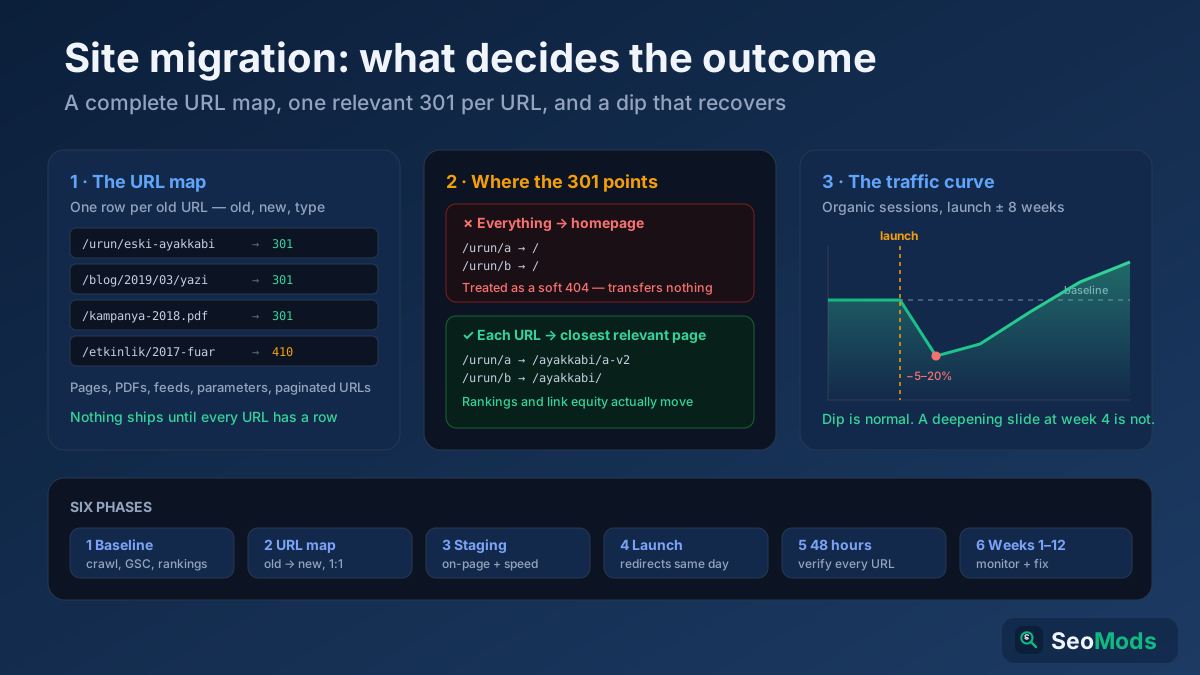
Short answer: A website migration is any change that alters the URLs, hosting, platform, structure or domain of an existing site — and it is the single most dangerous thing you can do to organic traffic. Done properly, you keep 90–100% of your rankings and recover any temporary dip within four to eight weeks. Done badly, you lose half your traffic overnight and spend six months clawing it back. The difference is almost never the new site itself; it is whether you built a complete URL map, redirected every old URL to its real equivalent with a single 301, preserved on-page signals, and verified everything within hours of launch. This guide is the full checklist — before, during and after — with the free tools to run each check.
What counts as a “migration”
People hear “site migration” and picture moving to a new domain. That is one kind, but the term covers a much wider set of changes, and several of the riskiest ones do not feel like migrations at all to the people carrying them out. If any of the following is on your roadmap, you are doing a migration and you need this checklist:
- Domain change —
oldbrand.combecomesnewbrand.com. The highest-risk category, because every single URL changes and all your accumulated authority has to be passed through redirects. - Protocol or hostname change — HTTP to HTTPS, or
wwwto non-www. Technically small, but it changes every URL on the site. Covered in more depth in the HTTPS migration guide. - Replatforming — moving from WordPress to Shopify, a custom build to a headless CMS, one e-commerce engine to another. The content may be identical, but URL patterns, templates, rendering and metadata handling all change at once.
- URL structure change — flattening
/blog/2019/03/post-name/to/blog/post-name/, adding or removing category folders, changing product URL patterns. See URL structure best practices for what to aim at. - Site redesign — the URLs may survive untouched, but templates, internal links, headings, copy volume and page speed all change. This is the migration people most often fail to treat as one, and it quietly loses traffic because on-page signals were thinned out.
- Consolidation or split — merging several sites into one, moving a blog from
blog.example.comtoexample.com/blog/, or spinning a section out into its own domain. - Server, host or CDN move — no URL changes at all, but IP, response times, headers and caching behaviour change. Lower risk, still capable of causing a traffic drop if the new stack is slower or misconfigured.
Google draws the same distinction and publishes separate guidance for site moves with URL changes and site moves without URL changes. The rule of thumb: the more of your URLs change, the longer the process takes and the more carefully it must be planned. But even a “URLs stay the same” redesign deserves a before-and-after comparison, because content and template changes move rankings just as effectively as broken redirects do.
Why migrations lose traffic
When a migration goes wrong, the post-mortem almost always finds one of a small number of causes. Knowing them in advance is most of the defence:
- Missing redirects. Old URLs return 404 instead of pointing at the new equivalent. Every link, every ranking and every piece of authority attached to that URL evaporates. This is the number one cause, by a wide margin.
- Lazy redirects. Every old URL is redirected to the homepage instead of its true equivalent. Google treats a mass redirect to an irrelevant page as a soft 404 and the ranking transfer simply does not happen. It looks tidy in a config file and is nearly as damaging as no redirects at all.
- Wrong redirect type. Using 302 (temporary) where 301 (permanent) belongs tells search engines the old URL is coming back, so signals may not consolidate. The difference is explained in 301 vs 302 redirects.
- Redirect chains and loops. Old URL → intermediate → another intermediate → final. Each hop leaks a little efficiency, slows crawling and multiplies the chance of a broken link somewhere in the chain.
- On-page signals thinned out. The new design has shorter copy, fewer headings, different titles, missing alt text or lost schema. Rankings fall not because of the move but because the pages are objectively weaker.
- Internal links not updated. Navigation, body links and sitemaps still point at old URLs, forcing every internal click through a redirect and diluting the internal-link graph.
- Accidental blocking. The staging site’s
noindextag orDisallow: /inrobots.txtships to production. Catastrophic, common, and fixable in five minutes if you catch it fast. - Performance regression. The new stack is slower, the new hosting is under-provisioned, or heavy scripts push Core Web Vitals into the red.
Every item on that list is preventable with planning and detectable within an hour of launch. The rest of this guide is organised as six phases — baseline, mapping, build, launch, verification and monitoring — because that is the order in which the work has to happen.
Phase 1 — Capture a complete baseline before you touch anything
You cannot prove a migration succeeded, or diagnose what broke, without a picture of what existed before. This work has to be done while the old site is still live; once it is gone, the data is unrecoverable. Set aside a day for it.
1. Crawl the entire old site
Run a full crawl and export every URL that returns a 200, along with its title, meta description, H1, word count, canonical, status code and internal link count. This export is the raw material for your URL map, so it needs to be complete — not just the pages in the navigation. A Technical Site Audit (Crawler) gives you the crawlable set; cross-check it against your XML sitemap using a Sitemap Finder & Validator and against server logs if you have them, because orphan pages that no internal link points to will be missing from a pure crawl but may still rank and earn traffic.
2. Export Search Console and analytics data
Pull at least 16 months of Search Console performance data at page level: clicks, impressions, average position and the queries each URL ranks for. Do the same for analytics: sessions and conversions per landing page over the last 12 months. Together these tell you which URLs actually matter. In a typical site, 10–20% of pages produce 80% of organic traffic, and those pages get individually verified after launch rather than being trusted to a bulk rule. The Search Console measurement guide covers how to pull and read these reports.
3. Snapshot your rankings
Record current positions for your priority keywords with a Keyword Rank Checker before launch. Post-migration panic is usually driven by feelings rather than numbers; a dated ranking snapshot lets you say precisely which terms moved, by how much, and whether the trend is recovery or decline. Save the date alongside the data.
4. Inventory your backlinks
Export your referring domains and the exact pages they link to with a Backlink Checker / Verifier and a Toxic Backlink Audit. Two reasons: first, any URL with external links is a URL that must get a working redirect, because that is where authority enters your site; second, after the move you will want to ask your most valuable linking sites to update their links to the new URL directly, which is strictly better than relying on a redirect forever.
5. Record the technical baseline
Measure and save: page speed and Core Web Vitals for your main templates with a Page Speed & Size Test test, the structured data present on each template with a Structured Data (Schema) Checker, the current robots.txt with a Robots.txt Tester, your indexed page count from Search Console, and the response headers your server sends via an HTTP Header Checker check. After launch you compare against these numbers instead of guessing.
Store all of this in one folder with a date stamp. When someone asks in week three whether a page “used to rank,” you want an answer, not an argument.
Phase 2 — Build the URL map (the artifact that decides everything)
If a migration has one deliverable that determines success, this is it. The URL map is a spreadsheet with one row per old URL, and at minimum three columns: the old URL, the new URL it becomes, and the redirect type. Everything else in the migration is implementation detail; this document is the migration.
Map one-to-one wherever possible
Each old URL should point to the new URL that serves the same intent for the same audience. An old product page maps to the new page for that product. An old blog post maps to the same post at its new address. A category maps to the equivalent category. The closer the match, the more completely rankings and link equity transfer, because Google is being told “this content moved here,” not merely “this content is gone, try the shop.”
Decide deliberately what happens to orphaned content
Some old URLs will have no direct equivalent on the new site. Do not default to the homepage. Work through them in this order:
- Closest relevant page. A discontinued product maps to its replacement, or failing that to its category page. A retired service maps to the nearest current service. Relevance is what makes the redirect count.
- Parent category when no single page is a good match but the section still exists.
- 410 Gone for content that is genuinely dead, has no equivalent and no incoming links — expired events, discontinued lines nobody links to. A deliberate 410 is cleaner than an irrelevant redirect and tells Google to drop the URL quickly.
- Homepage — only as a last resort, and only for URLs with no traffic, no links and no close relative. Mass homepage redirects are treated as soft 404s and transfer nothing.
Handle consolidation honestly
Migrations are a natural moment to merge thin, overlapping pages — five near-identical service pages becoming one strong page, for example. That is usually good for keyword cannibalization and for users. Just be aware you are doing two things at once: merging content and changing URLs. Redirect all the old variants to the merged page, make sure the merged page genuinely covers what each of them covered, and expect the merged page to take a few weeks to settle at its new (usually higher) position. Use a Thin Content Checker on the old set to decide what deserves to survive.
Cover the URLs people forget
An incomplete map is the most common failure mode, and the gaps are predictable. Explicitly include: paginated URLs (see pagination SEO), parameter and filter URLs that rank, tag and author archives, image files and PDFs that pull search traffic, the old XML sitemap paths, robots.txt, favicons and other root files that external services request, feed URLs (/feed/, /rss), old landing pages from campaigns, and any URL with an external backlink even if it gets no traffic today.
Redirect rules: patterns first, exceptions second
On a large site you cannot maintain 40,000 individual redirect lines. Write pattern rules where the transformation is systematic (/blog/2019/03/(.*) → /blog/…) and keep an explicit one-to-one list only for exceptions and for your highest-value URLs. Then test the patterns against a sample of real old URLs before launch — a regex that works on paper and fails on trailing slashes or uppercase characters is a classic way to lose a section of a site.
Never chain redirects
If you have migrated before, your redirect file may already contain rules from the last move. Old URL A redirects to B, and now B redirects to C. Flatten it: A should go straight to C in a single hop, and so should B. Chains slow crawling, waste crawl budget and break entirely if an intermediate rule is later removed. Verify hop counts with a Redirect & HTTP Status Checker on a sample of URLs from every rule you wrote.
Phase 3 — Build and staging checks
Everything in this phase happens before launch day, on the staging environment. Getting it right here is far cheaper than fixing it in production while traffic is falling.
Keep staging out of the index — properly
Staging sites get indexed with depressing regularity, and an indexed staging copy competes with your live site. Protect it with HTTP authentication or an IP allowlist, not with robots.txt alone: a Disallow rule stops crawling but does not reliably prevent a URL appearing in results, and it does not stop anyone who finds the link. Password protection is the only robust answer — and it has the added benefit that it cannot accidentally ship to production as a blocking rule. If you also use noindex on staging, put removing it at the very top of your launch checklist. This is the difference between noindex, nofollow and disallow, and confusing them during a migration is expensive.
Preserve on-page signals page by page
A redesign usually rewrites templates, and templates carry your on-page SEO. For every important page, compare old and new on:
- Title tags and meta descriptions — new CMSs love to generate their own. Check a sample with a Meta Tag Analyzer and see title tag optimization if you are rewriting them deliberately.
- Headings — one H1 per page, a sensible H1–H6 hierarchy, and the same key terms present. Verify with a Heading Structure Analyzer.
- Body content — word count and substance. “Cleaner” designs routinely cut 40% of the copy that was doing the ranking. If you shorten a page that ranks, expect it to rank worse.
- Images and alt text — new galleries frequently drop alt attributes entirely. Run an Image ALT Text Checker and re-read image SEO if the file names or paths are changing too.
- Structured data — product, article, FAQ, breadcrumb and organization markup must survive the template rewrite. Validate with a Structured Data (Schema) Checker and see structured data.
- Internal links — contextual body links are usually the first casualty of a redesign. Check a few templates with a Link Analyzer against your internal linking strategy.
- Canonical tags — self-referencing and pointing at the new absolute URLs, not the staging hostname. Staging canonicals leaking into production is a classic launch-day bug. See canonical tags.
- Hreflang — if you run multiple languages, every annotation has to be rewritten to new URLs and remain reciprocal. Details in international SEO and hreflang.
Test performance under realistic conditions
Measure the new templates on staging and compare against the baseline you captured. A migration that halves your speed will cost you rankings even if every redirect is perfect. Pay attention to server response time in particular: new hosting is often provisioned for the traffic the staging site gets, not the traffic the live site will send it within minutes of launch. Read page speed optimization if the numbers are worse than the old site’s.
Prepare the operational bits
Before launch day, have ready: the new XML sitemap generated and validated (see XML sitemaps), the production robots.txt written and reviewed, analytics and tag manager containers installed and tested on staging, a Search Console property created and verified for the new domain or protocol, SSL certificates issued and tested for every hostname you will serve, and DNS TTL lowered to a few minutes 24–48 hours in advance so a rollback propagates quickly.
Phase 4 — Launch day runbook
Launch when you can afford attention, not when the calendar is prettiest. That means a low-traffic day, typically early in the week, with the developers who built the site available for the next several hours — not a Friday evening, and not the day before a holiday or your biggest sales period. Migrating in your peak season converts a manageable dip into a revenue event.
The order of operations on the day:
- 1. Deploy and disable blocking. Push the new site, then immediately remove any
noindextags and stagingrobots.txtrules. Confirm with a Robots.txt Tester and by viewing the raw HTML of a live page. - 2. Activate redirects. Redirects should go live in the same deploy as the new site, not “later that week.” A window where old URLs 404 is a window in which Google recrawls and drops them.
- 3. Spot-check the top 50 URLs by traffic. Request each old URL and confirm a single 301 to the correct new page. A Redirect & HTTP Status Checker shows the full hop chain and final status.
- 4. Verify HTTPS and certificates on every hostname with an SSL Certificate Checker, including the
wwwand non-wwwvariants and any subdomains. - 5. Submit the new sitemap in Search Console, and leave the old sitemap accessible for a while — it gives Google a fast route to recrawl old URLs and discover the redirects.
- 6. File the Change of Address if you changed domains. Google’s Change of Address tool tells Search Console the move is intentional and speeds up the transfer. It requires both properties verified and the redirects already live.
- 7. Confirm analytics is recording. Watch real-time reports for traffic on the new URLs. Zero sessions ten minutes after launch means a broken tag, not a broken site — but you need to know which.
- 8. Run a full crawl of the new site. Kick off a Technical Site Audit (Crawler) immediately so you find 404s, redirect chains, missing titles and broken internal links in the first hour rather than the first month.
Keep the old site’s hosting and DNS active until you are certain nothing still depends on it. Redirects have to be served by something.
Phase 5 — The first 48 hours
This is the window where a fixable mistake stays fixable. Work through this list twice: once a few hours after launch and again the next morning.
- Crawl the full old URL list. Take the export from Phase 1 and request every URL. Every one should return a single 301 to a live 200 page. Anything returning 404, 500, a chain or a redirect to the homepage goes on the fix list now.
- Check for internal 404s. Run a Broken Link Checker across the new site. Links inside content are the ones templates do not fix automatically.
- Confirm indexability. Use URL Inspection in Search Console on a handful of key pages: it should report the page as indexable, with the correct canonical and no
noindex. If pages come back excluded, crawled – currently not indexed explains the usual causes. - Verify meta and headings on live pages with a Meta Tag Analyzer and an On-Page SEO Checker (Keyword) — templates behave differently in production than on staging more often than anyone expects.
- Re-test speed on production with a Page Speed & Size Test check under real traffic, not staging conditions.
- Watch Search Console coverage and crawl stats daily. A spike in 404s tells you which redirect rules missed; a spike in server errors tells you the new hosting is struggling.
- Read your server logs. Log-file analysis is the fastest way to see what Googlebot is actually requesting after a move — which old URLs it is still hitting, and what it gets back.
Fix in priority order: pages with the most organic traffic first, then pages with the most backlinks, then everything else. A 404 on a page that earned three visits a month can wait a week; a 404 on your best-converting page cannot wait an hour.
Phase 6 — Weeks one to twelve
Expect a dip. Even a textbook migration usually sees organic traffic fall somewhere between 5% and 20% for two to four weeks while Google recrawls, reprocesses redirects and reassigns signals to the new URLs. That is normal and it is not evidence of failure. What matters is the shape of the curve: a dip that flattens and starts climbing within a few weeks is a healthy migration; a decline that keeps deepening past week four means something is genuinely broken.
The weekly routine for the first month:
- Compare rankings to your snapshot. Re-run the Keyword Rank Checker on the same keyword set weekly. Look for terms that fell and stayed fallen — those usually point at a specific URL whose redirect or content is wrong, not at a site-wide problem.
- Track indexation. Indexed pages on the new site should climb while the old site’s count falls. If new pages are not being indexed, check canonicals,
robots.txtand internal linking first. - Update internal links and stop relying on redirects. Navigation, footers, body links, canonical tags, sitemaps and hreflang should all point at final new URLs. Redirects are a safety net for the outside world, not a substitute for correct internal links. An Internal Link Opportunity Finder helps rebuild the graph on the new structure.
- Chase your best backlinks. Contact the sites linking to your highest-value old URLs and ask them to update. A direct link is always stronger than a redirected one, and it protects you if a redirect is ever lost.
- Keep redirects in place for at least a year. Google suggests maintaining them for a minimum of one year after a move; for URLs with valuable backlinks, keep them permanently. They cost nothing to serve.
- Re-audit at week four. Run a full On-Page SEO Audit and compare against your baseline. By then the new site’s real technical profile has settled and any remaining gaps are visible.
Special cases worth planning separately
Domain change
The highest-risk migration, because every URL and every external link is affected. Beyond the standard checklist: verify both old and new properties in Search Console before launch, submit the Change of Address, keep the old domain registered and its redirects live indefinitely (letting an old domain expire hands your backlink profile to whoever buys it), and update every external profile you control — social accounts, business listings, email signatures, directories. If you have a Google Business Profile or local citations, update the website field there too, or your NAP consistency breaks at the same moment your rankings are most fragile.
Replatforming with URL changes
The trap here is that platforms impose their own URL conventions — forced /products/ prefixes, different trailing-slash behaviour, automatic tag archives. Find out what the new platform will generate before you build the URL map, not after. Also check what the platform strips: many hosted e-commerce systems limit control over robots.txt, canonicals or schema, and that constraint has to be known while you can still design around it.
Design refresh with no URL changes
No redirects needed, so people skip the checklist entirely — and then rankings fall anyway, because the new templates cut copy, lost headings, dropped schema or slowed the site down. Run the Phase 1 baseline and the Phase 3 on-page comparison even when URLs are untouched. An All-in-One SEO Audit before and after gives you a single comparable score per URL.
Subdomain to subfolder
Moving blog.example.com to example.com/blog/ is a genuine migration with real upside: the content joins the main domain’s authority instead of sitting beside it. Treat it exactly like a domain change for the section involved — complete URL map, 301s for every post, updated internal links, and Search Console properties for both.
Merging multiple sites
Consolidating two or three sites into one multiplies every risk: overlapping content that now competes with itself, two sets of backlinks, two crawl histories. Map each source site separately, resolve duplicate topics into single canonical pages before launch rather than after, and stage the moves one site at a time if you can, so you always know which change caused which effect.
E-commerce migrations
Online stores carry a set of problems no other site type has, and they are worth a separate line on the plan. Products go out of stock or get discontinued mid-migration, and a store with tens of thousands of SKUs will always have some old product URLs whose replacement did not exist when the map was written — so decide the rule in advance (replacement product, then parent category, then 410) rather than improvising per SKU. Variant URLs multiply the problem: if colour and size options generate their own addresses, they all need mapping or consolidating, and that decision interacts directly with faceted navigation and the filter parameters sitting on top of your category pages.
Beyond URLs, three things routinely break in a replatform and none of them show up in a redirect test. Product schema is the first: price, availability, currency, SKU and review markup are what drive rich results, and a new theme frequently ships incomplete or invalid markup — validate every product template with a Structured Data (Schema) Checker before launch, not after. Product feeds are the second: your Merchant Center and any marketplace or affiliate feeds point at old URLs, and if you do not update them alongside the site, your shopping listings start disapproving within days of launch. The third is review content — ratings and reviews often live in the old platform’s database and are quietly left behind, taking both the on-page content and the star ratings in search results with them. Export them before you switch, and confirm they render on the new product pages.
The mistakes that cause most migration disasters
- Redirecting everything to the homepage. Fast to implement, treated as a soft 404, transfers almost nothing. If you take one thing from this guide, take this one.
- Launching without a URL map. “We’ll add redirects for anything that 404s” means discovering your losses from a traffic graph two weeks later, after Google has already dropped the URLs.
- Shipping staging’s noindex or Disallow. A five-minute fix that costs a fortune per day it survives. Check it in the first ten minutes after deploy, then check it again the next day.
- Forgetting non-HTML assets. PDFs, images and feeds accumulate links and traffic. They need mapping like anything else.
- Letting the old domain expire. Your redirects stop, your backlink equity disappears, and a competitor or spammer can buy the domain. Renew it indefinitely.
- Migrating in peak season. Even a good migration dips. Do not schedule the dip on top of your best revenue weeks.
- Panicking in week two. Ripping out redirects or rewriting content while Google is mid-reprocessing adds a second migration on top of the first. Diagnose with data, then act.
- Changing everything at once. New domain, new platform, new URL structure, new design and new content in a single release makes it impossible to attribute a drop to any one cause. Split the changes across releases where you can.
How long recovery takes
For a small site (a few hundred URLs) with a clean map, Google typically reprocesses most redirects within one to three weeks, and traffic returns to baseline in two to four. For a large site with tens of thousands of URLs, full reprocessing takes six to twelve weeks or longer, because Google has to recrawl every old URL to see its redirect, and it does that at your site’s normal crawl rate — which is exactly why crawl budget and a healthy internal link structure matter during a move.
Two nuances are worth setting expectations around. First, a migration does not by itself make a site rank better; if traffic is above baseline afterwards, that is because the new site is faster, better structured or better written, not because moving is inherently rewarded. Second, a migration is a bad moment to judge SEO performance generally — algorithm updates, seasonality and competitor activity carry on regardless, so compare like-for-like periods and expect the full picture to take a couple of months, in line with normal SEO timelines.
Have a rollback plan
Decide before launch what would make you revert, and make sure reverting is actually possible. In practice that means: a full backup of the old site’s files and database, old hosting kept live and paid for, DNS TTL lowered ahead of the switch, and a named person with the access and the authority to pull the trigger.
Roll back for catastrophic, non-quick-fixable failures — the site is down, checkout is broken, the whole domain is returning 500s. Do not roll back for a normal traffic dip in week one, or for a handful of missing redirects: reverting is itself a migration, and doing two in a fortnight is far more damaging than fixing the redirects that are wrong.
The complete migration checklist
Before:
- Full crawl of the old site exported, including orphan pages from logs and sitemaps.
- 16 months of Search Console page and query data exported; 12 months of analytics landing-page data exported.
- Ranking snapshot recorded and dated.
- Backlinks exported, with the exact target URL for each.
- Speed, schema, headers and indexed-page-count baselines saved.
- URL map complete: every old URL has a destination and a redirect type.
- Non-HTML assets, feeds, paginated and parameter URLs included in the map.
- Redirect chains from previous migrations flattened.
- Staging password-protected; launch checklist starts with removing noindex.
- On-page signals compared old vs new on every important template.
- New sitemap, robots.txt, analytics, Search Console property and SSL ready.
- DNS TTL lowered; backups taken; rollback plan agreed.
Launch day:
- Low-traffic day, developers available, not before a holiday or peak season.
- noindex and staging robots.txt rules removed; verified in raw HTML.
- Redirects live in the same deploy as the new site.
- Top 50 URLs by traffic manually verified: single 301, correct destination, 200 at the end.
- HTTPS valid on every hostname.
- New sitemap submitted; old sitemap left reachable.
- Change of Address filed if the domain changed.
- Analytics recording; full crawl of the new site started.
After:
- Entire old URL list crawled and every response checked within 48 hours.
- Internal 404s fixed; broken links repaired.
- Key pages confirmed indexable via URL Inspection.
- Coverage, crawl stats and server logs monitored daily for the first two weeks.
- Internal links, canonicals, sitemaps and hreflang updated to final URLs.
- Outreach sent to the most valuable linking domains.
- Rankings compared to the snapshot weekly; week-four full re-audit run.
- Redirects and old domain kept alive for at least a year.
Migrations have a reputation for disaster because most of the damage happens in the planning phase, weeks before anyone can see it. The sites that come through cleanly are rarely the ones with the best developers — they are the ones that captured a baseline, wrote a complete URL map, and checked every assumption within 48 hours of launch. Do those three things and a migration becomes what it should be: a short dip, a fast recovery, and a better site on the other side. Fold the checks into your ongoing technical SEO audit routine so the new site stays as healthy as the day it launched.
Frequently asked questions
How much traffic will I lose during a site migration?
A well-executed migration typically dips 5–20% for two to four weeks and then recovers to baseline or better. A poorly executed one — missing redirects, homepage redirects, blocked indexing — can lose 40–70% and take six months or more to recover. The size of the dip is set almost entirely by the completeness of your URL map and the accuracy of your redirects.
How long should I keep redirects after a migration?
At least one year, which is Google’s own recommendation. In practice, keep them permanently: they cost nothing to serve, and any old URL that still has an external backlink is still passing value through that redirect. Only remove a redirect if you are certain nothing links to the old URL and nothing requests it.
Should I use 301 or 302 redirects when migrating?
301 (permanent) for every migration redirect. A 302 signals that the old URL will return, so search engines may keep indexing the old address and delay consolidating signals onto the new one. Use 302 only for genuinely temporary situations such as short maintenance windows or A/B tests.
Can I redirect old URLs to my homepage?
Only for URLs with no traffic, no backlinks and no relevant equivalent — and even then a 410 is often better. Google treats bulk redirects to an irrelevant page as soft 404s, so the ranking and link value does not transfer. Always redirect to the closest relevant page instead.
Do I need a new Search Console property after migrating?
Yes, if the domain, protocol or hostname changed — Search Console treats http://, https://, www and non-www as separate properties (a Domain property covers protocol and subdomain variants of one domain). Verify the new property before launch, keep the old one to watch old-URL crawling, and submit the Change of Address if you moved domains.
Is a redesign that keeps the same URLs still a migration?
Yes, and it is the kind most often mishandled. No redirects are needed, but new templates routinely cut body copy, change titles and headings, drop alt text and structured data, and slow the site down — all of which move rankings. Capture the same baseline and compare on-page signals old versus new before you launch.
What is the safest order if I need to change both domain and platform?
Split them. Move to the new platform on the existing domain first, verify recovery, then change the domain with the URL structure held constant. Doing both at once means that if traffic falls you cannot tell whether the cause was the redirects, the templates or the new URL patterns — and diagnosis is most of the fix.