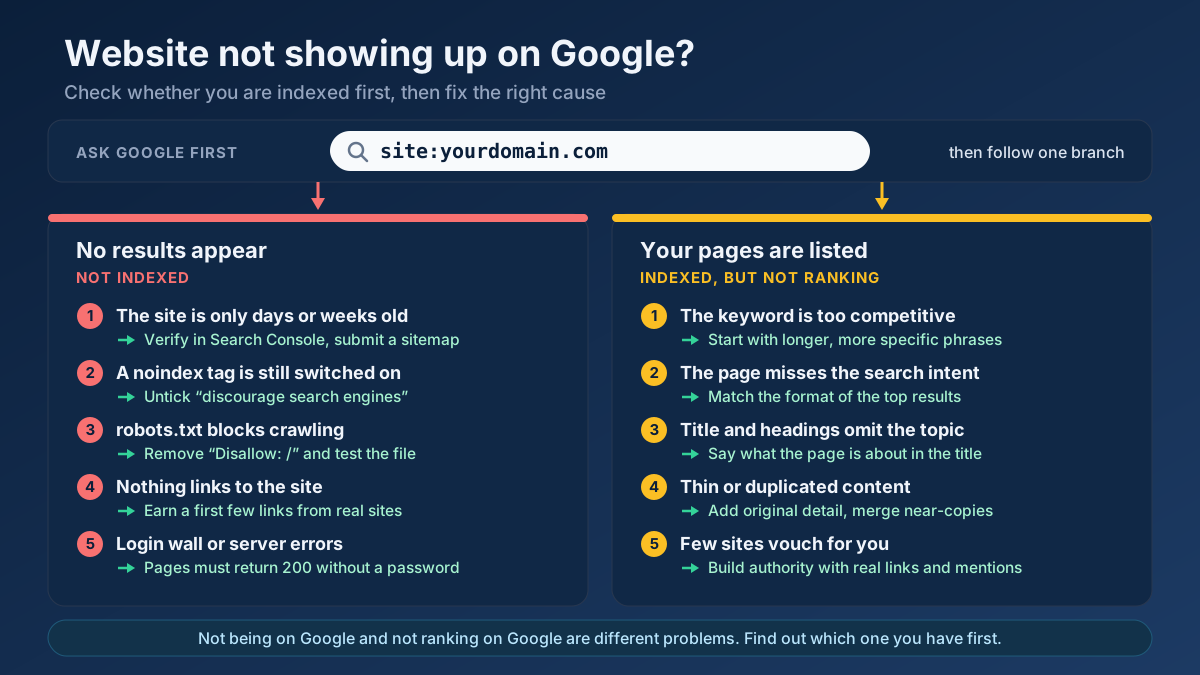
Short answer: If your website is not showing up on Google, it is either not indexed yet or indexed but ranking too low to be seen. Search site:yourdomain.com to find out which. No results points to a new site, a noindex tag, a robots.txt block or missing links; results mean the problem is relevance, competition or authority.
Few things are as deflating as launching a website, typing its name into Google and finding nothing. The good news is that this is one of the most diagnosable problems in SEO. There are only a dozen or so reasons a site stays invisible, most of them can be confirmed in a few minutes with free tools, and several are fixed by unticking a single box. The bad news is that people usually start with the wrong fix: they rewrite the homepage when the site is blocked by one line in a text file, or they resubmit the sitemap every day when the real issue is that they are competing for a keyword owned by national brands. This guide starts with the check that tells you which problem you have, then walks through all twelve causes in the order we rule them out during an audit.
“Not showing up” means three different things
When a site owner says “my website is not showing up on Google”, they are describing one of three situations. They look the same from the outside, but they have different causes and almost nothing in common when it comes to the fix.
| What you see | What it means | Where the fix lives |
|---|---|---|
| Nothing appears, even when you search the exact domain name | The site is not in Google’s index at all | Crawling and indexing: discovery, noindex, robots.txt, server access |
| The site appears for its own name, but not for any product or service keyword | The site is indexed, but does not rank for the queries you care about | Relevance and authority: keywords, content, intent, links |
| Some pages appear and others never do | Google has indexed the site selectively | Page quality, duplication, canonical tags, internal links |
It helps to remember that Google works in three stages. It crawls pages by following links, it indexes the pages it decides are worth storing, and it ranks indexed pages when someone searches. A page can fail at any stage. Google’s own explanation of how Search works is unusually blunt about this: it says Google does not guarantee that it will crawl, index or serve a page, even when that page follows every guideline. Being on the web does not put you on Google automatically. Being on Google does not put you on page one.
The two-minute check: is your website indexed by Google?
Before you change anything, find out which of the three situations you are in. Three checks answer the question, and the first one takes ten seconds.
1. Run a site: search
Type site:yourdomain.com into Google, with no space after the colon and without https:// or www. Google will list pages it has indexed from that domain. If you see your pages, the site is indexed and your problem is ranking. If Google says your search did not match any documents, the site is probably not indexed.
Treat the result as a quick signal, not a measurement. Google’s documentation on search operators notes that operators are bound by indexing and retrieval limits, and that the URL Inspection tool is more reliable for debugging. In practice a site: search may not list every indexed URL, and the result count is an estimate. For a yes-or-no answer on a new site it is good enough.
2. Inspect the URL in Search Console
Google Search Console is free, and it is the only place where Google tells you directly what it knows about your pages. Add your site as a property, verify ownership, then paste your homepage address into the search bar at the top. The URL Inspection tool returns one of two headline answers: “URL is on Google” or “URL is not on Google”. Underneath, it tells you whether crawling was allowed, whether indexing was allowed, which canonical URL Google selected and when the page was last crawled. If something is blocking the page, the reason is usually written on this screen.
3. Read the Page indexing report
For the whole site, open Indexing › Pages. The Page indexing report splits your URLs into indexed and not indexed, and groups the second set by reason: “Excluded by noindex tag”, “Blocked by robots.txt”, “Page with redirect”, “Discovered – currently not indexed” and so on. Each reason maps to one of the causes below. A brand-new property may show no data for a few days; that is normal and not a sign of a problem.
One more check is worth doing if your site is indexed but you believe it has vanished for a keyword: search in a private browser window, or use a rank checker. Personalised results can show you a site you visit every day in a position nobody else sees, and the opposite is also true.
12 reasons your website is not showing up on Google, and how to fix each one
The first seven causes keep a site out of the index altogether. The last five apply when the site is indexed but still invisible for the searches that matter. Work through them in order; the early ones are the quickest to rule out, and there is no point improving content on a site Google is not allowed to read.
1. The site is too new
This is the most common reason, and the only one that needs no repair. Google has to find a new domain, crawl it and decide to index it, and none of that is instant. Google’s guidance on asking Google to recrawl your URLs says crawling can take anywhere from a few days to a few weeks, and asks site owners to be patient. A domain registered last Tuesday that does not appear this Tuesday is behaving normally.
How to fix it: you cannot remove the wait, but you can shorten it. Verify the site in Search Console, submit an XML sitemap and request indexing for the homepage. Then get one or two links from places Google already crawls: a business directory, a social profile, a supplier’s partner page. The full sequence is in the section on getting indexed faster below.
2. Google has not discovered the site
Googlebot finds new pages mainly by following links from pages it already knows, and by reading sitemaps. A site that nobody links to and that has never been submitted anywhere is an island. It exists, but there is no route to it. The same thing happens inside a site: a page that no menu, category or article links to, known as an orphan page, can stay undiscovered for months while the rest of the site is indexed.
How to fix it: give Google a route. Create a sitemap, confirm it loads without errors using the sitemap validator, and submit it under Indexing › Sitemaps in Search Console. Google’s sitemap documentation is clear that a sitemap helps most when a site is new and has few external links pointing to it, which describes exactly this situation. Then link every important page from at least one other page. The guides to XML sitemaps and orphan pages cover both halves in detail.
3. A noindex tag is telling Google to stay away
A noindex directive is an explicit instruction not to show a page in search results, and Google obeys it. It normally appears in the HTML head as <meta name="robots" content="noindex">, or less visibly as an X-Robots-Tag: noindex HTTP header. It is almost never added by hand. It is switched on by a setting, usually while the site was being built, and nobody switches it off at launch.
In WordPress the setting is a checkbox under Settings › Reading called “Discourage search engines from indexing this site”. SEO plugins have their own per-page switches as well. In our experience this single checkbox accounts for more “my new site is not on Google” cases than any other technical cause, because a developer ticks it for good reasons during the build and the launch checklist does not mention it.
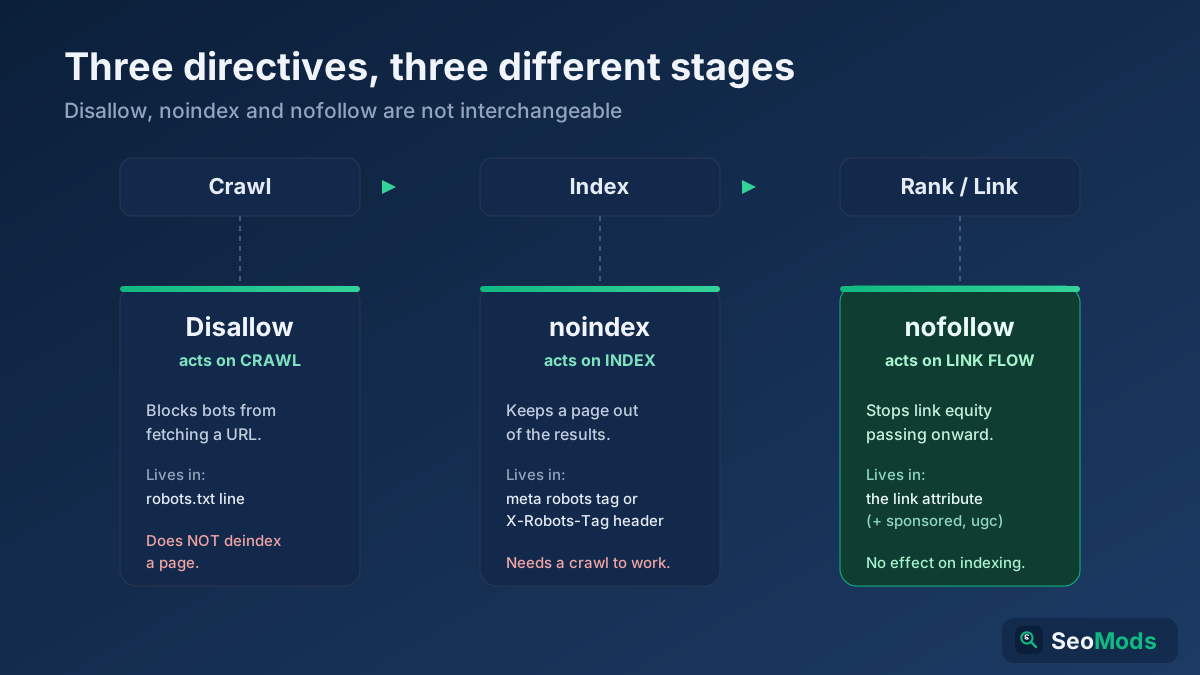
How to fix it: run your homepage through the meta tag analyzer and look at the robots line, then check the response headers with the HTTP header checker in case the directive is sent there. Remove it at the source, then request indexing. Google’s page on blocking indexing with noindex explains both forms. If you are unsure how noindex differs from the other blocking methods, read noindex vs nofollow vs Disallow.
4. robots.txt blocks crawling
The robots.txt file sits at the root of your domain and tells crawlers which paths they may request. Two lines are enough to close an entire site:
User-agent: *
Disallow: /
This is standard practice on staging sites, and it regularly survives the move to production. The symptom is distinctive. Because Google cannot read a blocked page, it sometimes still lists the address, with no description and a note that no information is available for the page. So a site blocked by robots.txt can appear as a bare URL, which is confusing if you expected either a proper result or nothing at all.
How to fix it: open yourdomain.com/robots.txt in a browser and read it. Then test your key URLs in the robots.txt tester to confirm Googlebot is allowed. Delete the blanket Disallow: / and keep only the rules you need, such as blocking admin or cart paths. Remember that robots.txt controls crawling, not indexing; Google’s introduction to robots.txt says plainly that it is not a mechanism for keeping a page out of Google. The robots.txt guide has safe templates.
5. Googlebot cannot reach the pages
Google can only index what it can load without logging in. Several ordinary launch-day conditions stop it:
- A password or “coming soon” screen. Store builders often keep a storefront password on until you remove it, and maintenance plugins show every visitor, including Googlebot, the same holding page.
- Server errors. If the server answers with a 5xx status, or times out, Google backs off and tries again later. Repeated errors slow crawling to a trickle.
- DNS or SSL problems. A domain that does not resolve, or a certificate that has expired or does not cover the
wwwversion, can make the site unreachable for crawlers even if it loads for you from a cached session. - A firewall or bot protection rule. Security settings that challenge or block automated visitors sometimes block search engine crawlers along with the bad ones.
How to fix it: check what the server really returns with the HTTP status checker; your homepage should answer 200, after at most one redirect. Confirm the certificate with the SSL checker and the records with the DNS lookup. In Search Console, the live test inside URL Inspection shows the page exactly as Googlebot fetched it, which settles any doubt about firewalls.
6. Google chose a different URL as the canonical
Your site can usually be reached at several addresses: with and without www, over http and https, with and without a trailing slash. Google picks one version, the canonical, to index and treats the others as duplicates. Normally that is harmless. It becomes a visibility problem when the canonical tag in your pages points somewhere wrong: to the staging domain the site was built on, to the homepage from every page, or to an old address that now redirects.
How to fix it: in URL Inspection, compare “User-declared canonical” with “Google-selected canonical”. If your declared canonical is wrong, correct it in the template. Then make sure every alternative version of the address redirects with a single 301 to the one you want indexed. The canonical tags guide and the guide to fixing duplicate content issues walk through the common patterns.
7. The content only exists after JavaScript runs
Some sites send an almost empty HTML file and build the page in the browser. Google can render JavaScript, but rendering happens in a second pass that can lag behind crawling, and it fails when scripts are blocked, time out or wait for a user action such as a click or scroll. If your text, links and titles are not in the rendered HTML, there is nothing to index.
How to fix it: in URL Inspection, run a live test and open “View tested page”. If the screenshot is blank or the HTML is missing your main content, Google is not seeing it. Server-side rendering or static generation solves the problem at the root; Google’s JavaScript SEO basics describes how its rendering pipeline works. Our JavaScript SEO guide has a checklist for single-page apps.
8. Google crawled the pages and decided not to index them
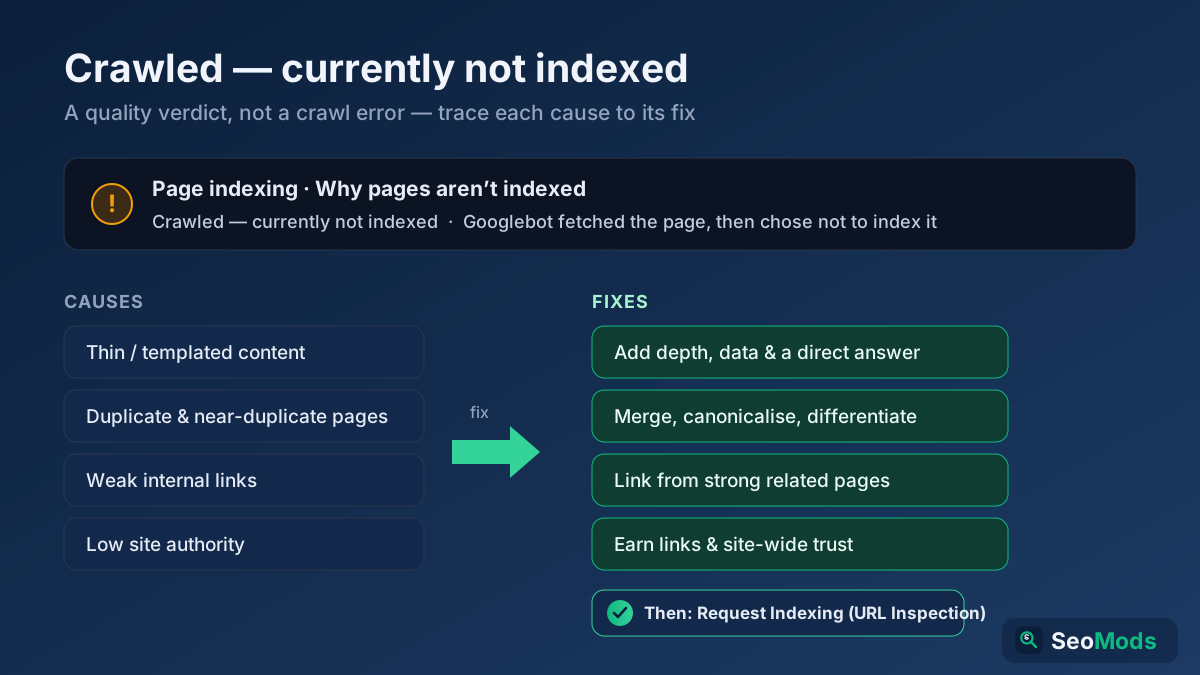
From here on, access is not the issue. Google has seen the pages and made a judgement. In Search Console this shows up as “Crawled – currently not indexed” or “Duplicate without user-selected canonical”. It is common on sites with many near-identical pages: location pages that swap only the city name, product variants with the manufacturer’s description, tag archives, or a blog of two-hundred-word posts.
How to fix it: improve or consolidate. Find the weakest pages with the thin content checker, merge those that cover the same subject, and give each page that remains something no other page on your site says. This is a subject of its own, and we cover it step by step in how to fix “Crawled – currently not indexed”.
9. You are indexed, but the keywords are too competitive
A new accounting firm that wants to rank for “accountant” is competing with directories, national chains and government pages that have been earning links for twenty years. The site is on Google. It is on page nine. For practical purposes that is the same as not being there, and it is a hard truth about search in general: an Ahrefs study of roughly 14 billion pages found that 96.55 percent of them get no traffic from Google at all.
How to fix it: aim at phrases you can realistically win. Longer, more specific queries have fewer strong competitors and a clearer intent: “accountant for freelance designers in Leeds” rather than “accountant”. Use keyword research to find them, and read the long-tail keywords guide for the method. As the site gains authority, the shorter terms come within reach.
10. Your pages do not match what searchers want
Google ranks pages that satisfy the intent behind a query. If the first page of results for your keyword is entirely how-to articles and you are trying to rank a product page, you will not appear, however well the page is written. The reverse is true as well: a blog post rarely ranks for a search where every result is a shop.
A second, simpler version of this problem is that the page never states its subject. A homepage titled “Home” with the heading “Welcome” gives Google no text to match against a query. We see this regularly on sites built from a visual template, where the title field was left at its default.
How to fix it: search your target phrase and note what kind of pages rank: guides, product pages, comparisons, local listings. Build the same kind of page, and make it better. Put the topic in the title tag and the main heading in plain words. An on-page SEO audit flags missing or duplicated titles and headings in one pass. Further reading: search intent explained and title tag optimization.
11. The site has no authority yet
Links from other websites remain one of the ways Google judges whether a site deserves to be trusted with a visible position. A new site with no links can be indexed and still sit behind every established competitor. It can even struggle to rank for its own name if the name is a common phrase or is shared with a larger organisation.
How to fix it: start with the links any real business can get: a complete Google Business Profile, relevant industry and local directories, suppliers and partners, a trade association, local press. Check what you already have with the backlink checker and track progress with the DA / PA checker. Avoid buying links in bulk; it is the fastest route to cause number twelve. The long version is in how to increase website authority.
12. A manual action, a security issue or a removal request
This is the rarest cause, and the one people fear most. Google can remove or demote a site by hand when it violates the spam policies, and it hides or labels sites that have been hacked or serve malware. A site can also be hidden because someone used the Removals tool in Search Console, which suppresses a URL for about six months and is easy to forget about after a redesign.
How to fix it: open Security & Manual Actions in Search Console. If the Manual actions report says “No issues detected”, you do not have a penalty, whatever a forum post suggested. If it lists an action, it names the reason and the affected pages; fix the cause, then submit a reconsideration request. Check the Security issues report and the Removals tool on the same visit. If a previously visible site disappeared suddenly, our guide to diagnosing a traffic drop covers the other possibilities.
Quick reference: symptom, likely cause, first fix
If you want to skip straight to the most likely explanation, match what you see to a row in this table.
| Symptom | Most likely cause | First thing to do |
|---|---|---|
No results for site:, domain is under a month old | Too new, not discovered | Verify in Search Console and submit a sitemap |
No results for site:, domain is older than two months | noindex, robots.txt or access block | Inspect the homepage URL and read the reason given |
| The URL is listed with no description | Blocked by robots.txt | Remove the blanket Disallow rule |
| Homepage is indexed, inner pages are not | Weak internal links, thin or duplicate pages | Link them from the menu and related pages |
| A different domain or URL shows instead of yours | Wrong canonical or leftover staging site | Correct the canonical and redirect the duplicates |
| Shows for the brand name only | Competition, intent mismatch, low authority | Target longer phrases and earn first links |
| Was visible, then disappeared overnight | Manual action, hack, removal request or a deploy that added noindex | Check Manual actions, Security issues and Removals |
| Does not show on Google Maps | No verified Business Profile | Create and verify the profile |
How to get your website on Google faster: 7 steps
Once nothing is blocking the site, these steps bring the first crawl forward. None of them is a trick; they simply remove the reasons Google would wait.
- Verify the site in Google Search Console. Use a Domain property if you can add a DNS record, so that every version of the address is covered. This is also how to submit a website to Google in practice; the old public “add URL” form was retired years ago.
- Submit an XML sitemap. List only the pages you want indexed, each returning a 200 status. Most platforms generate one at
/sitemap.xml. - Request indexing for your key pages. Inspect the homepage and your three or four most important pages, and press Request indexing. There is a daily limit, and submitting the same URL repeatedly does not speed it up.
- Fix the internal links. Every page you care about should be reachable from the homepage within a few clicks, through ordinary HTML links. The internal linking strategy guide shows how to structure this.
- Earn a handful of real external links. A Business Profile, two or three relevant directories and one partner site are enough to connect a new domain to the rest of the web.
- Publish something worth indexing. Five thorough pages are indexed more readily than fifty thin ones. Describe what you do, for whom, where, and at what price, in your own words.
- Check again in a week, not in an hour. Re-run the
site:search and look at the Page indexing report. If the count is rising, the process is working.
If you would rather check everything at once, the all-in-one SEO audit tests indexability, robots rules, canonical tags, titles and speed for a URL in a single run, and the technical site audit crawls the site to find pages that are blocked or orphaned.
How long does it take Google to index a new website?
There is no fixed answer, and Google does not publish one. The ranges below are what we typically observe on small and medium sites. Use them to judge whether you are waiting normally or waiting for something that will never happen.
| Situation | Typical time until it appears | Start investigating if |
|---|---|---|
| New domain, nothing submitted, no links | Two to eight weeks, sometimes longer | Nothing after eight weeks |
| New domain, verified, sitemap submitted, a few links | A few days to two weeks for the homepage | Nothing after three weeks |
| New page on an established, well-linked site | Hours to a few days | Nothing after two weeks |
| After removing a noindex tag or robots.txt block | Several days to three weeks, as pages are recrawled | The report still shows the old block after a month |
| Ranking for your own brand name | Usually soon after indexing | The name is generic or shared with a bigger brand |
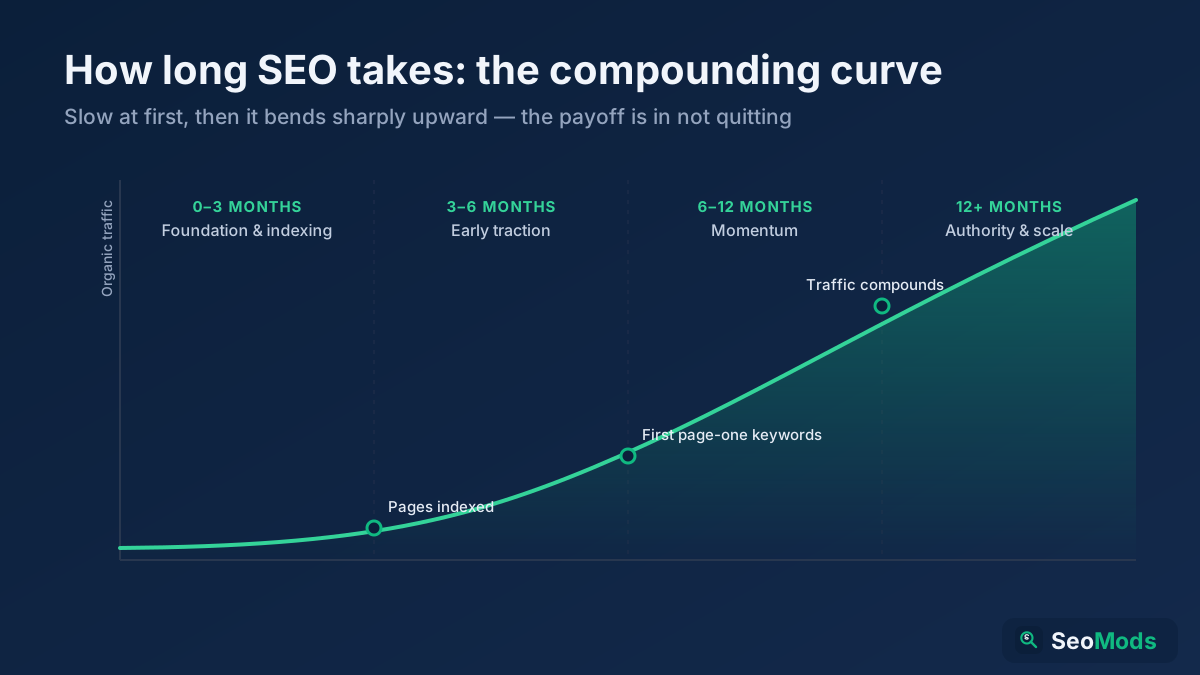
| Ranking for competitive, non-brand keywords | Months, not weeks | No impressions at all after three months |
The last two rows are the ones that cause the most frustration. Indexing is quick once the route is clear. Ranking is slow, because it depends on content and trust that take time to build. If you want realistic expectations for that second phase, see how long SEO takes to work.
A realistic example: a new clinic site that Google ignored for five weeks
The following scenario is assembled from patterns we meet repeatedly; the business is illustrative. A two-practitioner physiotherapy clinic in Bristol launches a new WordPress site with twelve pages. Five weeks later the owner searches the clinic’s name and finds its Facebook page, an old directory listing and nothing else. Their first instinct is that the site needs “more SEO”, and they begin rewriting the homepage.
The diagnosis takes four minutes. A site: search returns no results. In Search Console, URL Inspection reports “URL is not on Google” and, under Indexing, “Indexing allowed? No: ‘noindex’ detected in ‘robots’ meta tag”. The “Discourage search engines” box in WordPress is still ticked from the build. The content was never the problem. Google had visited, read the instruction and done as it was told.
The repair goes like this:
- Day 1. The box is unticked, the sitemap is submitted, and indexing is requested for the homepage, the services page and the contact page.
- Day 3. The homepage appears for a search of the clinic’s name.
- Day 12. Ten of the twelve pages are indexed. The remaining two are near-identical “thank you” pages that should not be indexed anyway.
- Week 4. The site still has no impressions for “physiotherapist Bristol”. This is cause nine, not a continuation of the first problem. The clinic adds four service pages aimed at specific needs, such as running injuries and post-surgery knee rehabilitation, each naming the neighbourhood it serves.
- Week 10. Those pages begin to earn impressions and the first enquiries for the longer phrases, helped by a verified Business Profile and links from two local sports clubs.
Two lessons come out of this. The first five weeks were lost to a checkbox, and no amount of rewriting would have helped. And once the site was indexed, a second, unrelated problem took its place. Most “not showing up” cases have this two-stage shape, which is why the order of diagnosis matters.
Where the blocking settings hide on popular platforms
Each website builder has its own way of keeping an unfinished site out of search. Menu names change between versions, so treat these as places to look and confirm against your platform’s current help pages.
- WordPress. Settings › Reading › “Discourage search engines from indexing this site”. Also check your SEO plugin’s per-page “allow search engines to show this page” switch and any maintenance-mode plugin.
- Shopify. A store protected by a storefront password is not indexed. Remove the password under the online store’s preferences once you are ready to sell.
- Wix. The site must be published, and the setting that lets search engines index the site must be on in the SEO settings. Individual pages have their own toggle.
- Squarespace. Trial sites and sites with a site-wide password are hidden from search engines. Check the site availability and crawler settings after upgrading.
- Custom builds. Look for an environment variable or template condition that prints a noindex tag outside production, and make sure the production robots.txt is not the staging one.
Whatever the platform, the test is the same: fetch the live homepage, look for noindex in the source and the headers, and read robots.txt. It takes less time than finding the right menu.
Mistakes that keep websites invisible
- Fixing content before checking access. If Google is blocked, nothing you write will be read.
- Blocking a page in robots.txt and adding noindex to it. Google cannot see a noindex tag on a page it is not allowed to crawl, so the page can linger in results.
- Requesting indexing every day. It does not move the page up the queue, and it uses the daily quota you might need for a page that changed.
- Paying for “submission to 500 search engines”. There is no such service worth buying. Search Console is free, and it is the only submission route Google offers.
- Judging by a search made while signed in. Personalised results do not reflect what a new customer sees.
- Expecting to rank for a one-word keyword in the first month. Being indexed and being competitive are separate achievements.
- Leaving the staging site open. If the test copy is crawlable, Google may index it in place of the real site.
- Changing the domain or URL structure repeatedly. Each change restarts discovery. Decide the structure early; the URL structure guide can help.
- Ignoring Search Console after setup. The report that explains the problem is already there. Our guide to measuring SEO in Search Console shows which screens to read.
Frequently asked questions
Why is my website not showing up on Google?
Either Google has not indexed it, or it is indexed but ranks too low for the searches you tried. Run a site:yourdomain.com search. If nothing appears, look for a noindex tag, a robots.txt block, access problems or simply a very new domain. If pages do appear, the issue is keyword competition, search intent or authority.
How long does it take for a new website to show up on Google?
With Search Console verified, a sitemap submitted and a few links in place, the homepage is often indexed within a few days to two weeks. With nothing submitted it can take two months or more. Google states that crawling can take from a few days to a few weeks and makes no guarantees.
How do I submit my website to Google?
Add and verify the site in Google Search Console, submit your XML sitemap in the Sitemaps report, then use the URL Inspection tool to request indexing for your most important pages. This is free. Google does not offer a paid submission service, and third-party submission services add nothing to this process.
Why does my website show up when I search its name but not for keywords?
That means the site is indexed and Google understands who you are, but your pages are not yet competitive for broader queries. The usual reasons are strong competition, pages that do not match the search intent, titles that omit the topic, and too few links from other sites. Target more specific phrases first.
Can I pay Google to show my website in search results?
Not in the organic results. Payment has no effect on indexing or organic ranking. You can buy visibility through Google Ads, where your listing appears labelled as sponsored for as long as you pay. Ads can be useful while a new site waits to earn organic positions, but they are a separate system.
Why did my website disappear from Google suddenly?
Check four things in order: whether a recent update or redesign added a noindex tag or changed robots.txt, whether the server has been returning errors, whether Search Console shows a manual action or security issue, and whether someone filed a removal request. A sudden total disappearance is nearly always technical.
Why is my business not showing up on Google Maps?
Maps and the local results draw on Google Business Profile, not on your website’s index status. You need a profile that is created, verified and complete, with an accurate category and address. A website helps a profile rank, but a site alone will not put a business on the map.
Does a new website need a sitemap to appear on Google?
It is not strictly required, since Google can discover pages by following links. For a new site with few or no external links, though, a sitemap is the most reliable way to tell Google which pages exist. It takes minutes to submit and removes one common reason for slow discovery.
Find out which problem you have, then fix that one
A website that is not showing up on Google is not a mystery, and it is rarely a sign that the site is bad. It is a short list of possibilities that can be ruled out one at a time. Search site:yourdomain.com. If nothing comes back, the site is not indexed: check for a noindex tag, read robots.txt, confirm the pages load without a password, and give Google a sitemap and a few links to follow. If pages do come back, the site is indexed and the work shifts to choosing winnable keywords, matching intent and earning trust.
Start now with three free checks. Run your homepage through the meta tag analyzer to rule out noindex, test your address in the robots.txt tester, and confirm your sitemap with the sitemap validator. If all three pass and the site is more than a few weeks old, run the all-in-one SEO audit to see what else is holding it back. When the site is indexed and you are ready for the next stage, continue with how to rank higher on Google.