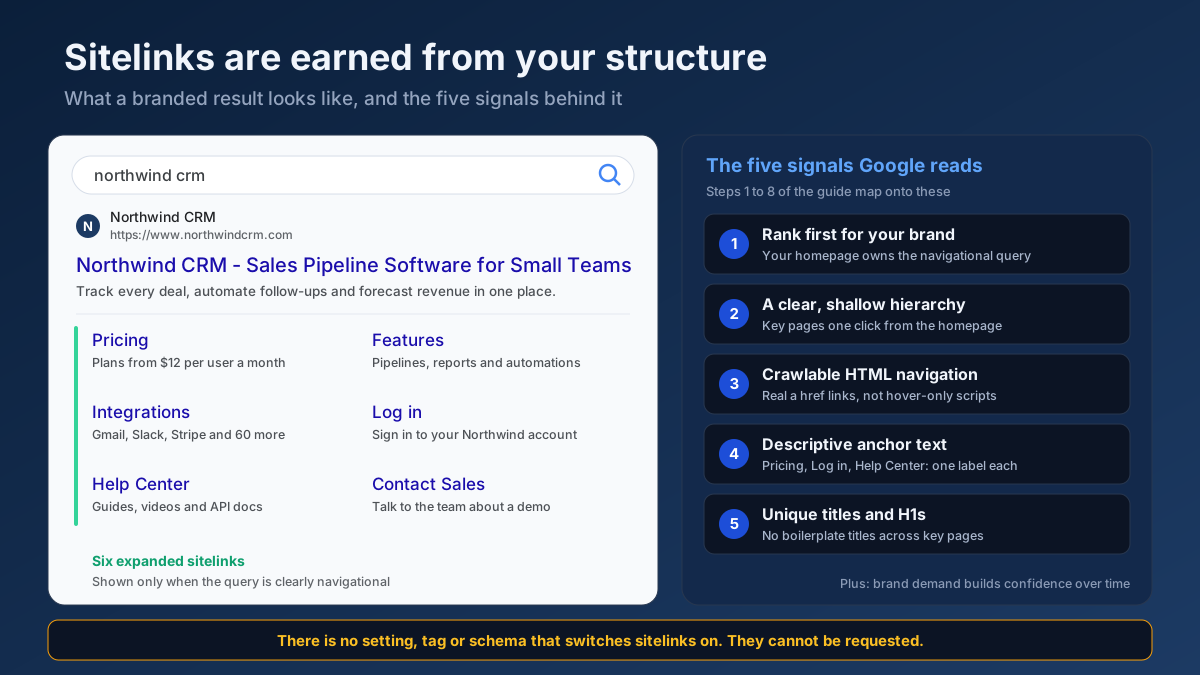
Short answer: You cannot request Google sitelinks or switch them on. Google adds them automatically when your site clearly ranks first for a navigational query, usually your brand name, and when its structure makes the important pages obvious. To earn them, own your brand query, use a clean hierarchy, crawlable navigation, descriptive anchor text and unique page titles.
That sounds passive, and it is the reason most advice on the topic is thin: “build a good site and wait.” In practice there is a lot you control. Sitelinks are Google’s reading of your site architecture, so every signal it uses to pick them — the links in your main menu, the words in those links, the titles of the target pages, the way your URLs nest — is something you can audit and fix this week. This guide covers the ten steps that make a site eligible, why sitelinks sometimes refuse to appear, and how to get rid of one that points somewhere embarrassing.
What Google sitelinks are
Sitelinks are the extra links Google shows underneath a single search result, pointing to deeper pages of the same site. Search a well-known brand and you will see them: the homepage result, and below it links such as Pricing, Login, Contact or Careers, each with its own short description. Google describes them in its own documentation on sitelinks as links meant to help users navigate your site, generated only when Google thinks they will be useful.
That last clause matters. Sitelinks are not a reward for being big or a feature for paying customers. They exist to answer one situation well: a searcher who clearly wants to reach a specific website but has not yet decided which page.
The formats you will actually see
- Expanded sitelinks. The large block: up to six links (sometimes more on desktop), arranged in two columns, each with a title and a snippet. These appear almost exclusively on branded, navigational queries.
- Inline sitelinks. A single row of two to four short links directly under the snippet, without descriptions. These can appear on non-brand queries too, whenever a result sits high and the site has a clear set of child pages related to the query.
- Mobile sitelinks. On phones, sitelinks usually render as a stacked list or a horizontally scrolling row of chips. The underlying selection is the same; only the presentation changes.
The sitelinks search box no longer exists
Older guides still tell you to add SearchAction markup to get a search field inside your result. Google retired the sitelinks search box worldwide in late 2024. The markup does no harm if it is still on your site, and Search Console simply stopped reporting on it, but adding it today achieves nothing. If a checklist you are following still lists it as a step, the rest of that checklist is probably out of date as well.
Why sitelinks are worth the effort
Sitelinks do not change your ranking. What they change is how much of the results page you occupy and where your visitors land.
They take up space. A result with expanded sitelinks can fill most of the first screen on a phone. On a branded query that pushes competitors, review aggregators and resellers further down the page — which is exactly where you want them when someone searches your name.
They shorten the path. Someone searching your brand to log in, check pricing or find your phone number reaches that page in one click instead of two. On sites we have reviewed, the login and pricing sitelinks routinely receive more clicks than the homepage link above them, which tells you how many branded searches are really navigation.
They signal legitimacy. A result with a full sitelink block looks established. That matters most for newer brands competing on their own name with older sites, affiliates or similarly named businesses.
They show you how Google understands your site. This is the underrated one. The pages Google chooses as sitelinks are the pages it believes are your most important. If it picks a 2019 blog post and your old careers page, that is a free diagnosis of weak internal linking — covered in step 10.
How Google decides whether to show sitelinks
Google does not publish a formula, but its documentation and years of observable behaviour point to the same small set of inputs. It helps to think of them as two separate questions Google answers in sequence.
Question one: is this query navigational for your site?
Expanded sitelinks appear when Google is confident the searcher wants one particular website. A search for “northwind crm” is navigational. A search for “best crm for small business” is not, even if you rank first for it. That is why a brand-new company with a generic name often has no sitelinks at all: the query “apex solutions” could mean forty different businesses, so Google shows forty different results instead of expanding one. If you want the underlying concept explained, the search intent guide covers navigational queries alongside the other types.
Question two: which pages are the natural next step?
Once Google has decided to expand your result, it needs to choose the links. Here it relies on your site’s structure: which pages are linked from the main navigation and from many other pages, what the anchor text of those links says, what the target pages are titled, and which of those pages people actually visit. Sitelinks are, in effect, Google’s summary of your internal linking.
What does not matter
- Domain age. Old domains get sitelinks more often only because they tend to have established brand searches.
- Paid ads. Sitelink extensions in Google Ads are a separate, paid feature. Running ads has no effect on organic sitelinks.
- A special tag or schema type. There is no markup that creates sitelinks. Structured data helps Google understand your site name and hierarchy, which is useful, but it does not switch anything on.
- Site size. A twelve-page local business site can have a full sitelink block. A 50,000-page site with messy navigation may have none.
How to get sitelinks in Google: 10 steps
The steps are ordered by impact. The first two decide whether sitelinks are possible at all; steps three to eight decide which pages Google picks; the last two are about patience and correction.
Step 1: Rank first for your own brand name
No first position on your brand query, no expanded sitelinks. Check it properly: search your brand in a private window, on mobile and desktop, and in every country you serve. Then run your brand name through a Keyword Rank Checker to confirm your homepage is the result that ranks, not a directory listing, a social profile or a single blog post.
If you do not rank first, the causes are usually one of these: the homepage title does not contain the brand name, the brand name is a common word, the site is new and has few mentions elsewhere, or a much larger site uses the same name. The fixes follow in steps 2 and 9. If your brand name is a generic phrase, consider consistently pairing it with a qualifier — “Apex Roofing Leeds” rather than “Apex” — everywhere you appear online.
Step 2: Give Google one consistent site name
Google now shows a site name above every result, and it chooses that name from several signals: WebSite structured data on the homepage, the homepage title, headings, and how others refer to you. Its site names documentation recommends declaring the name explicitly. A minimal version looks like this:
<script type="application/ld+json">
{
  "@context": "https://schema.org",
  "@type": "WebSite",
  "name": "Northwind CRM",
  "alternateName": "Northwind",
  "url": "https://www.northwindcrm.com/"
}
</script>
Pair it with an Organization block that lists your logo and official profiles. You can build both with the Schema (JSON-LD) Generator and confirm they parse with the Structured Data (Schema) Checker. Then make the rest of the site agree: the same name in the homepage title, the logo alt text, the footer, your Google Business Profile and your social profiles. Inconsistency is the most common reason Google shows the wrong site name — and a site whose identity is unclear is a poor candidate for sitelinks.
Step 3: Build a shallow, logical hierarchy
Sitelinks come from the top of your structure. If your important pages sit three levels deep behind a generic “Resources” menu, Google has little reason to promote them. A sensible target is that every page you would want as a sitelink is reachable in one click from the homepage, and every other important page within three.
Mirror that hierarchy in your URLs. /pricing/, /features/ and /features/reporting/ tell Google how the site is organised far more clearly than /page?id=482. The URL structure guide covers the conventions, and it is worth reading before you rename anything, because every URL change needs a redirect.
A quick test: sketch your site on a single sheet of paper as a tree. If you cannot draw it without arrows crossing everywhere, neither can a crawler.
Step 4: Make the main navigation crawlable HTML links
Google reads navigation as a strong hint about which pages matter, but only if it can see it. Menus built entirely in JavaScript that render links on hover, menus that use onclick handlers instead of <a href> elements, and navigation delivered as an image map all weaken that signal. Every menu item should be a real anchor element with a real URL in the rendered HTML.
Check it with a Link Analyzer on your homepage: the pages you want as sitelinks should appear in the list of internal links, with the anchor text you expect. If you use a JavaScript framework, confirm the rendered HTML contains the links, not just the source you wrote. The JavaScript SEO guide explains the rendering pitfalls in more detail.
Step 5: Use short, descriptive anchor text
The anchor text in your navigation often becomes the sitelink title itself. “Pricing”, “Integrations” and “Help Center” are ideal: short, specific and matching what a visitor expects. “Solutions”, “Learn more” and “Click here” are poor, because they say nothing about the destination.
Consistency matters as much as wording. If the header calls a page “Plans”, the footer calls it “Pricing” and blog posts link to it as “see our costs”, you are sending mixed signals about what the page is. Pick one label for each key page and use it everywhere. The internal linking strategy guide goes deeper on anchor text across the whole site.
Step 6: Give every key page a unique title and H1
When the anchor text is not a good fit, Google falls back on the target page’s title tag or main heading. Duplicate or boilerplate titles make that impossible. A site where eight pages are titled “Northwind CRM | Home of Better Sales” gives Google nothing to work with.
Lead each title with what the page is, then the brand: “Pricing and Plans – Northwind CRM”, “Log in – Northwind CRM”. Run your main pages through a Meta Tag Analyzer to catch duplicates and missing titles, and a Heading Structure Analyzer to confirm each page has one clear H1. The title tag guide covers length and wording.
The meta description matters too, because the short snippet under each expanded sitelink is usually taken from it or from the opening text of the page. A clear first sentence is a cheap win.
Step 7: Add breadcrumbs, visible and marked up
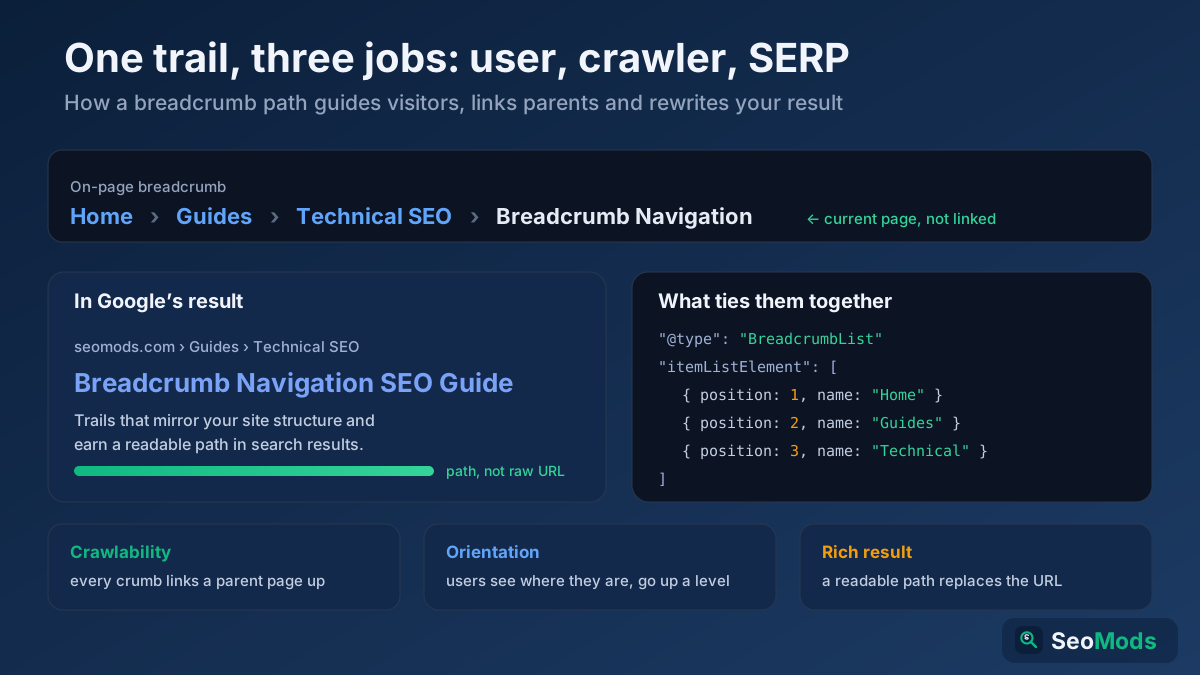
Breadcrumbs do two jobs here. On the page, they create a consistent set of links pointing upward through the hierarchy, which reinforces which pages are parents. In the search results, BreadcrumbList structured data replaces the raw URL with a readable path, confirming the same structure to Google.
They matter most on larger sites, where category and section pages are the natural sitelink candidates. Google’s breadcrumb structured data guidelines describe the markup, and the breadcrumb navigation guide shows how to implement them without creating duplicate trails.
Step 8: Make sure every candidate page is indexed and canonical
A page cannot become a sitelink if it is not in the index. Check that each page you want is included in your XML sitemap, returns a 200 status, has a self-referencing canonical, and is not blocked by robots.txt or a stray noindex. The URL Inspection tool in Search Console gives you a definitive answer per page.
Watch for duplicates. If your pricing page lives at both /pricing and /pricing/, or at /en/pricing and /pricing without clear canonicals, Google may split its signals or pick the wrong version. The Sitemap Finder & Validator confirms which sitemap Google can see, and the canonical tags guide explains how to consolidate duplicates.
Step 9: Grow branded search demand
This is the slowest step and the one people skip. Google shows sitelinks when it is confident the searcher wants you, and that confidence comes largely from people searching for your name and then clicking your result. You cannot fake it, but you can build it.
- Claim and complete your Google Business Profile if you have a physical location or service area. The Google Business Profile guide walks through it.
- Use the exact same brand name on every social profile, directory listing and press mention.
- Earn mentions in industry publications and newsletters. Unlinked mentions still teach Google that your name refers to an entity. A Brand Mention Monitoring tool shows where you are already being discussed.
- Put your brand name in the places people remember it: invoices, packaging, email signatures, podcast appearances, event talks.
This is the same work that builds general site authority, which the website authority guide covers from the link side.
Step 10: Wait, monitor and correct
After you fix the structure, Google has to recrawl the site and re-evaluate it. For a small site with steady brand searches, sitelinks commonly appear within a few weeks. For a new domain with little brand demand, it can take several months. Resubmitting your sitemap will not speed that up much; consistent brand searches will.
Check your brand query once a month and note which sitelinks appear. If Google picks pages you did not expect, treat it as feedback: the chosen pages are receiving more internal links, clicks or clearer signals than the pages you wanted. Adjust the navigation and anchor text, then check again next month.
Why are my sitelinks not showing?
When a site has none, the cause is almost always one of the following. Work down the table from the top — the first rows account for most cases.
| Symptom | Likely cause | What to do |
|---|---|---|
| You are not first for your brand name | Weak or generic brand, strong competitor with the same name | Steps 1, 2 and 9; add a qualifier to the brand |
| You are first, but the result is a blog post, not the homepage | Homepage title or content does not reflect the brand | Put the brand in the homepage title and H1; link to the homepage consistently |
| Only inline sitelinks, never the expanded block | Query is not clearly navigational yet | Build branded search demand; wait |
| Sitelinks appear on desktop but not on mobile | Different layouts and space limits, not a problem | No action needed |
| Sitelinks disappeared after a redesign | Navigation became JavaScript-only or URLs changed without redirects | Step 4; check redirects with a Redirect & HTTP Status Checker |
| Site is under three months old | Not enough data yet | Finish steps 2–8, then give it time |
One more situation deserves mention: a site that was reorganised or migrated recently. Sitelinks often vanish for a few weeks after a migration and return once Google has processed the redirects. If they have not returned after two months, work through the migration checklist to find what broke.
How to remove or change a sitelink you do not want
Search Console used to have a “demote sitelink” option. Google removed it in 2016 and has not replaced it, so the only way to influence sitelinks today is through the page and your internal links. Here is what works, from gentlest to strongest.
- Reduce the internal links pointing to it. If an old promotion page is linked from the footer of every page, remove it from the footer. That alone often shifts it out of the sitelink set within a few weeks.
- Improve the page you want instead. Add it to the main navigation, link to it from the homepage with clear anchor text, and give it a distinct title.
- Rename the page. If the right page appears with the wrong label, change the title tag and the navigation anchor text. The sitelink label usually updates after the next crawl.
- Add
noindex. This removes the page from search entirely, including as a sitelink. Use it only for pages that should not rank at all, such as a thank-you page or an internal tool. The noindex vs nofollow vs disallow guide explains why blocking inrobots.txtis not the same thing. - Remove or redirect the page. For outdated content, a 301 redirect to the closest relevant page or a 410 status removes it permanently.
For an urgent case — a leaked staging URL or a page with sensitive information — use the Removals tool in Search Console to hide it temporarily while you fix the underlying cause. It hides the URL for about six months; it does not solve anything on its own.
Sitelinks compared with other SERP features
Sitelinks are often confused with features that look similar but work differently. Knowing which is which saves you from chasing the wrong fix.
| Feature | What it shows | Can you control it? | What drives it |
|---|---|---|---|
| Organic sitelinks | Extra links to deeper pages under one result | Indirectly | Brand query, site structure, internal links |
| Google Ads sitelink assets | Extra links under a paid ad | Fully | Ad account settings and budget |
| Site name | Your name above the result | Mostly | WebSite schema, homepage title, consistency |
| Breadcrumb path | Readable path instead of the raw URL | Mostly | BreadcrumbList schema, URL structure |
| FAQ or other rich results | Extra elements inside the snippet | Partly | Structured data and eligibility rules |
| Featured snippet | Extracted answer above the results | Partly | Content format and ranking for the query |
Use the SERP Features Analyzer tool to see which of these appear for your brand query and your main keywords, and the Google SERP Snippet Preview to see how your title and description will look before you publish changes.
A realistic example: from no sitelinks to a full block
Consider a typical case: a B2B software company with about 60 pages, a two-year-old domain, and no sitelinks for its own name. Searching the brand showed the homepage in first place with a plain snippet, followed by the company’s LinkedIn page and a review site.
An audit found four problems. The main menu was a JavaScript dropdown whose links only existed after a hover event. Six service pages shared the title “Solutions – BrandName”. The pricing page was reachable only through a button labelled “Get started”. And there was no WebSite or Organization markup, so Google sometimes showed the domain instead of the brand as the site name.
The fixes took two days of developer time: server-rendered navigation links, unique titles for each service page, a plain “Pricing” link in the header, and the two schema blocks. Inline sitelinks for three service pages appeared within about three weeks. The expanded block, with Pricing, Log in, Integrations and two service pages, appeared around two months later, after the company’s first trade-show season increased branded searches.
The lesson is the order. The structural fixes made the sitelinks possible, but the expanded block came when brand demand crossed Google’s confidence threshold. Neither half works alone.
Sitelink tips by type of site
The ten steps apply everywhere, but the natural sitelink candidates and the most common mistake differ noticeably from one kind of site to another.
Local businesses
For a dental practice, law firm or garage, the natural sitelinks are usually Services, Book an Appointment, About and Contact. The biggest obstacle is often the name itself: “Smile Dental” is shared by hundreds of practices. Pairing the name with a town, completing your Google Business Profile and listing an identical address everywhere help Google separate you from the others. The local citations and NAP guide covers that consistency work.
Online stores
Google tends to choose top-level categories: Women, Men, Kids, Sale, Track Your Order. The trouble usually comes from campaign pages. If last year’s Black Friday page is still linked from the header, it can keep appearing as a sitelink for months. When a campaign ends, remove it from the menu and footer and redirect it to a permanent offers page. Filter and sort URLs should not compete with category pages either, which is a question of canonicals and crawl settings.
Software and SaaS
The most-clicked sitelink is almost always Log in, because existing customers reach the app through Google. Adding noindex to the login page is a common reflex, and it sends those users to your homepage or, worse, to a competitor’s ad. Keep the login page indexed, give it a plain title, and link to it visibly in the header.
Blogs and publishers
On content sites, Google leans towards category or topic pages rather than individual articles. If your categories are called “General” and “Misc”, your sitelinks will be just as vague. A few clearly named categories, organised as described in the topic clusters guide, give Google far better options.
Common mistakes that keep sitelinks away
- Chasing sitelinks for non-brand keywords. Expanded sitelinks are a navigational feature. Ranking first for a generic query will usually bring inline sitelinks at most.
- A mega-menu with 80 links. When everything is in the navigation, nothing stands out. Keep the main menu to the pages that really matter and move the rest to section pages.
- Linking the same page under different names. “Plans”, “Pricing” and “Costs” for one page dilutes the signal.
- Orphaned key pages. A page that receives no internal links will never be chosen. The orphan pages guide explains how to find them, and the Internal Link Opportunity Finder suggests where to add links.
- Still adding SearchAction markup. It no longer does anything. Spend the time on steps 3 to 6 instead.
- Expecting an overnight change. Sitelinks change after recrawls and after brand demand builds. Judge the result over months, not days.
Frequently asked questions
Can I add sitelinks to my Google result manually?
No. Organic sitelinks are generated automatically, and there is no setting in Search Console or any structured data that creates them. You can only make your site eligible by ranking first for your brand name and making your structure clear. Sitelinks you set yourself exist only in Google Ads, as paid sitelink assets.
How long does it take to get sitelinks?
For an established site with steady brand searches, sitelinks often appear within two to six weeks of fixing its navigation and titles. For a new domain, it usually takes several months, because Google needs enough branded search data to be confident that people searching the name want your site.
Why do my sitelinks show the wrong pages?
Google picks pages that receive strong internal linking, clear anchor text and user interest. If an old blog post or a careers page appears, it is probably linked more prominently than the page you wanted. Reduce links to the unwanted page, add the right page to the main navigation, and check again after the next crawl.
How do I remove a sitelink from Google?
Search Console’s demote option was removed in 2016. To remove a sitelink, reduce internal links to that page, promote a better page in your navigation, or add noindex if the page should not appear in search at all. For an urgent removal, the Removals tool hides a URL temporarily while you fix the cause.
Does structured data give me sitelinks?
Not directly. WebSite, Organization and BreadcrumbList markup help Google understand your site name and hierarchy, which supports sitelinks, but no schema type creates them. The SearchAction markup for the sitelinks search box is obsolete, since Google retired that feature in 2024.
Do small websites get sitelinks?
Yes. Size is not a requirement. A small local business with a distinctive name, a clear menu and a complete Google Business Profile can have a full sitelink block. What small sites more often lack is brand search demand, which is the part that takes time.
Are sitelinks a ranking factor?
No. Sitelinks are a display feature, not a ranking signal. They appear because you already rank first for a navigational query. Their value is in the space they occupy and the clicks they route to deeper pages, not in any effect on your position.
Why did my sitelinks disappear?
The usual causes are a redesign that changed navigation or URLs, a migration still being processed, a drop from first place on your brand query, or simply Google testing a different layout. Check your brand ranking first, then your navigation links and redirects. After a migration, allow a few weeks before you worry.
Build the structure, then let demand do the rest
Sitelinks are one of the few search features you cannot buy, request or mark up into existence, and that is exactly why they are worth earning. They reflect two things Google cannot be tricked about: whether people search for your name, and whether your site is organised well enough to guide them once they arrive.
Start with an hour of checks. Search your brand name and note whether you rank first. Run your homepage through the Link Analyzer and confirm your key pages are linked in plain HTML with clear anchor text. Check the titles of those pages with the Meta Tag Analyzer and add WebSite markup with the Schema (JSON-LD) Generator. Then run a full Technical Site Audit (Crawler) to catch the indexing problems that can quietly block a page from ever being chosen. Fix what you find, keep building your brand, and check the results again in a month.