Google Chose Different Canonical Than User? Fix It
Fix “Duplicate, Google chose different canonical than user” in Search Console: why Google ignores your canonical tag and 9 steps to align every signal.
Read article →Check whether ports on your own connection are open to the internet: up to 10 TCP ports per run (80, 443, 22, 3389, 25565, 27015…) tested from our server with a 3-second timeout and reported as open, closed or filtered. Only your own IP can be tested.
Fetching live data…
The Port Checker tells you whether a port on your own internet connection can be reached from outside. It is the quickest way to confirm that port forwarding works for a game server, a security camera, a home NAS, Plex or remote desktop — or, the other way round, that a service you never meant to publish is not exposed. Pick up to ten ports, run the check, and our server tries to open a TCP connection to each of them on the address you are connecting from.
Port forwarding fails silently: the router rule looks right, but friends still cannot join your server. Testing from outside your network is the only reliable check, because a test from inside often succeeds through the router’s loopback even when the outside world is blocked. Just as important is the opposite case — a forgotten remote-desktop or database port open to the whole internet is one of the most common ways home and small-office machines get compromised.
Make sure the program is running and listening on that port, give the device a fixed local IP, and forward the port on your router to that address. Allow the port in the device’s own firewall too — Windows Defender Firewall blocks new inbound ports by default. If it still shows as filtered, your provider may use CGNAT, where many customers share one public address: compare the address shown by What Is My IP? with the WAN address in your router. If they differ, ask your provider for a public IP. Checking a server’s reputation instead? Try the IP Blacklist Checker.
Testing ports on someone else’s address is port scanning, and many networks treat it as an attack. Limiting the tool to the address you connect from keeps it useful for checking your own setup and useless for probing others. Each address also has a strict limit on how many checks it can run.
No. UDP has no handshake, so a silent UDP port looks the same whether it is open or blocked. Services that only use UDP, such as WireGuard and many game voice channels, will show as filtered even when they work.
The VPN’s. Our server sees the VPN’s exit address and tests that. Disconnect the VPN to test your home connection, or open the matching port in your VPN provider’s port-forwarding settings if it offers them.
Guides, tips and tutorials hand-picked for this tool — go from running a check to actually fixing it.
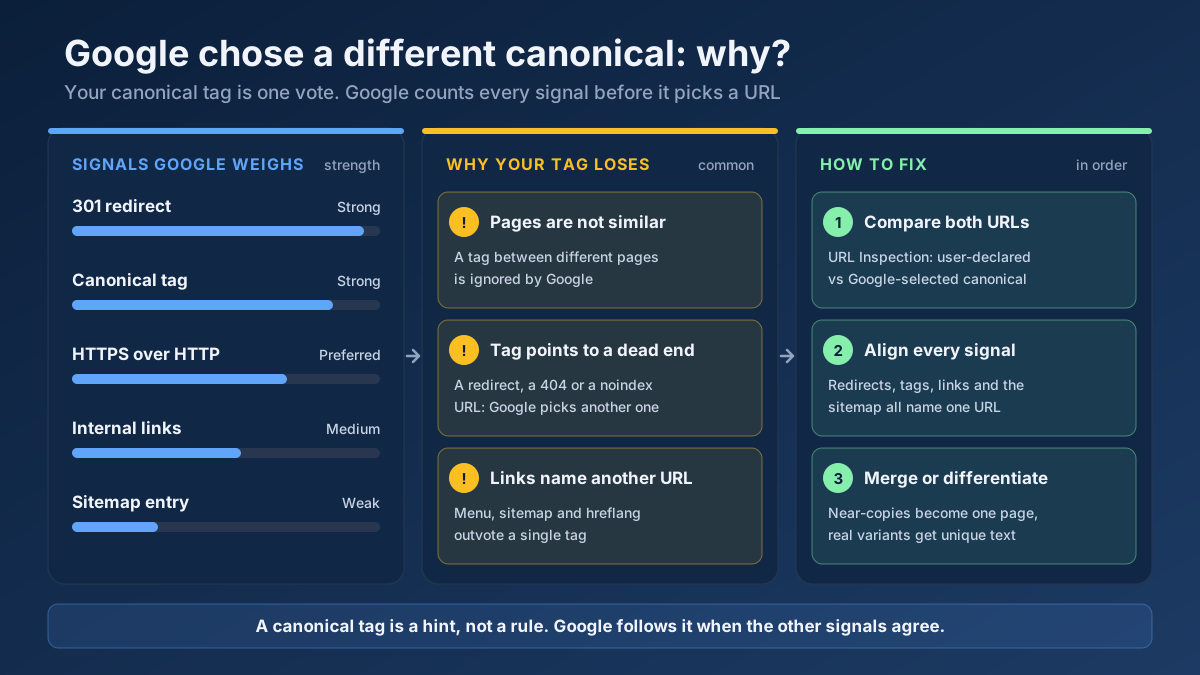 Technical SEO
Fix “Duplicate, Google chose different canonical than user” in Search Console: why Google ignores your canonical tag and 9 steps to align every signal.
Read article →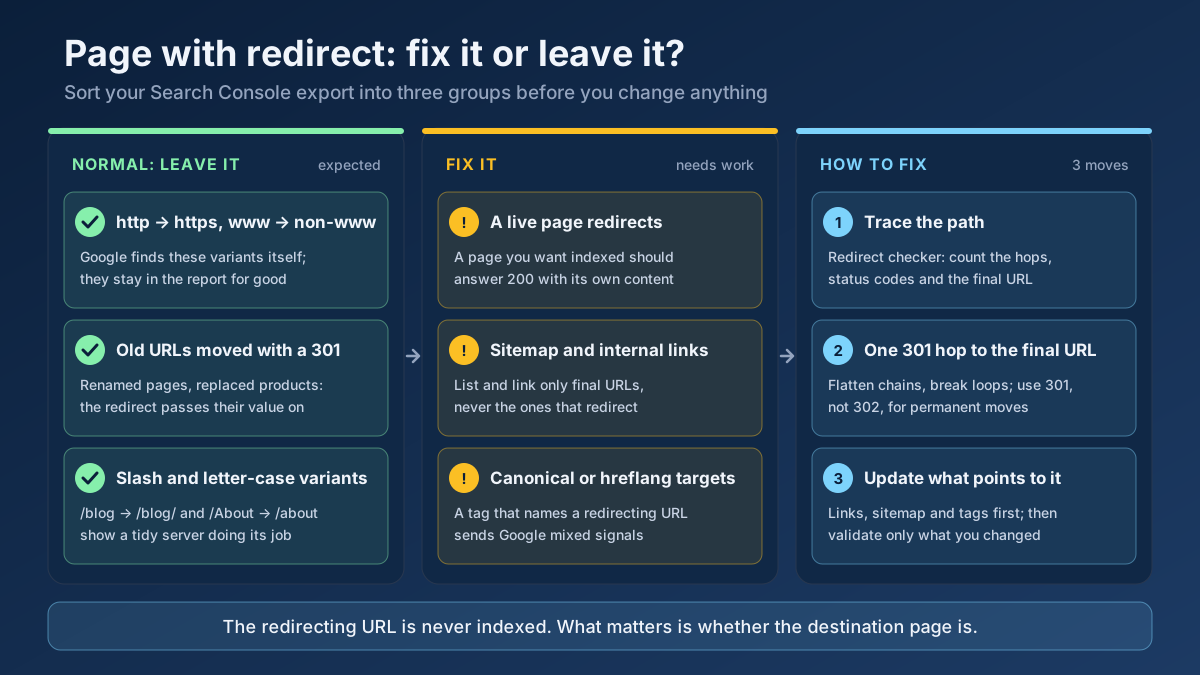 Technical SEO
How to fix Page with redirect in Google Search Console: when to ignore it, when it blocks indexing, and 8 steps to clean up redirects, chains and sitemaps.
Read article →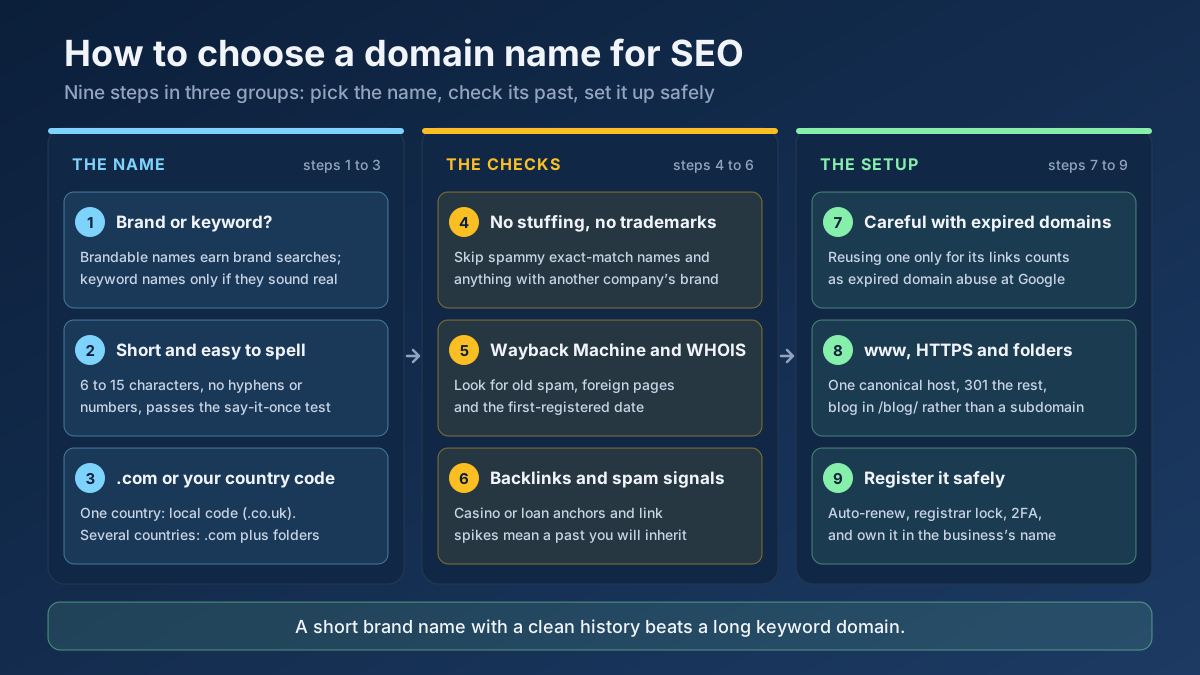 Technical SEO
How to choose a domain name for SEO: brand vs keyword names, the best extension, how to check a domain’s history and when an expired domain becomes a risk.
Read article →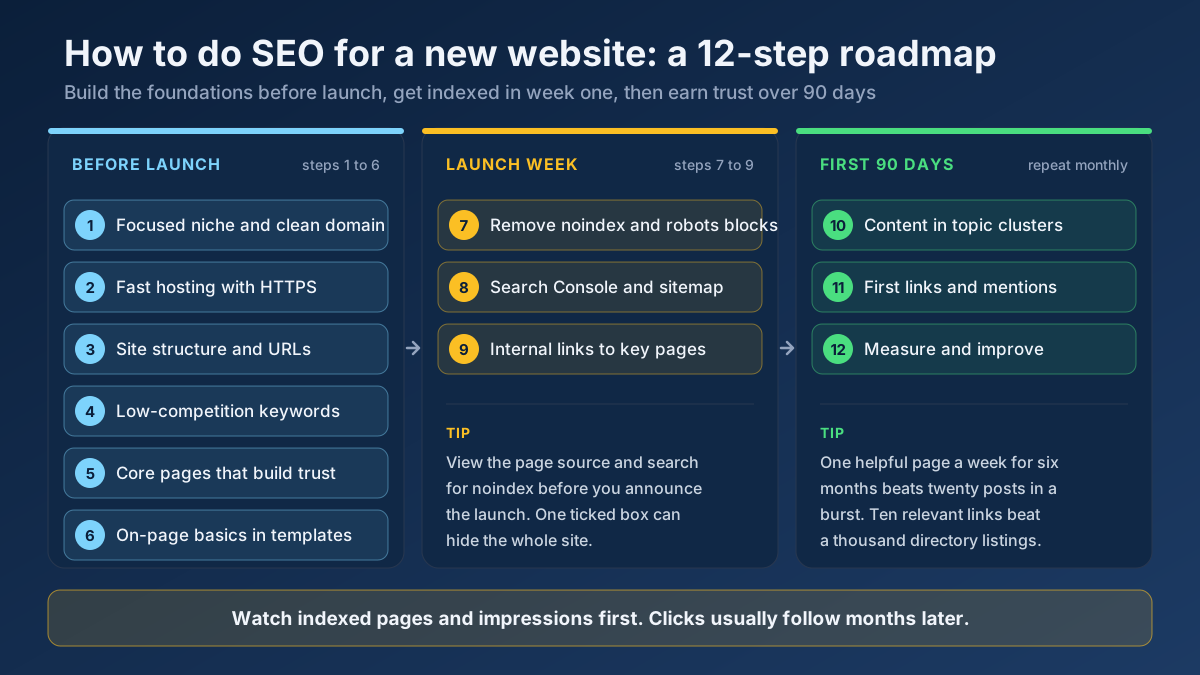 Technical SEO
Learn how to do SEO for a new website in 12 steps: what to set up before launch, how to get indexed in week one and how to earn traffic in the first 90 days.
Read article →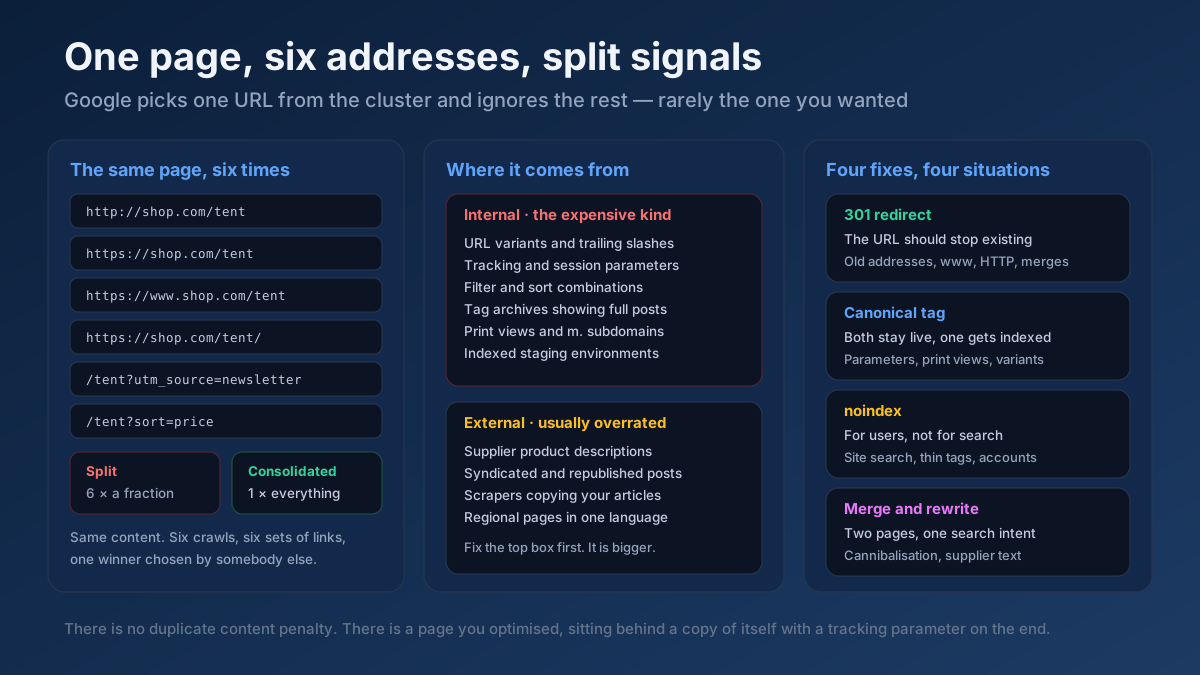 Technical SEO
How to fix duplicate content issues in 9 steps: find every duplicate URL, choose between a canonical, a 301 and noindex, and stop the problem returning.
Read article →Crawlability, indexability, speed and structured data — the technical foundations that let your content rank.
Read article →See the public IP address websites see for you, with its location, ISP, connection type (home, mobile, datacenter or VPN), proxy header leaks, WebRTC leaks and time zone match.
Open tool →Check an IP address or a domain against 70+ DNS blacklists (Spamhaus ZEN and DBL, Barracuda, SpamCop, URIBL, SURBL, UCEPROTECT…) queried from our own resolver: clean, listed or could-not-check per list, a reputation score and delisting links.
Open tool →Resolve a domain/IP and get real geolocation, ISP, ASN and hosting organization data.
Open tool →Test up to 20 HTTP, HTTPS or SOCKS proxies at once: whether each one works, its speed, exit IP and country, anonymity level (transparent, anonymous or elite) and whether Google answers through it.
Open tool →IPv4 and IPv6 subnet calculator: network and broadcast address, first and last host, host count, netmask, wildcard, binary view, address type and reverse DNS zone — plus splitting a range into smaller subnets. Runs in your browser.
Open tool →Show your browser’s user agent string with one-click copy, parsed into browser, version, engine, operating system and device type, plus the real values from Client Hints that the frozen string hides. Runs in your browser.
Open tool →