Short answer: “Page with redirect” in Google Search Console means the URL forwards visitors to another address, so Google indexes the destination instead of the URL you see in the report. Most of the time nothing is broken. You only need to fix it when a page that should be indexed redirects by mistake, or when your sitemap, internal links or canonical tags still point to redirecting URLs.
Few lines in Search Console cause as much unnecessary worry as this one. The number sits under “Why pages aren’t indexed”, it tends to grow over time, and pressing Validate Fix often ends with a “failed” message a few weeks later. It looks like an error. In most accounts we review, the larger part of that list is the site working exactly as designed: the http version sending people to https, old addresses pointing to new ones, a missing trailing slash being corrected. The smaller part is where real problems hide, and they are easy to miss because they sit in the same pile. This guide shows how to fix “Page with redirect” in Google Search Console in eight steps: how to separate the harmless URLs from the harmful ones, how to trace each redirect, what to change on the site and when you can simply close the report and move on.
What does “Page with redirect” mean in Search Console?
The status appears in the Page indexing report, which you open from Indexing › Pages in the left menu. Google’s own Page indexing report documentation describes it in one line: the URL is a non-canonical address that redirects to another page, so it will not be indexed. The destination of the redirect may or may not be indexed, depending on what Google thinks of that page.
That last sentence is the important one. The report lists the starting point of a redirect, not the page your visitors end up on. If http://example.com/pricing sends everyone to https://example.com/pricing/, the first address is filed under “Page with redirect” and the second one is judged separately. It can be indexed, it can be waiting in a queue, or it can have a different problem. The redirecting URL staying out of the index is correct behaviour, because there is no page at that address to show in search results.
So the status is a description, not a penalty. It does not lower your rankings, it does not mark the site as low quality, and it is not counted against you. It only becomes a problem when the redirect itself is something you did not intend.
How Google handles a redirect
When Googlebot requests a URL and the server answers with a 301, 302, 307 or 308 status and a Location header, Googlebot adds the target to its crawl queue and fetches it later. Google’s guide to redirects and Google Search explains how each type is read. A permanent redirect (301 or 308) is a strong signal that the target should become the canonical URL. A temporary one (302 or 307) is a weak signal, so Google may keep showing the old address for a while. An instant meta refresh and a JavaScript redirect are also understood, but they are slower and less reliable, because the page has to be downloaded or rendered before the redirect is seen.
Once the redirect is processed, links and other signals pointing at the old address are consolidated on the new one. This is why a well-built redirect protects your rankings during a redesign, and why a badly built one quietly wastes them.
Page with redirect vs Redirect error: they are not the same
Search Console has two redirect-related statuses, and people mix them up constantly. “Page with redirect” means the redirect worked: Google followed it and reached somewhere. “Redirect error” means it failed: Google could not reach a final page. According to Google, a redirect error is one of four things: a chain that was too long, a loop, a redirect URL that exceeded the maximum URL length, or a bad or empty URL somewhere in the chain.
A few neighbouring statuses also get confused with it. The table below shows how to tell them apart.
| Status in the report | What happened | Is it a problem? |
|---|---|---|
| Page with redirect | The URL redirects, and Google followed the redirect | Only if you did not intend the redirect, or your own site still points to it |
| Redirect error | A loop, a chain that is too long, or a broken target | Yes. Neither visitors nor Google reach a page |
| Alternate page with proper canonical tag | The page loads, but its canonical tag names another URL | Usually not; it is the canonical tag doing its job |
| Not found (404) | The URL returns a 404 with no redirect | Only for pages that should exist or that still have links |
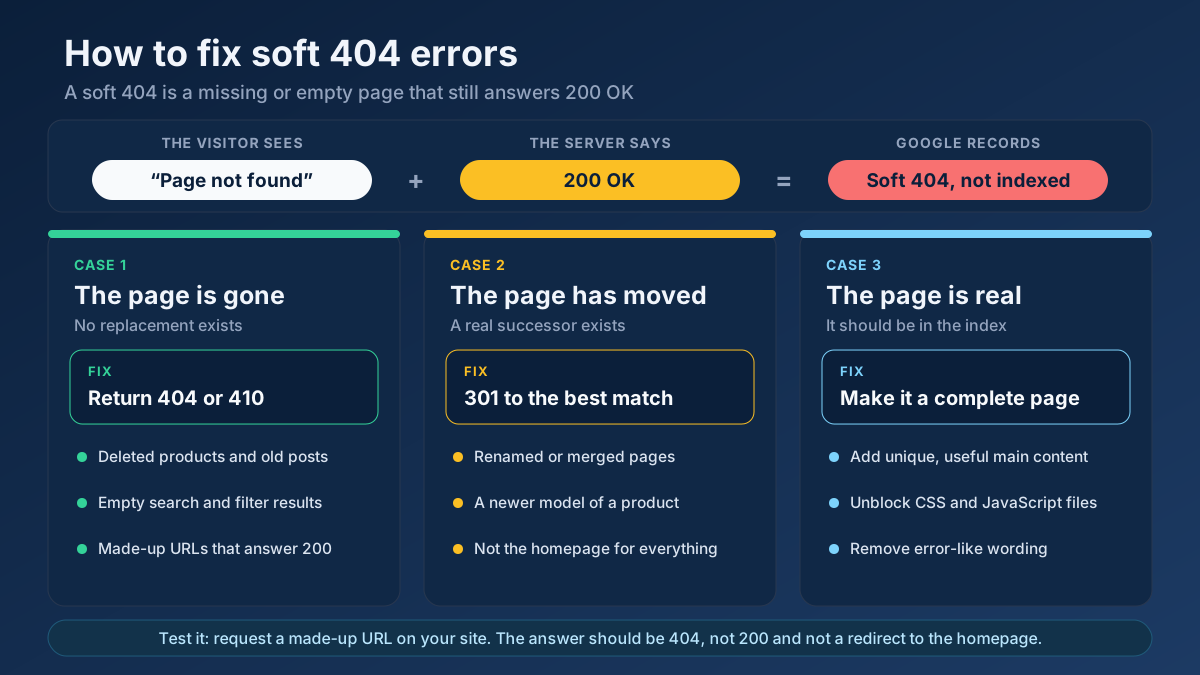
| Soft 404 | The page loads with a 200 status but looks empty or missing, sometimes after a redirect to an unrelated page | Yes, when it affects real content |
If your issue is a soft 404 or a 404 rather than a redirect, our guides to fixing soft 404 errors and finding and fixing broken links cover those cases step by step.
Is “Page with redirect” bad for SEO?
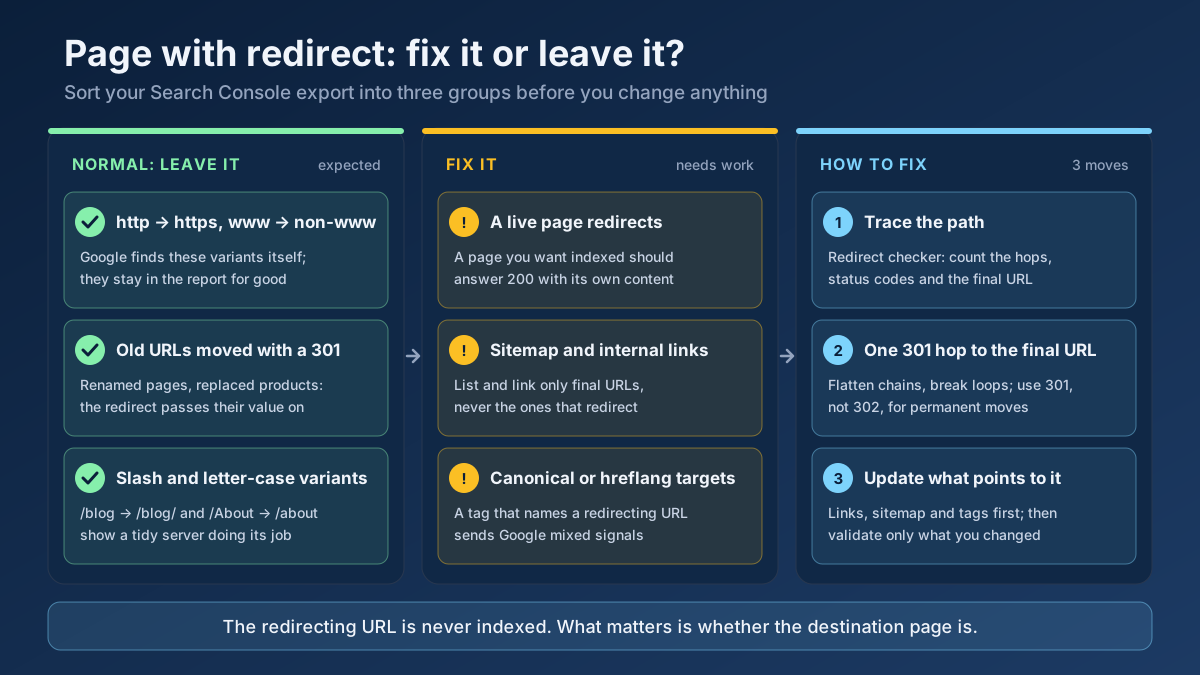
On its own, no. Every healthy website has URLs in this list, and a site with none at all would be unusual. What matters is which URLs are in it. We sort them with one question: “Did I mean for this address to redirect, and does anything on my site still send people to it?”
When you can safely ignore it
- Protocol and host variants. The http version redirects to https, or www redirects to non-www (or the other way round). Google discovers these on its own, and they will stay in the report for as long as the site exists.
- Trailing slash and letter case variants.
/blogredirects to/blog/, or/Aboutto/about. This is a tidy server doing its job. - Old URLs you moved on purpose. Pages renamed during a redesign, retired products pointed to their replacement, a merged pair of articles. The redirect is the reason those old addresses still pass their value to the new page.
- Short and campaign URLs. Addresses such as
/go/offeror/appthat exist only to forward people.
When it needs fixing
- A page you want indexed is in the list. A live product, an article or a landing page that should load directly but redirects somewhere else.
- The redirecting URLs are in your XML sitemap. The sitemap is a list of addresses you are asking Google to index, so a redirecting URL there is a contradiction.
- Your internal links point to them. Menus, footers and in-text links that send every visitor and every crawler through an extra hop.
- Canonical or hreflang tags name a redirecting URL. This one is subtle and can affect a whole template at once.
- The redirect is the wrong type or too long. A 302 where a 301 is meant, or three hops where one would do.
- The destination is unrelated. Hundreds of deleted pages all sent to the home page tend to be treated as soft 404s, not as real redirects.
- The count jumped overnight. A sudden rise after a plugin update, a theme change or a deployment usually means a new rule is catching more than it should.
Step 1: Export the affected URLs
Open Search Console, go to Indexing › Pages and scroll to the “Why pages aren’t indexed” table. Click the “Page with redirect” row. You will see a chart of how the count changed over time and a list of example URLs. Use the Export button at the top right to download the list to a spreadsheet.
Two things to know before you start reading it. First, the list shows at most 1,000 example URLs, so on a large site it is a sample, not the full picture. If you need more, add separate Search Console properties for important folders (for example https://example.com/blog/) and each one gets its own 1,000 rows. Second, look at the chart before the list. A line that climbs slowly over months is normal for a site that keeps publishing and occasionally renaming pages. A vertical jump on a specific date is a clue: write the date down and compare it with your changelog, plugin updates or deployment history.
It also helps to switch the filter at the top of the report from “All known pages” to “All submitted pages”. If “Page with redirect” still shows URLs after that switch, those addresses are in your sitemap, and that is the first thing to correct (see Step 7).
Step 2: Sort the URLs into expected and unexpected
Do not check a thousand URLs one by one. Redirects come from rules, and rules create patterns. In the spreadsheet, add a column called “Pattern” and label each row. A typical export breaks down into a handful of groups like the ones below.
| Pattern you see in the export | Likely cause | Verdict |
|---|---|---|
http:// addresses | HTTPS rule | Expected |
www. addresses on a non-www site (or the reverse) | Host rule | Expected |
| The same paths without a trailing slash | Server or CMS slash rule | Expected, but check your internal links |
| Old slugs of renamed pages | CMS automatic redirects, redirect plugin | Expected |
Addresses with ?p=123, /index.php, /home | CMS default URLs | Expected, but find what links to them |
| Current pages that should load directly | A rule that is too broad, a login or geo redirect | Unexpected: fix |
| A whole language or country folder | Automatic redirect by location or browser language | Unexpected: fix |
| Many deleted pages | Catch-all redirect to the home page | Review: soft 404 risk |
Sorting the column alphabetically usually makes the patterns obvious within a few minutes. In a typical small-business export, most of the rows fall into the first four groups. The rows that remain after you remove those are your real work list, and it is often short enough to finish in one sitting.
Step 3: Trace where each redirect goes
For each pattern, pick two or three sample URLs and follow the redirect from start to finish. You are looking for three facts: how many hops there are, which status code each hop returns, and what the final URL is.
The quickest way is our free Redirect & HTTP Status Checker. Paste the URL and it lists every hop with its status code until it reaches the last address. If you prefer the command line, curl shows the same thing:
curl -sIL http://example.com/pricing | grep -iE "^(HTTP|location)"A healthy result looks like this: one 301, then a 200.
HTTP/1.1 301 Moved Permanently
location: https://example.com/pricing/
HTTP/2 200
Write down anything that differs from that picture:
- More than one hop. For example http → https → www → trailing slash. Each rule is fine alone; together they form a chain.
- A 302 or 307 on a move that is meant to be permanent.
- A final status other than 200, such as a 404 or a 5xx at the end of the path.
- A destination on a different topic, such as the home page or a category page replacing a specific article.
- No redirect at all in the tool, although Search Console reports one. That usually points to a JavaScript or meta refresh redirect, or to a redirect that depends on the visitor’s location, device or cookies.
One trap when you test in a browser: Chrome’s developer tools may show a “307 Internal Redirect” for an http address. That response does not come from your server. It is the browser applying HSTS, the policy that forces HTTPS for a site it has visited before. Googlebot does not behave that way, so always confirm with a tool that makes a fresh request. The HTTP Header Checker is useful here, because it shows the raw response headers the server sends.
Step 4: Check whether the destination is indexed
This is the step that settles most cases. Take the final URL from Step 3 and paste it into the URL Inspection bar at the top of Search Console. If the result says “URL is on Google”, the redirect has done its job: the content is indexed at the right address, and the old URL sitting in the “Page with redirect” list is just bookkeeping.
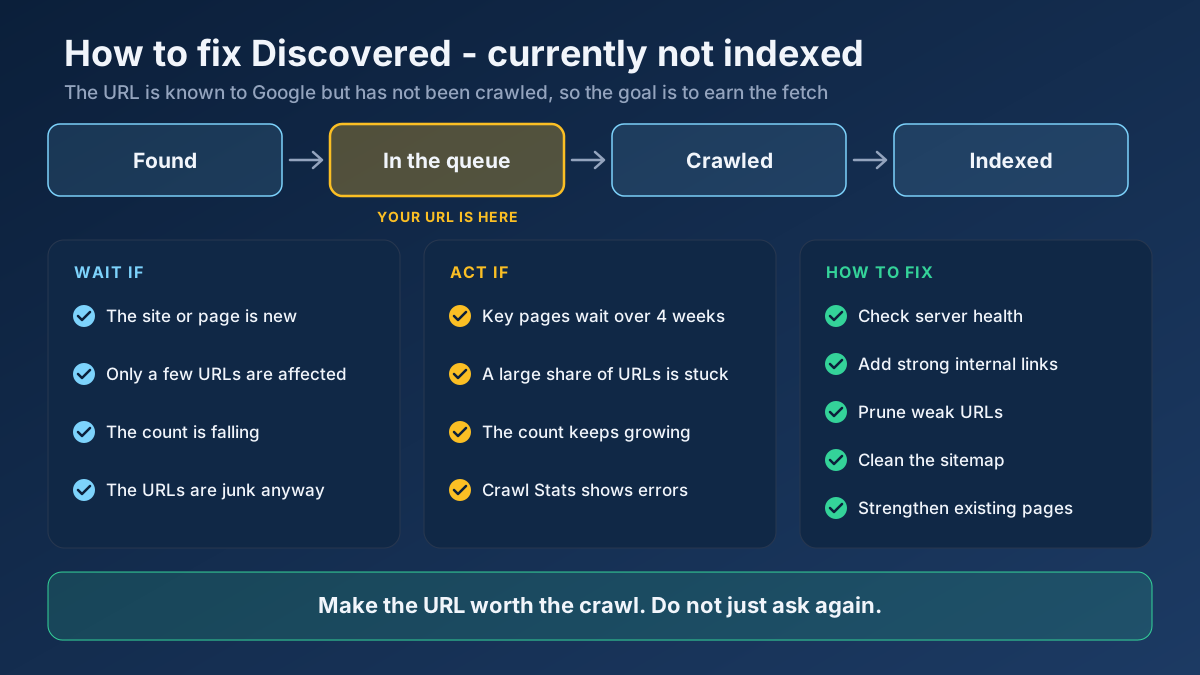
If the destination is not indexed, the redirect is rarely the reason. Read the status shown for the destination and follow that trail instead. “Crawled - currently not indexed” points to content quality or duplication, which we cover in our guide to fixing Crawled - currently not indexed; “Discovered - currently not indexed” points to crawl priority, explained in the Discovered - currently not indexed guide. A noindex tag or a robots.txt block on the destination will also keep it out, however clean the redirect is.
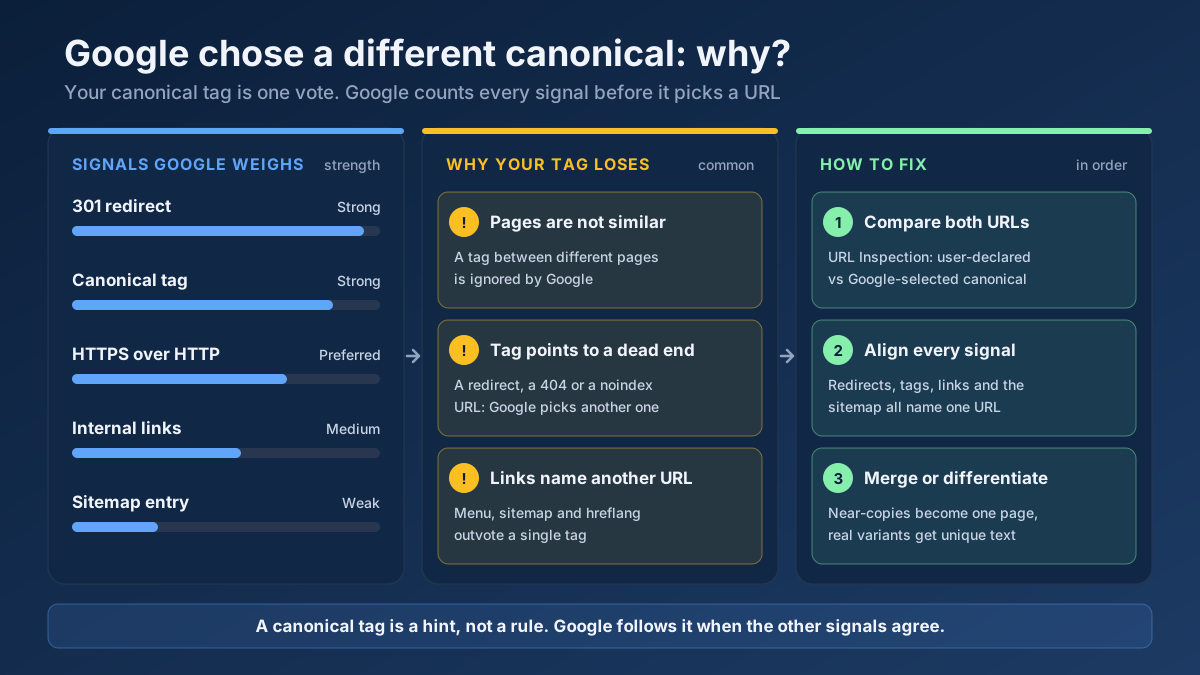
While you are in URL Inspection, open “Page indexing” and compare two fields: the user-declared canonical and the Google-selected canonical. If they are different, Google disagrees with your choice of main URL. That is often caused by the mixed signals we clean up in Step 7.
Step 5: Remove redirects that should not exist
Now work through the “unexpected” group. These are pages that should answer with a 200 status and their own content, but redirect instead. The causes we find most often are below.
A redirect rule that matches too much
A pattern written for one folder can catch its neighbours. A rule meant to move /shop/ to /store/ may also catch /shop-news/ if it is not anchored properly. Redirect plugins make this easy to do by accident with a wildcard. Open your redirect list (the plugin’s table, the .htaccess file, the Nginx config or your CDN rules) and search for the affected path. If you have to rewrite the rules, our .htaccess Redirect Generator produces correctly anchored rules for Apache.
Redirects by country, language or device
Sites that automatically send visitors to /en/, /de/ or a mobile subdomain based on their IP address or browser language often hide whole sections from Google. Googlebot crawls mostly from addresses in the United States and does not send a language preference, so it is redirected to one version and may never see the others. Let every language version load directly at its own URL, link the versions with hreflang, and replace the forced redirect with a small banner that suggests the other version. Our guide to international SEO and hreflang shows the setup.
Login, age-gate and cookie walls
If a page redirects visitors who are not signed in to /login, Google is treated the same way and sees only the login screen. Pages meant for search should be readable without an account. Keep the wall for the parts that are truly private, and add those private URLs to robots.txt so they do not fill the report.
Automatic CMS redirects after a slug change
WordPress, Shopify and most modern platforms create a redirect when you change a page’s address. That is helpful, but it has a side effect: if you later reuse the old slug for a new page, the stored redirect can still win and the new page never loads. Check the platform’s redirect list for a leftover entry with the same path and delete it.
Out-of-stock and expired pages sent to a category
Redirecting a product that is temporarily unavailable removes a page that could still rank and sell later. Keep the page live with a clear “out of stock” message and alternatives. Redirect only when the product is gone for good and there is a close replacement. If there is no replacement, an honest 404 or 410 is better than a redirect to something unrelated.
Step 6: Flatten redirect chains and fix loops
A redirect chain is a redirect that leads to another redirect. Google’s documentation on HTTP status codes and network errors says Googlebot follows up to 10 hops, and if it has not received content by then, Search Console reports a redirect error. Ten sounds generous, but you should aim for one. Each hop is an extra request for crawlers and an extra delay for visitors, most noticeable on mobile connections.
Chains usually grow through history rather than through one bad decision. A page is renamed in 2022, renamed again in 2024, the site then moves to HTTPS, and nobody goes back to update the first rule. The fix is to edit each old rule so it points straight to the current final URL:
| Path | Hops | |
|---|---|---|
| Before | http://example.com/services → https://example.com/services → https://www.example.com/services → https://www.example.com/what-we-do/ | 3 |
| After | http://example.com/services → https://www.example.com/what-we-do/ | 1 |
For protocol and host rules, combine them so that any variant reaches the final scheme and host in a single step. On Apache, a combined rule looks like this:
RewriteEngine On
RewriteCond %{HTTPS} off [OR]
RewriteCond %{HTTP_HOST} !^www\. [NC]
RewriteRule ^ https://www.example.com%{REQUEST_URI} [L,R=301]
A loop is a chain that returns to its own start: A sends you to B, and B sends you back to A. Browsers show it as “too many redirects”. The most common cause we see is a CDN or proxy that connects to the origin server over plain http while the origin forces https. The origin redirects, the proxy asks again over http, and the cycle never ends. Setting the proxy to use an encrypted connection to the origin (in Cloudflare, the “Full (strict)” SSL mode) solves it. The second common cause is two rules that disagree, such as the CMS adding a trailing slash and the server removing it.
Finally, check the type. If the move is permanent, use a 301 or 308. A 302 will still be followed, and Google may eventually treat a long-standing 302 as permanent, but there is no reason to leave the signal weak. Our article on 301 vs 302 redirects explains when each one is right.
Step 7: Clean up the signals that point to redirecting URLs
This step is the one that actually reduces the number in the report over time, and it is the one most often skipped. Google keeps recrawling a redirecting URL for as long as something keeps telling it the URL matters. Four places do that.
Internal links
Every internal link should point to the final URL, written exactly as it resolves: same protocol, same host, same trailing slash. Links in the navigation and footer matter most, because they repeat on every page. Crawl the site with our Technical Site Audit to list internal links that answer with a 3xx status, then update them at the source. On a database-driven site, a search-and-replace of the old pattern usually fixes hundreds of links at once. The Broken Link Checker is a quick way to check a single page.
The XML sitemap
A sitemap should contain only canonical URLs that return a 200 status. Run yours through the Sitemap Finder & Validator and remove every entry that redirects. If the sitemap is generated by a plugin, the usual cause is a mismatch in settings: the site address is saved with www while the server redirects to non-www, or the other way round. Our XML sitemaps guide lists the other rules a sitemap should follow.
Canonical tags
A canonical tag that names a redirecting URL sends Google in a circle: the page says “the main version is over there”, and “over there” says “go back”. Google usually resolves it, but you are giving up a clear signal for no benefit. View the source of a few key templates and confirm that each canonical URL returns a 200 itself. The canonical tags guide covers the common mistakes.
Hreflang annotations
The same rule applies to hreflang. Every URL listed as a language alternate must load directly. When an hreflang target redirects, Google may ignore the annotation for that pair of pages, and the wrong language version can show up in search results.
Real example: one extra slash on our own site
We ran into this ourselves. The Turkish home page of SeoMods lives at /tr, without a trailing slash, and our server redirects /tr/ to it. For a while the code that builds canonical and hreflang tags produced the address with the slash. Every page on the site therefore named a redirecting URL as its Turkish alternate, and the Turkish home page declared a redirecting URL as its own canonical. Search Console filed the Turkish home page under “Page with redirect”. Nothing was wrong with the redirect itself. The fault was in the tags pointing at it. The fix was a one-line change so the generated URL matched the address the server actually serves, followed by a new inspection request. The lesson we took from it: when this status appears on a page that matters, check what your own site says about that URL before you look at the server.
Step 8: Validate the fix, or decide not to
The “Validate Fix” button at the top of the issue page asks Google to recrawl the listed URLs and confirm the issue is gone. For “Page with redirect”, think about what “gone” means: validation passes for a URL only if it no longer redirects. That leads to two different situations.
- You removed unintended redirects. Click Validate Fix. Google recrawls the sample over the following days and weeks, and the fixed URLs move out of the list.
- The remaining redirects are intentional. Do not validate. The URLs still redirect, so validation will end as “failed”. That result is harmless, but it generates alarming emails. Leaving the issue without validation is the correct choice.
Validation typically takes up to about two weeks, and sometimes longer on large or rarely crawled sites. For a single important page, use URL Inspection and “Request indexing” on the final URL instead; it is faster and targets the page you care about.
What to monitor afterwards
Check the report once a month rather than daily. The total will not drop to zero and it should not. Watch three things instead: whether the “All submitted pages” view shows zero redirecting URLs, whether the important pages you fixed now appear as indexed, and whether the chart shows any new sudden jump. Our overview of measuring SEO with Search Console explains how to read the other reports alongside this one.
Platform notes: WordPress, Shopify, Cloudflare and others
The principles are the same everywhere, but each platform has its own usual suspects.
| Platform | Where redirects come from | What to check first |
|---|---|---|
| WordPress | Core canonical redirects, old-slug redirects, SEO and redirect plugins, .htaccess | Settings › General: both site addresses must match the https and www form your server uses. Then the redirect plugin’s table |
| Shopify | Automatic redirects when a handle changes, the URL redirects list, primary domain setting | The URL redirects list in the admin for leftover entries; menus that link to old handles |
| Wix / Squarespace | Built-in URL redirect manager | Old entries left after a redesign; links in menus |
| Cloudflare or another CDN | Always Use HTTPS, redirect rules, SSL mode | SSL mode for loops; rules that duplicate what the origin server already does |
| Apache / Nginx / IIS | .htaccess, server blocks, web.config | Rule order, and separate rules that can be merged into one hop |
| JavaScript frameworks | Client-side router redirects | Move permanent redirects to the server or the hosting platform’s config so they return a real 301 |
On WordPress in particular, a mismatch between the saved site address and the address the server enforces is behind a large share of the cases we see. Every internal link the theme generates then starts with the wrong host or protocol, and every one of them redirects.
Common mistakes when dealing with this status
- Removing redirects to make the number go down. Deleting a working redirect turns the old URL into a 404 and throws away the links it had earned. The count is not a score.
- Clicking Validate Fix on intentional redirects, then treating “validation failed” as a new problem.
- Blocking the redirecting URLs in robots.txt. Google then cannot see the redirect at all, so it cannot pass signals to the new page.
- Requesting indexing for the redirecting URL. It can never be indexed. Request the destination.
- Removing redirects too early after a migration. Google recommends keeping them for at least a year. We keep them permanently where we can, because other sites’ links to the old URLs never update.
- Sending everything to the home page. A redirect should lead to the closest equivalent page. If there is none, let the URL return a 404 or 410.
- Fixing the server and forgetting the links. The redirect works, so nobody updates the menu, and the report keeps growing.
If redirects are part of a bigger move, such as a new domain or a new URL structure, work from our website migration SEO checklist so that the mapping is planned before launch, not repaired after it.
A 15-minute routine for small sites
If your site has fewer than a few hundred pages, you do not need a project plan. This short routine covers nearly every case:
- Open the report, switch to “All submitted pages” and note whether any redirecting URLs remain. If they do, fix the sitemap.
- Export the full list and remove the http, www and slash variants.
- Read what is left. Mark any URL that is a current, live page.
- Run the marked URLs through the Redirect Checker and note the final address and number of hops.
- Remove or correct the rule behind each unintended redirect.
- Inspect the final URLs in Search Console and request indexing for those not yet on Google.
- Run your home page and one page of each main template through the All-in-One SEO Audit to catch canonical, redirect and sitemap issues in one pass.
Frequently asked questions
What does “Page with redirect” mean in Google Search Console?
It means the listed URL redirects to another address. Google followed the redirect and will not index the redirecting URL itself. The destination page is evaluated separately and can be indexed normally. The status describes how the URL behaves; it is not a penalty.
Do I need to fix “Page with redirect”?
Only in some cases. Intentional redirects, such as http to https or an old URL to its replacement, need no action. Fix it when a page that should be indexed redirects by mistake, or when your sitemap, internal links, canonical or hreflang tags point to redirecting URLs.
Why did validation fail for “Page with redirect”?
Validation checks whether the listed URLs still redirect. If the redirects are intentional, they still exist, so validation fails. This is expected and has no effect on rankings. Only start validation after removing redirects that were not supposed to be there.
What is the difference between “Page with redirect” and “Redirect error”?
“Page with redirect” means the redirect worked and Google reached a destination. “Redirect error” means it failed because of a loop, a chain that was too long, an overlong URL, or a bad or empty URL in the chain. A redirect error always needs fixing.
How long does it take for “Page with redirect” to disappear?
Fixed URLs usually leave the list within a few days to a few weeks, once Google recrawls them. Intentional redirects stay in the report for as long as Google knows about the old URL, which can be months or years. That is normal.
Should redirecting URLs be in my sitemap?
No. A sitemap should list only final, canonical URLs that return a 200 status. Redirecting entries waste crawl requests and send Google mixed signals about which address you want indexed. Replace each one with its destination.
Do redirects lose link value or hurt rankings?
A single permanent redirect to a relevant page passes signals to the destination, so rankings are normally preserved. Problems come from long chains, temporary redirects used for permanent moves, and redirects to unrelated pages, which Google may treat as soft 404s.
Why does a page I never redirected show this status?
A rule you did not write is usually responsible: a plugin, a CDN setting, a trailing slash or letter-case rule, a login requirement, or a redirect based on the visitor’s country or language. Test the URL with a redirect checker to see which hop fires.
Applying this to your own site? See the tools picked by audience: how Shopify Store Owners can use the Image ALT Text Checker and how Shopify Store Owners can use the All-in-One SEO Audit.
Conclusion: fix the exceptions, not the number
“Page with redirect” is Search Console telling you that a URL forwards to another one. For protocol variants, renamed pages and tidy trailing slashes, that is the result you wanted, and there is nothing to repair. Your job is to find the exceptions: live pages that redirect by accident, chains with more than one hop, and sitemaps, links, canonical or hreflang tags that still name the old address. Fix those, validate only what you changed, and judge success by whether the destination pages are indexed, not by whether the count reaches zero.
Start with one URL from your export. Paste it into the Redirect & HTTP Status Checker and look at the path it takes. If it reaches the right page in one 301 hop, cross it off. If it does not, you have just found the first thing worth fixing.