JavaScript SEO: Making JS Sites Crawlable
JavaScript frameworks can hide content from crawlers. Here is how to make sure Google sees your pages.
Read article →Find out what a website is built with: CMS, e-commerce platform, JavaScript framework, CDN, analytics, tag managers, server and programming language, detected from the HTML, HTTP headers and cookies with version numbers and a confidence level for each match.
Fetching live data…
The Website Technology & CMS Detector shows what a website is built with. Enter a URL and the tool reads the page's HTML, HTTP headers and cookies, then matches them against more than 300 fingerprints. It names the CMS or shop platform, JavaScript framework, web server, CDN, analytics and tag managers, payment and chat widgets, with a version number where one is exposed and a confidence level for each match.
<meta name="generator"> tags, script and stylesheet paths, inline script variables such as __NEXT_DATA__, cookie names, and headers such as Server, X-Powered-By and Via.jquery-3.7.1.min.js file name, an ng-version attribute). Open the evidence list under each entry to see exactly what matched.X-Powered-By, an exact server version, jQuery older than 3.5.0, or end-of-life AngularJS.Knowing the stack behind a site answers practical questions quickly. When you take over an SEO project, it tells you which CMS and SEO plugin control titles, canonicals and schema, so you know where to make fixes. In competitor research it shows which platforms and marketing tools similar businesses use, and in an audit it surfaces forgotten scripts or outdated libraries.
The same fingerprints help attackers too. Headers such as Server and X-Powered-By, or a generator tag with an exact version, tell an automated scanner which known vulnerabilities to try. The OWASP Web Security Testing Guide treats this kind of fingerprinting as the first step of an assessment. Hiding version numbers does not fix an outdated component, but it stops the site from advertising one.
expose_php = Off, hide the server version (server_tokens off in nginx, ServerTokens Prod in Apache) and update outdated libraries. Then run the Website Security Checker for a wider passive check and the HTTP Header Checker to review every header.It is as accurate as the fingerprints a page exposes. Clear traces such as a generator tag, a vendor header or a platform's own CDN are detected reliably. The tool reads one HTML response without running JavaScript, so scripts added later by a tag manager, server-side tools that leave no trace and deliberately hidden fingerprints can be missed. Each result shows its confidence and evidence.
Some technologies cannot be seen from outside but follow from another one. A WooCommerce store runs on WordPress, and WordPress runs on PHP with a MySQL-compatible database. Implied entries are shown with a lower confidence and an "implied by" note instead of direct evidence.
Popular themes and plugins that leave clear traces are detected, for example Elementor, Divi, WPBakery, Yoast SEO, Rank Math, WP Rocket, LiteSpeed Cache, Contact Form 7 and Wordfence. The tool does not probe plugin folders or guess URLs; it only reports what the page itself shows.
Yes. The tool makes one normal page request, like a visitor opening the page, and only reads what the server sends publicly. It does not log in, scan for files or test for vulnerabilities, and results are cached for six hours.
Guides, tips and tutorials hand-picked for this tool — go from running a check to actually fixing it.
JavaScript frameworks can hide content from crawlers. Here is how to make sure Google sees your pages.
Read article →Reverse-engineer what works for your competitors and find your fastest wins. Here is a free workflow.
Read article →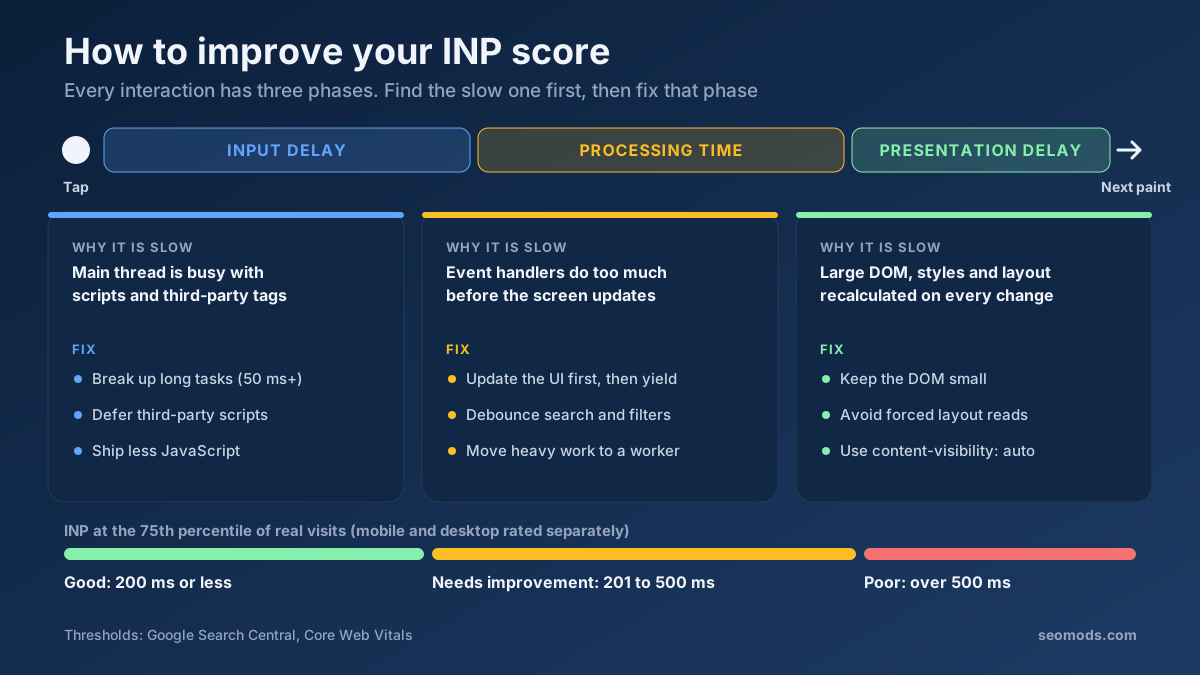 Performance
How to improve INP score: find the slow interaction, cut input delay, processing or presentation time, and pass the 200 ms Core Web Vitals threshold.
Read article →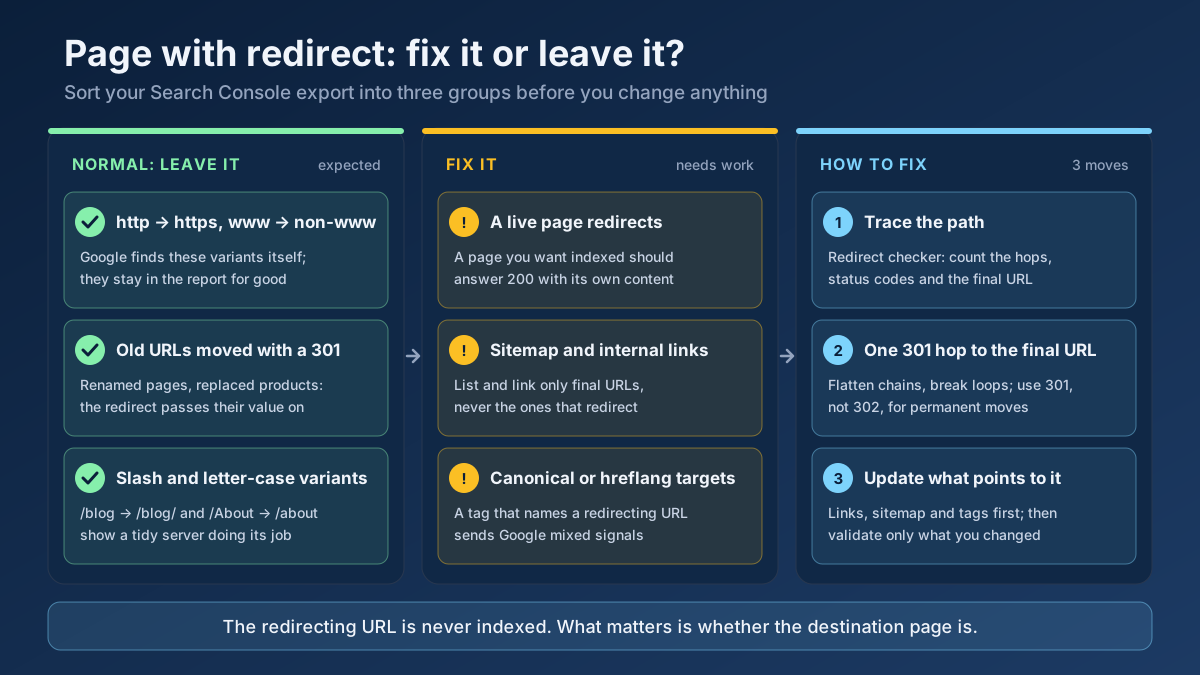 Technical SEO
How to fix Page with redirect in Google Search Console: when to ignore it, when it blocks indexing, and 8 steps to clean up redirects, chains and sitemaps.
Read article →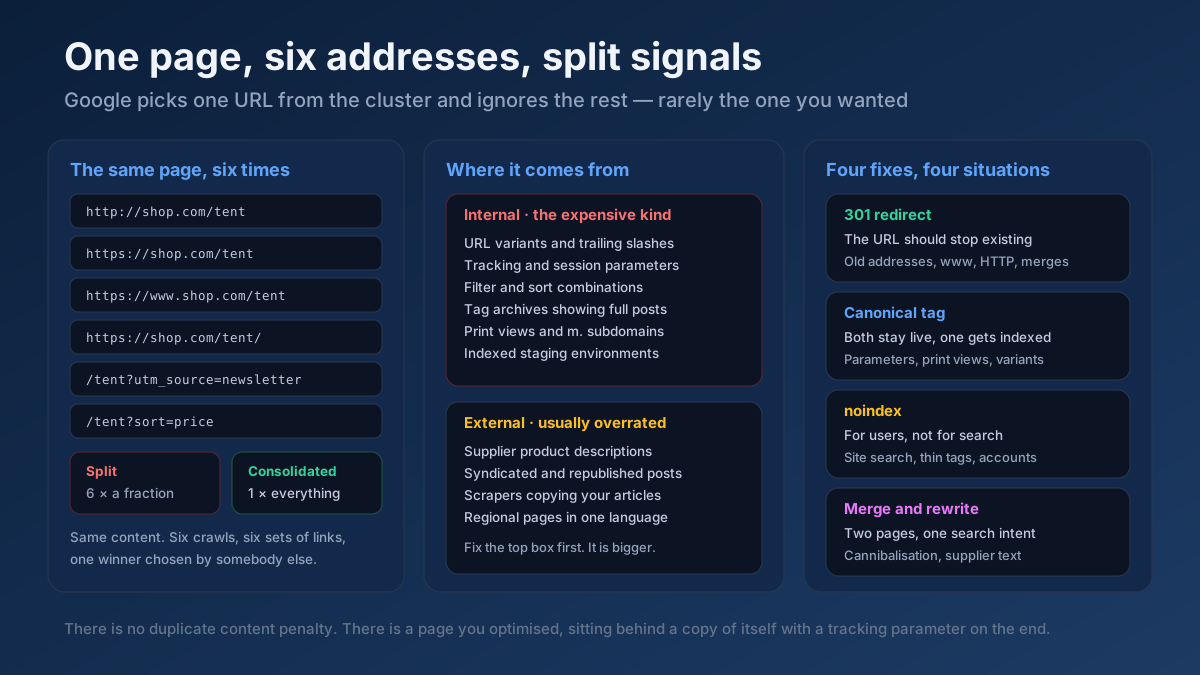 Technical SEO
How to fix duplicate content issues in 9 steps: find every duplicate URL, choose between a canonical, a 301 and noindex, and stop the problem returning.
Read article →Faster pages rank better and convert better. Here is a prioritized checklist that actually moves the needle.
Read article →View raw response headers, server software, caching, security headers and content type of any URL.
Open tool →Passive security scan of any website: HTTPS and TLS, HSTS, CSP and other security headers, exposed .env / .git / phpinfo files, cookie flags, mixed content, version leaks and the PHP2Shell (CVE-2026-109618 / CVE-2026-109619) PHP version check.
Open tool →See what AI crawlers that do not run JavaScript get from a page: raw HTML vs a headless-Chromium render, field by field (title, canonical, robots, headings, words, links, JSON-LD, hreflang), JS dependency %, render-only text highlighted and SSR/prerender fixes.
Open tool →Full technology & SEO profile of any website (Wappalyzer + BuiltWith style): CMS, theme, plugins, framework, JS & CSS libraries, CDN, hosting, analytics, tag managers, ads, fonts, cookie tools, schema, Open Graph, security headers, HTTP version, SSL, WHOIS, DNS, IP, country and on-site SEO signals.
Open tool →Measure real server response time (TTFB), total load time, page weight, compression and request size.
Open tool →Trace the full redirect chain (301/302/307) of a URL and verify the final status code.
Open tool →