Google Chose Different Canonical Than User? Fix It
Fix “Duplicate, Google chose different canonical than user” in Search Console: why Google ignores your canonical tag and 9 steps to align every signal.
Read article →See a domain’s past from the Wayback Machine: first archived date, snapshots per year as a chart, gaps when the site was down or abandoned, and the page title of every year so you can spot topic changes (for example gambling, then a blog) before you buy an expired domain.
Fetching live data…
The Wayback & Domain History Checker shows what a domain was used for in the past, using captures from the Internet Archive's Wayback Machine. It finds the first and last archived dates, charts how often the home page was captured each year, lists gap years, and reads the page title of every year to flag topic changes, risky niches and parked pages.
example.com. A URL works too; the tool keeps the domain and checks both example.com/ and www.example.com/.A domain carries its past with it. Expired domains are often bought for their backlinks, but if the previous owner ran a casino, a pharmacy spam site or a link farm, those links and anchors point at a topic you do not want to be associated with. Google's spam policies name expired domain abuse: buying an old domain and using its reputation to host unrelated, low-value content. A clean, continuous history does not guarantee anything either, but a history check before you buy, or when an inherited domain behaves oddly in search, takes a minute and can save months.
The archive is incomplete. The Wayback Machine does not capture every site every month, and site owners can exclude their pages, so a missing year means "not archived", not proof the site was down. The data comes from the Wayback CDX Server API.
No. It only means the Wayback Machine has no capture of the home page that year. Smaller sites are archived less often, and robots.txt rules or removal requests can hide captures. Treat a gap as a reason to look closer, together with WHOIS and backlink data.
The archive can be slow. The tool reads up to 25 yearly snapshots within a fixed time limit, so a slow response may leave some years without a title. The chart and gap analysis still use all the capture data. Run the check again later for the missing titles.
It is a hint, not a verdict. It compares the meaningful words of page titles, so a rebrand or a new title style can look like a topic change, and a site that changed niche but kept a vague title may not be flagged. Always open the linked snapshots and judge for yourself.
Yes. It uses the Internet Archive's public data, and results are cached for 24 hours so repeated checks of the same domain are fast.
Guides, tips and tutorials hand-picked for this tool — go from running a check to actually fixing it.
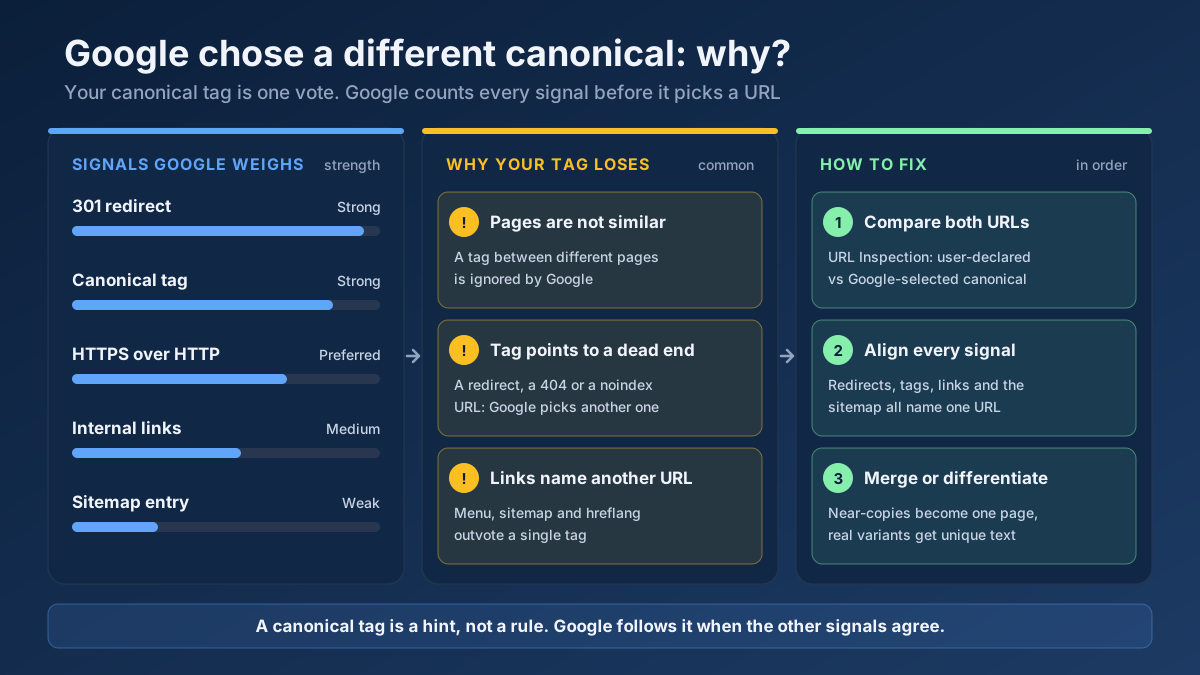 Technical SEO
Fix “Duplicate, Google chose different canonical than user” in Search Console: why Google ignores your canonical tag and 9 steps to align every signal.
Read article →A WHOIS lookup reveals a domain's registrar, creation and expiry dates, name servers and — when it is not hidden by privacy — its owner. Here is what a WHOIS record means, how to find who owns a domain, and what to do when the owner is redacted.
Read article →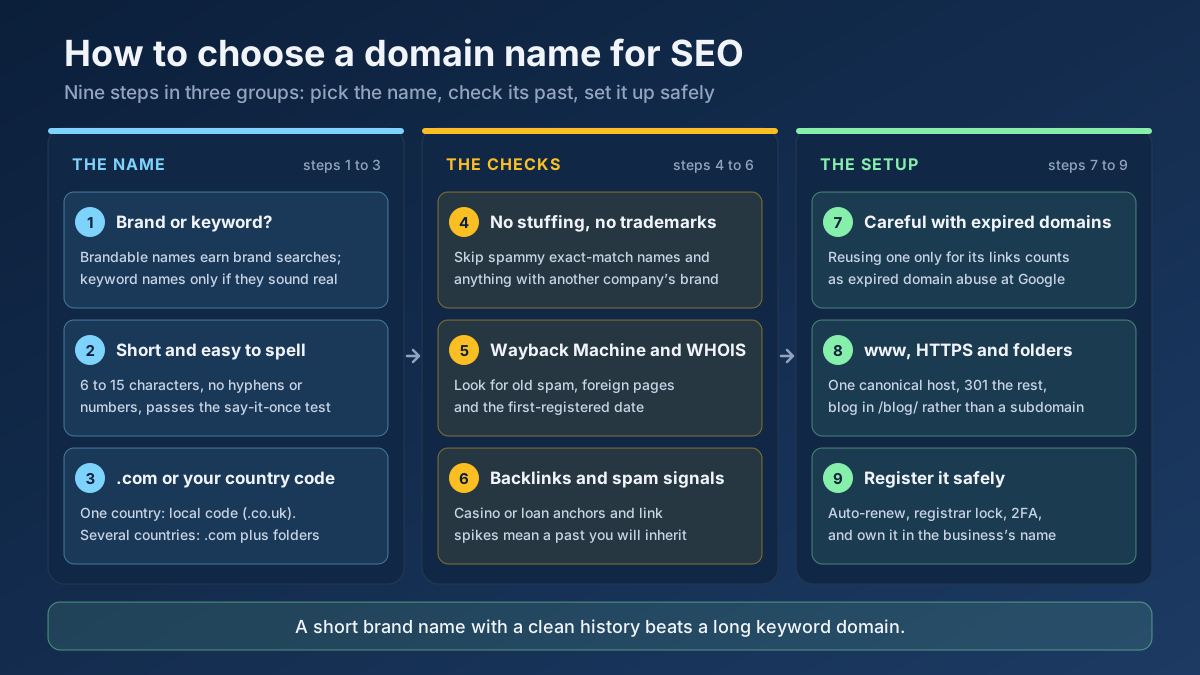 Technical SEO
How to choose a domain name for SEO: brand vs keyword names, the best extension, how to check a domain’s history and when an expired domain becomes a risk.
Read article →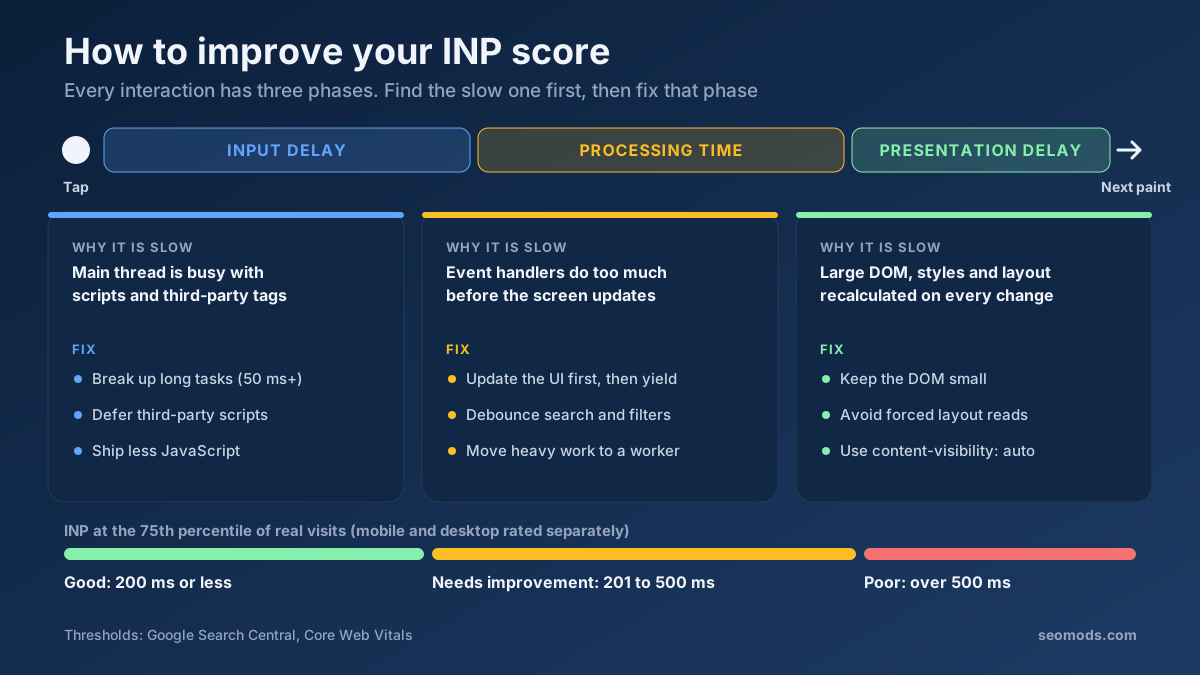 Performance
How to improve INP score: find the slow interaction, cut input delay, processing or presentation time, and pass the 200 ms Core Web Vitals threshold.
Read article →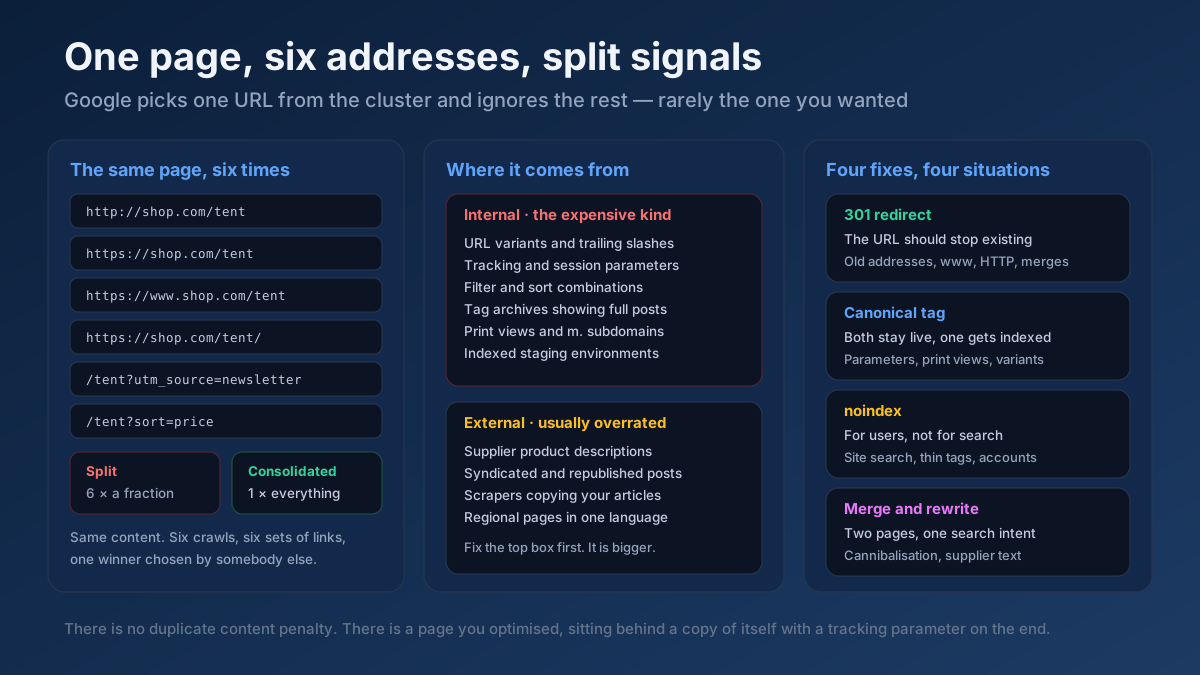 Technical SEO
How to fix duplicate content issues in 9 steps: find every duplicate URL, choose between a canonical, a 301 and noindex, and stop the problem returning.
Read article →Faster pages rank better and convert better. Here is a prioritized checklist that actually moves the needle.
Read article →Find the registration date and exact age of any domain via live WHOIS data.
Open tool →Retrieve real domain registration data: registrar, creation/expiry dates, name servers and status.
Open tool →See which domains link to any site, ranked by authority, from our own growing link index — then verify live whether specific pages really link to you, with anchor text, rel and status.
Open tool →Check real Domain Authority (DA) and Page Authority (PA) for any website, built on real link-graph authority data. See the raw authority index and global rank, and compare up to 20 domains at once — free, with no signup.
Open tool →Check the Domain Rating (DR) of any website from our own link index: referring domains, their strength, the strongest linkers, follow/nofollow mix and how many links the next DR level takes. Compare up to 10 sites.
Open tool →Turn a messy list of spam URLs and domains into a clean Google disavow file: extracts domains, strips www, lower-cases, removes duplicates, drops URLs already covered by a domain: line, flags invalid lines and checks the 2 MB / 100,000-line limits. Download the .txt for Search Console.
Open tool →