
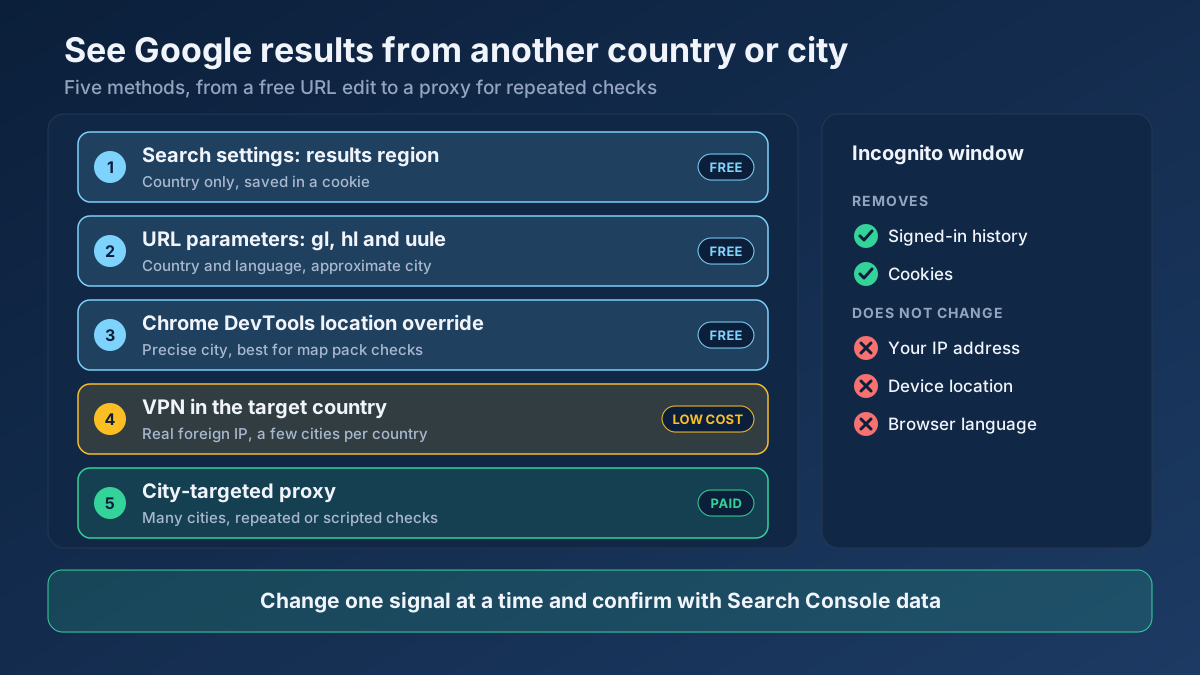
Short answer: To see Google results from another country, set the country and language in the search URL with the gl and hl parameters, or change the results region in Google’s search settings. For a specific city, override your browser location in Chrome DevTools. A VPN changes the country your IP comes from, and a proxy in the target city is the tool for repeated or large-scale checks.
Every SEO eventually hears the same sentence from a client: “I searched for us and we’re not there.” Or the opposite: you rank first on your own screen, and a customer three hundred kilometres away has never seen you. Both are usually true at the same time. Google builds a different results page for every searcher, and the biggest single input is where that searcher is. This guide explains what changes from place to place, why the incognito window most people reach for does not help, and five methods to look at Google through another country’s or city’s eyes, from a free URL edit to a proxy for daily checks.
This guide contains one affiliate link. If you buy through it, SeoMods earns a commission; most methods described here are free. Disclosure
Why Google shows different results in different places
Google’s goal is the most useful page for this person, here, now. “Here” is worked out from several signals at once, and each of them can move a result up or down.
The location of your IP address
Every request carries an IP address, and IP addresses map to countries and, less precisely, to cities. This is the signal Google always has, even for a signed-out visitor with location services off. It decides the country version of the results and often the city. You can see what your own connection reveals with the What Is My IP? tool: the city it shows is the city Google is most likely assuming.
Your device location
If you have allowed google.com to use your location in the browser, or you search from the Google app on a phone with location on, Google can use a far more precise position, down to the street. This is what makes “near me” searches and the map pack change from one district to the next. It also overrides the IP: a VPN in Germany does not help if your phone tells Google you are in Ankara.
Language and search settings
The interface language, the languages your browser says you read, and the “results region” in Google’s settings all shape the page. Two people in the same café can see different results if one has Google set to English and the other to Turkish, because Google weighs pages in the searcher’s language more heavily.
Personalisation and history
When you are signed in, past searches and visits can nudge results, which is why a site you visit every day can look stronger on your screen than on anyone else’s. Google says personalisation is a smaller factor than people think, but it is enough to make your own searches a poor benchmark.
The country-code domains (google.de, google.com.tr) no longer decide the country. Since 2017 Google picks the country service from your location, whichever domain you type, as it explained when it made search results more local. Typing google.de from Istanbul gives you Turkish results with a German interface, which surprises a lot of people.
Why an incognito window is not enough
The most common advice for a “clean” check is to open a private window. It does remove two things: your signed-in history and your cookies. It does not change your IP address, your device location or your browser language. An incognito search from your office in Izmir is still an Izmir search, so it tells you nothing about what a customer in Berlin sees.
Incognito is still worth using for every method below, because it stops your own history from colouring the result. Think of it as removing one variable, not as changing where you are.
Method 1: Change the results region in Google’s settings
The simplest built-in option is Google’s own region setting. In a desktop browser, open Google, go to Settings, then Search settings (or “Other settings”), and find “Language and region” and “Results region”. Pick the country you want, save, and search again.
- Good for: a quick, country-level look, especially for someone non-technical such as a client.
- Limits: it only sets a country, not a city; it is saved in a cookie, so it is easy to forget it is on; and local results can still lean on your IP.
Remember to switch it back afterwards. A forgotten region setting is a classic cause of “my rankings suddenly look strange” a week later.
Method 2: Use the gl, hl and UULE URL parameters
For SEO work the most practical free method is to build the search URL yourself. Google reads a few parameters in the address bar, and they work in any browser without changing a setting.
gl and hl: country and language
gl takes a two-letter country code and asks for that country’s results. hl sets the interface language. A search for running shoes as someone in the United Kingdom would see it looks like this:
https://www.google.com/search?q=running+shoes&gl=gb&hl=en
Change gl=gb to gl=de and hl=en to hl=de for Germany, or gl=tr&hl=tr for Turkey. Bookmark one URL per market and you have a free, repeatable check.
| Parameter | What it does | Example |
|---|---|---|
gl | Country whose results you want | gl=us, gl=de, gl=tr |
hl | Interface language | hl=en, hl=de |
lr | Restrict results to pages in one language | lr=lang_de |
num | Results per page (Google may ignore it) | num=20 |
pws=0 | Older switch to turn personalisation off; harmless, effect is small today | pws=0 |
uule | An encoded location name, down to city level | generated, see below |
UULE: a city in the URL
The uule parameter carries an encoded location name, such as a city taken from Google Ads’ list of geographic targets. With it you can ask for results “as if in Manchester” rather than just the UK. The value is not something you type by hand; free UULE generators turn a city name into the code. It is an unofficial parameter, so treat its results as a strong hint rather than a guarantee, and expect the map pack and ads to follow your real IP more than the parameter.
What the parameters cannot do
The parameters change what you ask for, not where you are. Google still sees your real IP. For organic results that is usually fine at country level. For local packs, “near me” queries, some shopping results and ads, the IP and device location often win. If a parameter view disagrees with what a customer in that city reports, trust the customer and move down to methods 3 to 5.
Method 3: Override your location in Chrome DevTools
To check a specific city or neighbourhood, especially for map-pack rankings, you can give the browser a fake GPS position. Chrome, Edge and other Chromium browsers include a location override:
- Open Google and press F12 (or right-click and choose Inspect).
- Open the three-dot menu in DevTools, then More tools, then Sensors.
- Under Location, choose a preset city or enter a latitude and longitude.
- Allow google.com to use your location when asked, and reload the search. At the bottom of the results page Google shows the location it is using.
This works because Google prefers a precise device location over the IP. It is the best free way to test how your business ranks for “dentist near me” at five points around a city. Firefox offers a similar override through its geolocation settings. The override only lasts while DevTools is open, so it does not leak into your normal browsing.
The limit is the other side of the same coin: the country still follows your IP. A DevTools location in Munich with a Turkish IP gives you an odd mix. For another country, combine it with method 2 or method 4.
Method 4: Use a VPN set to the target country
A VPN routes your whole connection through a server in another country, so Google sees an IP address there. It is the simplest way to change the most important signal, and for occasional checks in a handful of countries it is usually enough.
- Good for: seeing the full page a local user gets, including ads, shopping blocks and local packs at country level.
- Limits: most VPNs offer one or two cities per country; their IP ranges are well known, so Google sometimes shows CAPTCHAs or a reduced page; and switching changes the IP for every app on your computer.
After connecting, open What Is My IP? to confirm the country and city the new IP maps to, and to make sure WebRTC is not exposing your real address. If the tool still shows your home city, the VPN is not doing its job for that browser.
Method 5: Use a proxy in the target city
A proxy also gives you an IP in another place, but it works per application or per browser profile rather than for the whole computer, and good providers let you pick the city and the type of address. That makes it the right tool in three situations:
- Several cities at once: one browser profile per city, each with its own proxy, side by side.
- Repeated checks: the same keyword set from the same city every week, for a client report or local SEO tracking.
- Scripts and tools: your own rank tracker or a crawler that has to fetch a page as a visitor from that country, for example to test a geo-redirect.
The type of address matters. Datacenter proxies are cheap and fast but are the easiest for Google to flag. Residential and static ISP proxies come from consumer internet providers, so they look like a normal visitor, which is what you want for search results. Mobile proxies are the hardest to block and usually more than SEO needs. Before relying on any proxy, run it through the Proxy Checker: it shows the exit country, whether the proxy leaks your real IP, and whether Google answers or blocks it.
If you automate searches, read the next section first. Sending automated queries to Google is against its terms, and a SERP API is the cleaner route for large volumes.
Which method should you use?
Pick the lightest method that answers your question. The table compares them on the points that usually decide.
| Method | Cost | Country | City | Local pack and ads | Best for |
|---|---|---|---|---|---|
| Results region setting | Free | Yes | No | Partly | A quick look, non-technical users |
| gl / hl / UULE parameters | Free | Yes | Approximate | Partly | Daily organic checks, bookmarks per market |
| DevTools location override | Free | No (follows IP) | Yes, precise | Yes, in your own country | Map pack checks around a city |
| VPN | Low monthly fee | Yes | A few cities | Yes | Occasional checks of the full page |
| Location-targeted proxy | Paid, per IP or per GB | Yes | Yes, many cities | Yes | Repeated, multi-city or scripted checks |
A practical combination for most sites: bookmarks with gl and hl for each market you serve, DevTools for local packs in your own country, and a VPN or proxy only for the markets where the parameter view keeps disagreeing with what customers see.
If you automate the checks
Checking a few keywords by hand is normal use. Running hundreds of searches a day from a script is a different thing: Google’s terms do not allow automated queries, it throttles and blocks them, and a page fetched by a script may not match what a person sees. If you need rankings at scale, you have three honest options:
- Search Console API: your own site’s real clicks, impressions and average position, by country and device, for free. This is the most accurate data you can get for pages you own.
- A SERP API or rank-tracking service: these providers fetch results by location and give you structured data, and handling the access question is their job.
- Light, polite spot checks: a small set of keywords, low frequency, through a residential or ISP proxy in the target city, for the cases where you must see the page itself.
The same logic applies to other sites you test. Read the robots.txt, respect rate limits and prefer an official API where one exists.
Seeing ads from another location
Ads deserve a separate note, because clicking a competitor’s ad to check it costs them money and clicking your own skews your data. Google Ads includes an Ad Preview and Diagnosis tool that shows the ads for a keyword in any location and language without creating an impression or a click. Use it first. The Ads Transparency Center also lists the ads any advertiser is running, by region. A VPN or proxy is only needed when you want to see the ads in the context of the live results page, for example to judge how far down the first organic result starts on mobile in a given city.
Check what you see against real data
Whatever method you use, a single search is a sample of one. Before you report a ranking or change a page, compare it with data that covers many searches:
- In Search Console’s Performance report, filter by country and by query. The average position there comes from real impressions in that market. Our guide on high impressions and low clicks shows how to read it query by query.
- Use the Keyword Rank Checker to see how well a page is optimised for the term, and the SERP Features Analyzer tool to see which blocks the query is likely to trigger. Then confirm both with a location-specific search.
- If you serve several countries, make sure each market lands on its own version. The hreflang guide covers the tags, and the Redirect & HTTP Status Checker shows whether a URL bounces visitors by location. Google itself crawls mostly from US addresses, which is why it warns against serving different content by IP without a crawlable version for each locale.
- For local businesses, run the Local SEO Audit audit and compare your DevTools checks with the searches listed in your Business Profile’s Performance tab.
Common mistakes
- Trusting incognito alone. It removes history, not location. Your city is still your city.
- Using a country domain. google.de from Turkey gives Turkish results. Use
gl=deinstead. - Mixing signals. A German VPN with a browser location in Ankara and Turkish settings produces a page no real user sees. Change one signal at a time and keep the others consistent.
- Forgetting to switch back. A saved results region or a VPN left on quietly distorts the next week of checks.
- Reporting one search as a ranking. Positions move through the day. Repeat a check, note the date and location, and confirm with Search Console. The free rank checker guide explains why no single number is exact.
- Using a flagged IP. A datacenter proxy or busy VPN server can trigger CAPTCHAs and thinner results. If the page looks unusual, test the address before blaming your SEO.
Applying this to your own site? See the tools picked by audience: All-in-One SEO Audit: a walkthrough for Local Businesses and Local SEO Audit: a walkthrough for Local Businesses.
Frequently asked questions
Can I see Google results from another country without a VPN?
Yes. Add gl (country) and hl (language) to the search URL, for example &gl=de&hl=de, or change the results region in Google’s search settings. Both are free and work for most organic results at country level. Local packs and ads may still follow your real IP.
Does google.de or google.co.uk show that country’s results?
Not any more. Since 2017 Google chooses the country from your location, not the domain you type. A country domain mostly changes the interface language. To ask for another country, use the gl parameter or the results region setting.
How do I check Google results for a specific city?
Override your browser location in Chrome DevTools (More tools, then Sensors), allow google.com to use your location and search again. For a city in another country, combine that with a VPN or proxy in that country. A UULE parameter is a quicker, less reliable option.
Is a VPN or a proxy better for SEO checks?
For occasional manual checks, a VPN is simpler. A proxy is better when you need many cities, separate browser profiles side by side, the same location every week, or a tool or script that must request pages as a local visitor.
Why do I see different results from my client in the same city?
Device location, signed-in history, language settings and the device itself all differ. Two phones a few streets apart can show different map packs. Ask the client for a screenshot with the location line at the bottom of the results page visible, and compare like with like.
Is it allowed to check Google from another location?
Looking at results by hand from any location is normal use. What Google’s terms do not allow is sending automated queries. For large-scale rank tracking use the Search Console API, a SERP API or a rank-tracking service instead of a scraping script.
How do I know which location Google is using for me?
Scroll to the bottom of a results page: Google shows the location it used and whether it came from your IP, your device or your settings. To see what your IP alone reveals, open the What Is My IP? tool.

