Why WordPress Site Owners need this
Without a cache, WordPress builds every page on request: core loads, the theme and each active plugin run their hooks, the database answers a few dozen queries, and only then does the HTML leave the server. A page cache, whether WP Rocket, WP Super Cache, LiteSpeed Cache or your host's Nginx, Varnish or Cloudflare layer, skips all of that by sending a saved copy. So one site has two speeds: the cached one most visitors get, and the PHP one that logged-in users, carts, checkouts and freshly purged URLs get.
Owners tend to measure the wrong one. Logged in as admin, every page bypasses the cache and feels slow; a test that hits a warm cache reports 40 ms and hides a two-second backend.
This test fetches the URL logged out and reports TTFB, total HTML time, HTML weight, compression, caching headers and the number of script, stylesheet and image tags. Its "Page cache" row names the layer that answered, so you know which of the two speeds you measured.
WordPress Site Owners specific guidance
Tips for WordPress Site Owners
Read the TTFB together with the Page cache row. A HIT in cf-cache-status, x-cache or x-litespeed-cache, or a WP Rocket or WP Super Cache comment in the HTML, means you measured the cached copy, and a TTFB in the tens or low hundreds of milliseconds is what that should look like. A MISS, or "no cache signal", with a TTFB above roughly 600 ms means PHP built the page while you waited. That number improves with better hosting, a current PHP version, an object cache such as Redis, or fewer heavy plugins, not with minification.
To see the uncached speed on purpose, run a search URL with a word nobody has searched, such as /?s=zebra-test-1. The first request has nothing cached, so it shows PHP time; if a second run turns into a HIT, your cache stores search pages too. Use a new word each time. WooCommerce cart, checkout and my-account pages are kept out of caches by design, so their TTFB is always the PHP number.
Then open the Resource Breakdown. Elementor, Divi and add-on packs each enqueue their own stylesheets and scripts; 50 or more render-blocking files on a cached page means the server is quick but the browser still has a queue to work through. Switch off unused widgets and add-on modules first, then consider combining or deferring.
Common mistakes
Testing while logged in is the classic one. Cache plugins normally serve admins and logged-in customers a fresh PHP page, so the site always feels slower to you than to visitors. This tool is always logged out. After changing a cache setting, purge every layer (plugin, host, CDN) and run the URL twice: the first request rebuilds the cache, the second shows what visitors get.
Quick start
- Run the front page; note TTFB and the Page cache row.
- Run a post and a
/?s=search with a fresh word to get the uncached time. - Uncached TTFB above 600 ms: look at hosting, PHP version and object cache first.
- Check "Render-blocking (JS+CSS)" for builder bloat.
- Change one setting, purge every cache, run the same URLs again.
Real examples
1. Same WP Engine site, two speeds: cached front page vs a fresh search
- Situation
- Ladybird Education, the schools site of the Penguin Random House imprint, runs a custom WordPress theme on WP Engine behind Cloudflare. On 24 October 2026 we ran the front page, then a search URL nobody had requested yet.
- Input
https://www.ladybirdeducation.co.uk/, thenhttps://www.ladybirdeducation.co.uk/?s=vocabulary- Reading the result
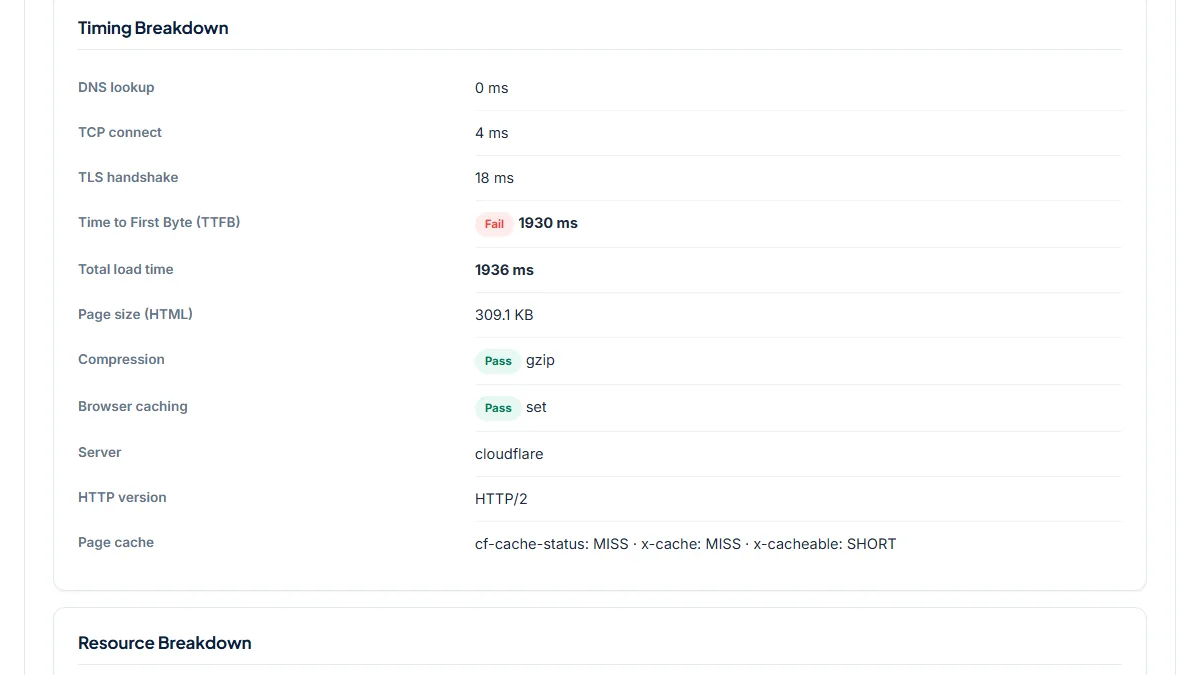
- Front page: 100/100, TTFB 57 ms, Page cache "cf-cache-status: HIT". Search: 53/100, TTFB 1,930 ms, Page cache "cf-cache-status: MISS · x-cache: MISS". Those 1.9 seconds are the time WordPress needs to build a page on this stack. The same search run again came back as a HIT in 33 ms, so the cache keeps search pages after the first visit. Any URL that is not cached yet, such as a just-published post or a page right after a purge, will likely cost its first visitor a similar wait.
2. Host cache switched off: a one-second TTFB on every visit
- Situation
- Hartzler Family Dairy, an Ohio dairy, runs a Beaver Builder theme with WooCommerce on Bluehost (the Bluehost plugin is active). Same day.
- Input
https://www.hartzlerdairy.com/- Reading the result
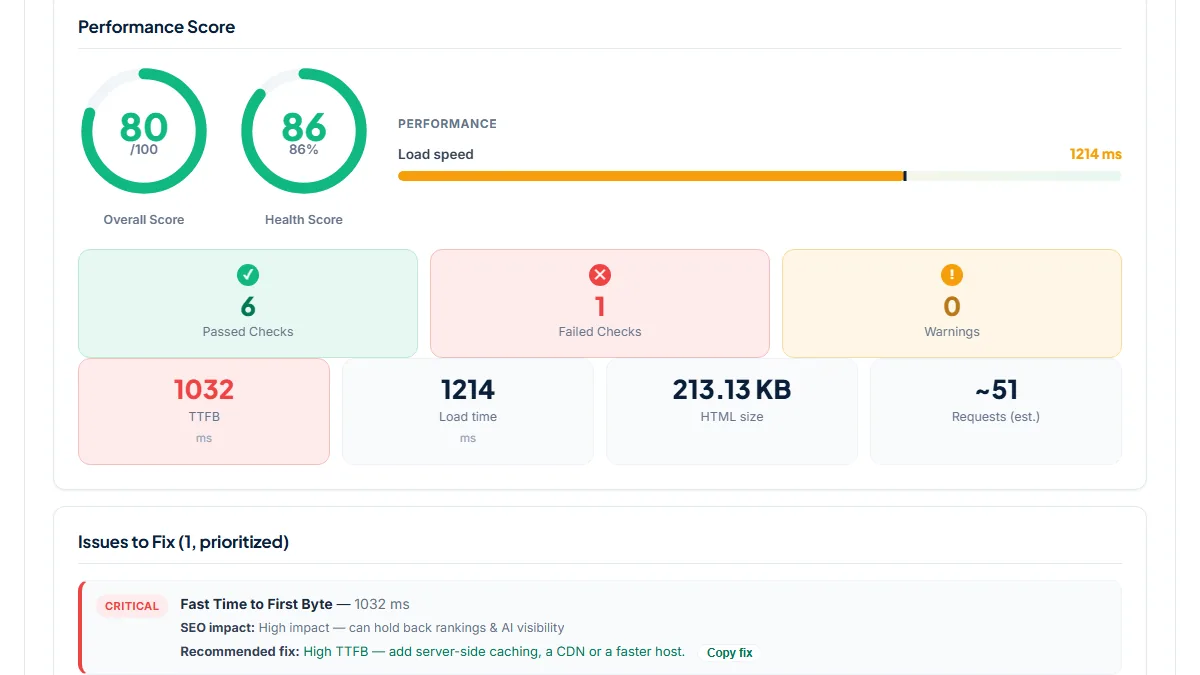
- Score 80/100 with one critical issue: TTFB 1,032 ms, total 1,214 ms; three earlier runs within the same hour gave 1,080 to 1,415 ms. Compression, browser caching, the 213 KB HTML and 24 render-blocking files all pass. Page cache reads "x-nginx-cache: WordPress · x-endurance-cache-level: 0": no HIT anywhere, and level 0 is the off position of the Endurance page cache that Bluehost uses. Switching that cache on, or adding a cache plugin, is the first fix. Minifying files would not shorten a one-second wait for the server.
3. WP Rocket answers fast, then 83 files block the render
- Situation
- MOREAN, a German construction-visualization studio, builds its site with Elementor Pro, WPML and JetSearch and caches it with WP Rocket. Same day.
- Input
https://morean.de/- Reading the result
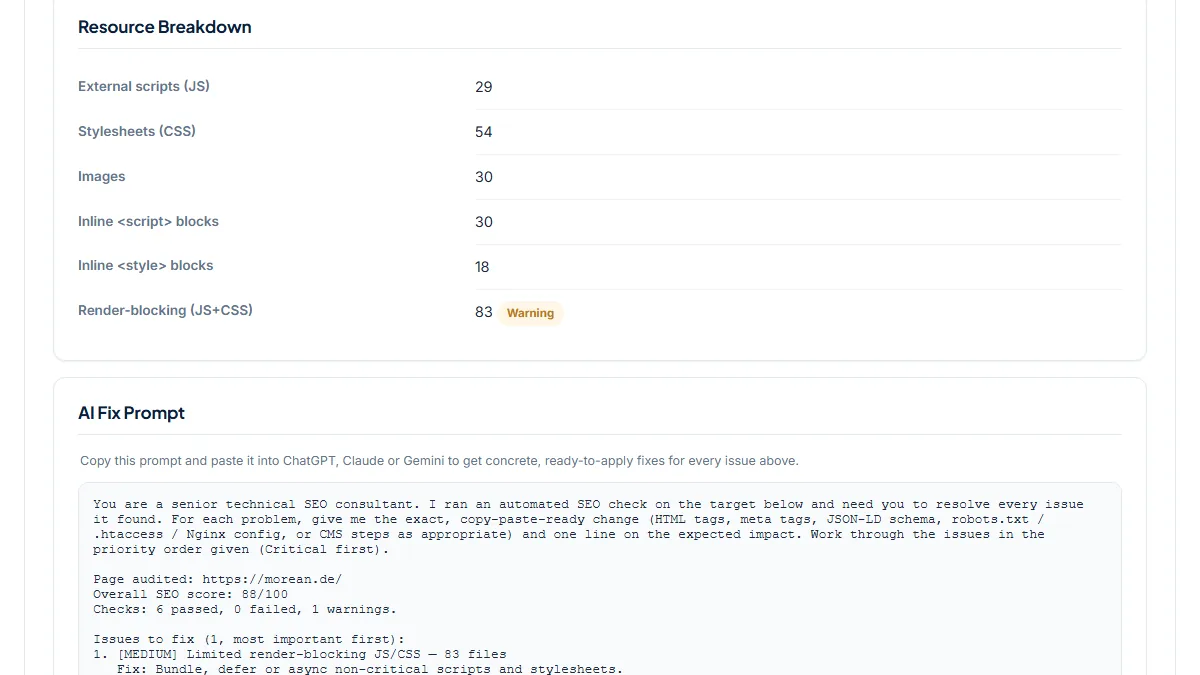
- Score 88/100, TTFB 265 ms, total 307 ms, Page cache "WP Rocket comment in HTML": the cache works. The one issue is Render-blocking (JS+CSS): 83 files, 54 stylesheets and 29 external scripts in a 245 KB HTML, with Elementor's generated post CSS and add-on styles among them. The server side is done here. Further gains come from loading fewer assets, and their render cost needs a browser-based test such as PageSpeed Insights, which this HTML-level check does not replace.
Common mistakes
- Judging speed while logged in as admin. Caches skip you, so you chase a slowness visitors never see, or miss the one they do.
- Stacking a second cache or optimization plugin on top of WP Rocket, LiteSpeed or the host's own cache. Two layers doing one job make purges unpredictable and can serve stale or broken pages.
- Switching on minify, combine, defer and delay for JavaScript all at once on a builder site, then not knowing which one broke the menu, the slider or the checkout.
- Forcing WooCommerce cart, checkout or my-account pages into the page cache to make them "fast". They hold one shopper's data and must stay dynamic; speed them up on the server instead.
- Purging the whole cache after every edit with preload switched off, so the next visitors and Googlebot get uncached, PHP-built pages until the cache fills again.
Frequently asked questions
My site is fast for visitors but slow when I'm logged in. Is something broken?
Usually not. WP Super Cache, W3 Total Cache and most host caches serve logged-in users a fresh page, because the admin bar, carts and account details differ per person. You see the PHP speed; logged-out visitors see the cached copy. Run the URL here, always logged out, and check the Page cache row. If logged-in speed matters, for members or shop customers, look at an object cache such as Redis, the PHP version, and slow plugins in Query Monitor.
I installed a caching plugin, but PageSpeed still says "Reduce initial server response time". Why?
The warning describes the request that was measured. If the page had just been purged, or nobody had visited it since, the cache had nothing to serve and PHP built it. Run the URL here twice: a HIT and a short TTFB on the second run means caching works and the slow run was a cold cache, so turn on the plugin's preload. If both runs are slow, the page is excluded from caching, a cookie or query string is bypassing it, or the host is the limit.
How many plugins is too many for WordPress speed?
There is no magic number. The WordPress optimization documentation says both the number of plugins and their performance affect speed, and suggests deleting unneeded ones and testing by disabling plugins selectively. One heavy plugin can cost more than twenty small ones. Measure an uncached URL here, deactivate a suspect on a staging copy, purge, and measure the same URL again. Two plugins doing the same job, such as two caches or two SEO plugins, are the first to go.
Since I turned on minify and combine, my menu or slider is broken. What now?
Turn the options off one at a time (CSS minify, CSS combine, JavaScript defer, JavaScript delay), purging the cache after each, until the feature works again; then exclude only the file that broke it. Test these settings on a staging copy first. Combining also matters less than it used to: on HTTP/2, shown in the HTTP version row, removing assets you do not use usually helps more than bundling them.
Why are my WooCommerce cart and checkout slower than the rest of the shop?
They are meant to be. WooCommerce marks cart, checkout and my-account as do-not-cache pages because their contents belong to one shopper, and cache plugins honour that. Their TTFB is therefore always your PHP speed. Run the checkout URL here: if it takes well over a second while cached product pages are quick, improve the server side, meaning hosting plan, PHP version, object cache and fewer plugins hooking into checkout, rather than forcing those pages into a cache.
Reference: Ahrefs' WordPress SEO guide warns that a theme bloated with unnecessary code slows a site down and that enabling minification can break features, so changes are best tested on a staging copy before going live.