
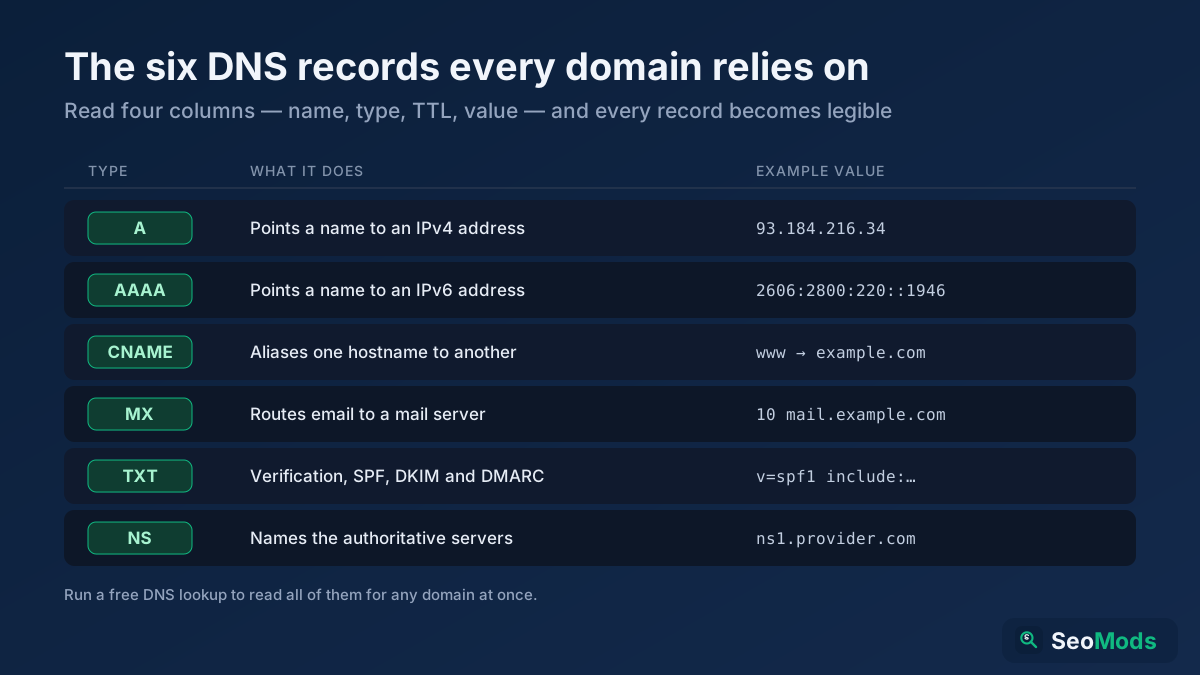
Every time you type a domain into a browser, send an email, or click a link, a quiet system works in the background to figure out where that request should actually go. That system is DNS — the Domain Name System — and the instructions it follows are called DNS records. They decide which server answers for your website, where your email is delivered, which services are allowed to send mail on your behalf, and how the whole thing stays connected as you move hosts or add new tools. Most of the time these records are invisible, but the moment a site goes down, an email bounces, or a migration goes sideways, DNS records are the first place a professional looks. This guide explains the core record types — A, AAAA, CNAME, MX, TXT and NS — in plain language: what each one does, how to read it, the mistakes that break sites, and how to check any domain's live records for free.
Quick answer: A DNS record is a single line of configuration that tells the internet how to handle part of a domain. The most common types are A (points a domain to an IPv4 address), AAAA (points it to an IPv6 address), CNAME (aliases one name to another), MX (routes email to a mail server), TXT (holds text such as SPF, DKIM and verification records) and NS (names the authoritative name servers for the domain). Run DNS Records Lookup on any domain to see all of them at once.
What is DNS and why do records matter?
The internet routes traffic using IP addresses — numbers like 93.184.216.34 — but people remember names like example.com. DNS is the global phone book that translates between the two. When you own a domain, you publish a set of DNS records that answer specific questions about it: Which server hosts the website? Where should email go? Who is allowed to prove they control this domain? Each record type answers one of those questions.
These records live in a zone file managed by your DNS provider — often your registrar, your host, or a dedicated provider like Cloudflare or Route 53. Whenever a browser, mail server, or app needs to reach your domain, it queries DNS, receives the relevant records, and acts on them. Because the whole internet trusts these answers, a single wrong or missing record can take a site offline or silently break email. Understanding what each record does is the difference between guessing and fixing.
How a DNS lookup actually works
Before diving into the record types, it helps to see the chain of events behind a single lookup. When someone visits your site, their device asks a resolver (usually run by their ISP or a public service like 8.8.8.8) for your domain's address. If the resolver does not already have the answer cached, it walks the DNS hierarchy: it asks a root server which name servers handle the top-level domain (.com), asks the TLD servers which name servers are authoritative for example.com, and finally asks your authoritative name servers for the specific record it needs.
That last step is why NS records matter so much — they are the signpost that points the whole internet to the server holding your real records. Each answer comes with a TTL (time to live), a number in seconds that tells resolvers how long they may cache the result before asking again. TTL is the reason DNS changes are not instant: a record with a TTL of 3600 can be remembered for an hour, so a change you make now may take that long to reach everyone. Lowering TTL before a migration and raising it afterward is a standard professional move.
The anatomy of a DNS record
Every DNS record, regardless of type, shares the same basic structure. Once you can read these four columns, every record type becomes easy to interpret.
- Name (host) — the part of the domain the record applies to.
@or a blank name means the root domain (example.com);wwwmeans thewwwsubdomain;mailmeansmail.example.com, and so on. - Type — the record type: A, AAAA, CNAME, MX, TXT, NS and others. This tells the resolver what kind of answer to expect.
- TTL — how long, in seconds, the record may be cached before it must be looked up again.
- Value (data) — the actual answer: an IP address, another hostname, a mail server, a block of text, and so on. Some types add extra fields, such as the priority number on MX records.
When you run a DNS Records Lookup, you are simply reading these columns for every published record. Let's go through the six types you will meet most often.
A record: points a domain to an IPv4 address
The A record (short for Address) is the most fundamental record on the web. It maps a hostname to an IPv4 address — the classic four-number format like 93.184.216.34. When a browser wants to load example.com, the A record tells it which server to connect to. No A record (or no equivalent), no website.
A typical setup has an A record on the root domain pointing to your web server's IP, and often a second one for www. A single hostname can have multiple A records pointing to different IPs, which is a simple way to spread traffic across servers (round-robin DNS). If your site suddenly stops loading after a host change, a stale or missing A record is the usual culprit. You can confirm the address a domain resolves to — and the server and location behind it — with IP & Geolocation Lookup, which maps an IP to its hosting organization and geography.
AAAA record: the IPv6 version of an A record
The AAAA record (pronounced "quad-A") does exactly what an A record does, but for IPv6 addresses — the longer, colon-separated format like 2606:2800:220:1:248:1893:25c8:1946. IPv6 exists because the world ran out of the roughly four billion available IPv4 addresses, and it offers a vastly larger address space.
Modern hosts and CDNs publish both A and AAAA records so that visitors on IPv6 networks connect natively while everyone else falls back to IPv4. You are not required to have an AAAA record — plenty of sites run fine on IPv4 alone — but adding one is good future-proofing and can slightly improve connectivity for mobile and international users. If you add IPv6, make sure your server actually listens on that address; publishing an AAAA record that points nowhere causes slow or failed connections for IPv6 clients while IPv4 users see no problem, which makes it a genuinely tricky bug to spot.
CNAME record: aliases one name to another
A CNAME record (Canonical Name) does not point to an IP address at all — it points one hostname at another hostname. It says, in effect, "www.example.com is really an alias for example.com" or "shop.example.com is handled by myshop.myplatform.com." The resolver then looks up the target name's own records to find the final address.
CNAMEs are everywhere because they let you delegate a subdomain to a third-party service without hardcoding its IP. When a platform like a website builder, help desk, or email tool tells you to "create a CNAME pointing to something.theirservice.com," this is why — if they ever change servers, they update their record and your alias follows automatically, no action needed from you.
There is one important rule: you cannot put a CNAME on the root domain (also called the apex, e.g. example.com with no subdomain) in standard DNS, because the apex must also carry other records like MX and NS, and a CNAME is not allowed to coexist with them. This is why you point www with a CNAME but the apex with an A record — or use a provider's special "CNAME flattening" / ALIAS feature that works around the limitation. Getting this wrong is one of the most common DNS mistakes, and it often shows up as email or the root domain quietly failing.
MX record: routes email to a mail server
The MX record (Mail Exchange) controls where email addressed to your domain is delivered. When someone emails you@example.com, the sending server looks up the MX records for example.com and hands the message to the mail server listed there. Your website's A record and your MX record are completely independent: you can host your site in one place and your email somewhere else entirely, which is exactly what happens when you use a provider like Google Workspace or Microsoft 365.
MX records carry an extra field: a priority number (also called preference). Lower numbers are tried first. A domain often lists several MX records at different priorities so that if the primary mail server is unreachable, senders fall back to a backup. For example, a priority-10 record is the main server and a priority-20 record is the fallback. If your incoming email suddenly stops, missing, misordered, or misdirected MX records are almost always the reason. Because email relies on several record types working together — MX to route it and TXT records to authenticate it — checking them side by side with a DNS Records Lookup is the fastest way to diagnose a mail problem.
TXT record: verification, SPF, DKIM and DMARC
The TXT record is the most flexible of all: it simply holds arbitrary text attached to a name. That freedom makes it the backbone of domain verification and email authentication, and it is where a huge amount of modern configuration lives.
- Domain verification. When a service (Google, Microsoft, a payment provider, a search tool) asks you to prove you control a domain, it usually gives you a unique TXT string to publish. Once it sees the record, it trusts you. This is the same idea behind confirming site ownership before setting up analytics or webmaster tools.
- SPF (Sender Policy Framework). An SPF record is a TXT record that lists which servers are allowed to send email for your domain. It helps receiving servers reject spoofed mail that pretends to come from you.
- DKIM (DomainKeys Identified Mail). DKIM publishes a public cryptographic key as a TXT record so receivers can verify that your outgoing mail was really signed by your server and was not altered in transit.
- DMARC (Domain-based Message Authentication). A DMARC TXT record tells receiving servers what to do with mail that fails SPF or DKIM — monitor it, quarantine it, or reject it — and where to send reports.
Together, SPF, DKIM and DMARC are what keep your email out of spam folders and stop scammers from impersonating your domain. If your legitimate emails are landing in spam, an incomplete or incorrect set of TXT records is very often the cause. Because they are plain text, TXT records are also easy to fat-finger — an extra space, a missing quote, or two conflicting SPF records can quietly break authentication, so verifying the exact published value matters.
NS record: names the authoritative name servers
The NS record (Name Server) declares which servers are authoritative for your domain — that is, which servers hold the real, definitive copy of all the records above. When you buy a domain and point it at a DNS provider, you are setting NS records. They are the top of the chain: the TLD servers use them to tell the world "ask these servers for example.com."
Because NS records control who answers for your domain, they are also the most consequential to change. If your NS records point to the wrong provider — or you update records at a provider that is no longer authoritative — nothing you do will take effect, because the internet is asking a different set of servers entirely. This is the single most common reason a "correct" DNS change appears to do nothing. When you migrate DNS providers, you change NS records at your registrar, and until that propagates, both old and new servers may answer, which is why migrations need care and a low TTL. You can confirm which name servers a domain is actually using with a DNS Records Lookup — and cross-check ownership and registrar details with a WHOIS Lookup if the two disagree.
Other records worth knowing: SOA, SRV, CAA, PTR
Beyond the six core types, a few others appear regularly and are worth recognizing:
- SOA (Start of Authority) — one per zone, holding administrative data like the primary name server, the responsible contact, and timers that control how secondary servers refresh their copy. It is the "header" of your zone.
- SRV (Service) — points to the host and port for a specific service, used by protocols like SIP, XMPP, and some Microsoft services.
- CAA (Certification Authority Authorization) — specifies which certificate authorities are allowed to issue SSL/TLS certificates for your domain, adding a layer of protection against misissued certificates. It pairs naturally with checking a domain's live certificate using SSL Certificate Checker.
- PTR (Pointer) — the reverse of an A record, mapping an IP address back to a hostname. Reverse DNS matters for mail server reputation and is usually set by whoever controls the IP block.
How to check a domain's DNS records for free
Reading DNS records is quick once you know where to look. Here is a reliable workflow:
- Run a DNS lookup. Open DNS Records Lookup, enter the domain (just
example.com, nohttps://), and read the A, AAAA, CNAME, MX, TXT, NS and SOA records it returns in one view. - Confirm the web address. Check that the A (and AAAA, if present) record points to the IP you expect. Resolve that IP to its host and location with IP & Geolocation Lookup if you need to confirm where the site is served from.
- Verify email routing. Read the MX records and their priorities, then check that your SPF, DKIM and DMARC TXT records are present and correctly formatted.
- Check the name servers. Make sure the NS records point to your intended DNS provider. If they don't, that explains why other changes aren't taking effect.
- Cross-check the response. For a fuller picture of how a server is configured, read its HTTP Header Checker to see server software, caching and security headers, and confirm the registration details with a WHOIS Lookup lookup.
Because DNS lookups query live, public data and require no login, you can run them on any domain — yours or a competitor's — as often as you like. If you only need the registration date and age of a domain rather than its full record set, Domain Age Checker isolates that in one step.
DNS and SEO: why records quietly affect rankings
DNS is not a direct ranking factor, but it underpins several things that are. First, availability: if your DNS is misconfigured and the site fails to resolve, search engines cannot crawl it, and repeated downtime erodes rankings. Reliable DNS is a prerequisite for consistent crawling and indexing.
Second, speed: DNS resolution is the very first step of loading a page, and a slow or distant DNS provider adds latency before a single byte is served. Fast, geographically distributed DNS shaves milliseconds off every visit, which supports Core Web Vitals and user experience. Third, migrations: moving to HTTPS or to a new host is fundamentally a DNS operation, and doing it cleanly — correct records, sensible TTLs, no broken CNAMEs — prevents the ranking dips that come from botched cutover. If you are planning an HTTPS migration, getting the underlying DNS and redirects right is half the battle.
Finally, DNS records are part of a healthy technical foundation. Confirming that your A records resolve, your MX and authentication records are intact, and your name servers are correct belongs on every technical SEO audit checklist alongside crawlability, speed, and security checks. A site with clean DNS is a site that stays online, delivers its email, and migrates without drama.
Common DNS mistakes and how to avoid them
DNS is unforgiving because small errors have large, delayed effects. These are the mistakes that trip people up most often.
- Expecting changes to be instant. TTL and caching mean updates propagate over minutes to hours, not seconds. Lower the TTL before a planned change so the switch is faster.
- Putting a CNAME on the root domain. The apex cannot use a plain CNAME because it must also hold NS and MX records. Use an A record or your provider's ALIAS/flattening feature instead.
- Editing records at the wrong provider. If your NS records point elsewhere, changes at your registrar have no effect. Always confirm which name servers are authoritative first.
- Publishing two SPF records. A domain may have only one SPF record; a second one invalidates authentication. Merge all allowed senders into a single record.
- Forgetting the trailing dot or exact value. Many providers require fully qualified names to end with a dot, and a mistyped TXT value silently breaks verification. Copy values exactly and confirm them with a lookup.
- Deleting records during a migration. Removing an old A or MX record before the new one has propagated causes an outage window. Add the new record, wait, then remove the old.
Frequently asked questions
What are DNS records used for?
DNS records tell the internet how to handle a domain: which server hosts the website (A and AAAA), which names are aliases of others (CNAME), where email is delivered (MX), what text and authentication data the domain publishes (TXT), and which name servers are authoritative (NS). You can view all of them for any domain with a free DNS Records Lookup.
What is the difference between an A record and a CNAME?
An A record points a hostname directly to an IPv4 address, while a CNAME points a hostname to another hostname, which is then resolved to find the address. Use an A record for a root domain or when you know the IP; use a CNAME to alias a subdomain to a service without hardcoding its IP. Note that a plain CNAME is not allowed on the root/apex domain.
Why are my DNS changes not working?
The two most common reasons are caching and the wrong provider. Because of TTL, changes take minutes to hours to propagate. And if your NS records point to a different DNS provider than the one you edited, your changes never take effect at all. Confirm the authoritative name servers with a DNS Records Lookup before troubleshooting anything else.
What is a TXT record and do I need one?
A TXT record holds free-form text attached to a domain. In practice it is used for domain verification and for email authentication via SPF, DKIM and DMARC. If you send email from your domain, you almost certainly need TXT records to stay out of spam folders and to stop others from spoofing your address.
How do I check the DNS records of a website?
Enter the domain into a DNS Records Lookup and it returns the live A, AAAA, CNAME, MX, TXT, NS and SOA records in one place. It queries public DNS directly, requires no login, and works on any domain, so you can inspect your own configuration or a competitor's.
What is the difference between DNS and WHOIS?
DNS tells you how a domain is configured — the records that route its traffic and email. WHOIS tells you who registered the domain and when, along with the registrar and expiry date. They complement each other: use a DNS Records Lookup for configuration and a WHOIS Lookup for ownership and registration.
Conclusion
DNS records are the quiet control panel of every domain. The A and AAAA records decide which server answers for your site, CNAME records alias names to services, MX records route your email, TXT records verify ownership and authenticate mail, and NS records point the whole internet to the servers that hold the truth. Once you can read the four columns — name, type, TTL, value — every record becomes legible, and the common failures (instant-change expectations, apex CNAMEs, wrong-provider edits, duplicate SPF) become easy to avoid. Whether you are launching a site, fixing email, planning a migration or running a technical audit, start by reading the live records with a free DNS Records Lookup, confirm the hosting with IP & Geolocation Lookup and HTTP Header Checker, and verify ownership with WHOIS Lookup. The records are public and the tools are free — a one-minute lookup tells you almost everything about how a domain is wired.