Why Portfolio Sites need this
A portfolio is the one kind of site where the content is the weight. A homepage slideshow, a full-bleed hero and a grid of forty project covers are all photographs, and a browser has to fetch each one. Format's SEO guide for photographers calls large, uncompressed images the number one cause of slow photography websites. Owners usually respond by re-exporting everything, without knowing whether images are the problem on that page, or how many of them load before a visitor scrolls.
This test answers the part that can be read from a single request. It fetches the HTML of a URL from our server and reports how long the server took, how heavy the document is, whether it is compressed, how many image tags it holds and how many of those are marked for lazy loading. It does not download a single photo, so it cannot weigh your hero image. What you get is the count that tells you where to look. The examples below add the two-minute manual check that finishes the job.
Portfolio Sites specific guidance
Tips for Portfolio Sites
Run the homepage first, then one gallery or project page, because they are usually different templates. In Resource Breakdown, read two rows together: Images and Images marked lazy. A value of "47 of 55" means 47 image tags ask the browser to wait until the visitor scrolls near them, through loading="lazy" or a script-driven data-src attribute, and 8 load straight away. That remainder is the number to care about. A small remainder made of the logo and the first screen of pictures is what you want. A remainder of dozens means most of the gallery is requested on arrival.
Then weigh the files the tool only counts. Open the page in Chrome or Firefox, open the developer tools, choose the Network tab, filter to images and reload. The size column shows what each photograph cost, and sorting by it usually puts the hero on top. Compare the pixel width of that file with the width it is displayed at: a 6000-pixel export in a 1200-pixel slot is the commonest waste.
Leave the server rows for last, but do read them. Time to First Byte is rated good under 200 ms, a warning under 600 ms and a fail above that. On a hosted builder it is mostly the platform's business; on your own hosting it is yours. Compression should never read "none".
The costliest mistake
The trap on this page is the score. All seven scored checks look at the document and the server, and the only image check asks whether there are more than 40 image tags. A homepage with one enormous hero passes it. Read the score as "the page is delivered properly", never as "the photos are light".
Quick start
- Run the homepage; note Images and Images marked lazy.
- Subtract the second from the first: that many pictures load up front.
- In the browser's Network tab, sort the images by size.
- Re-export the heaviest at the width the layout shows, and replace them.
- Reload the Network tab to confirm. Run this test again when you change lazy loading, the template or the hosting.
What this tool does not tell you
- It does not download images, so it reports no file size, pixel dimensions or format for any photo. Weighing the hero is a manual step in your browser's Network tab.
- It counts image tags in the HTML. CSS background images, which many themes use for a full-bleed hero, and pictures a script inserts after load are not counted; a gallery built entirely by JavaScript can read "Images 0".
- It is one request from our server, with no browser: no Largest Contentful Paint, no layout shift, no phone. "Images marked lazy" shows what the markup asks for, not when a picture appears on screen.
- Timing moves between runs. Run a URL two or three times before acting on Time to First Byte.
Real examples
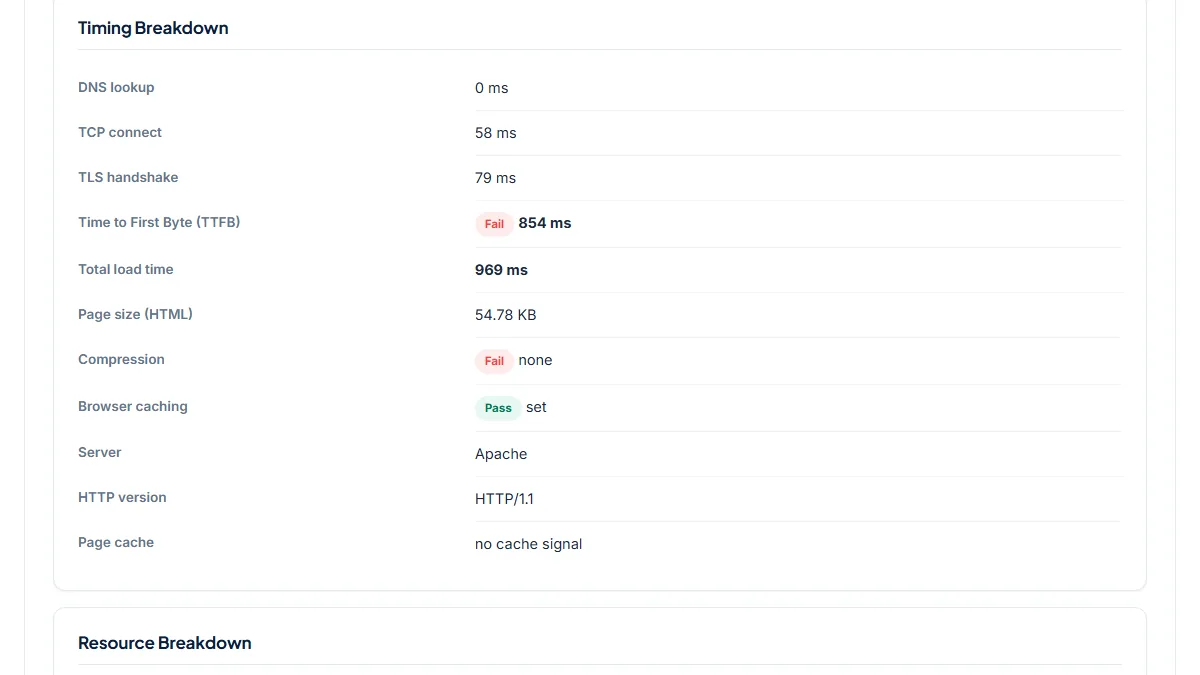
1. Slideshow homepage: 54 KB of HTML that asks for 46 large images at once
- Situation
- The site of London photographer Nadav Kander opens with a curated slideshow and runs on its own Apache hosting. We ran the homepage on 12 November 2026.
- Input
https://www.nadavkander.com/- Reading the result
- Score 57/100: Time to First Byte 854 ms (732 to 1,023 ms over six runs within the hour), Compression "none" on a 54.78 KB document, HTTP/1.1. Resource Breakdown: Images 92, Images marked lazy 46 of 92. The markup holds two tags per slide, a deferred thumbnail and a plain large file, so 46 large images are requested on arrival. That is where the tool stops. We then requested those 46 files ourselves: about 6.8 MB in total, the largest a 2.1 MB PNG. The HTML is under one percent of that weight. On a page built like this, deferring every slide after the first would save far more than the compression fix, although switching compression on is quick too.
2. Project grid: 47 of 55 images deferred, and the wait is the server
- Situation
- Lettering artist Jessica Hische's portfolio lists dozens of projects as thumbnails on the homepage and sits behind Cloudflare. Same day.
- Input
https://www.jessicahische.is/- Reading the result
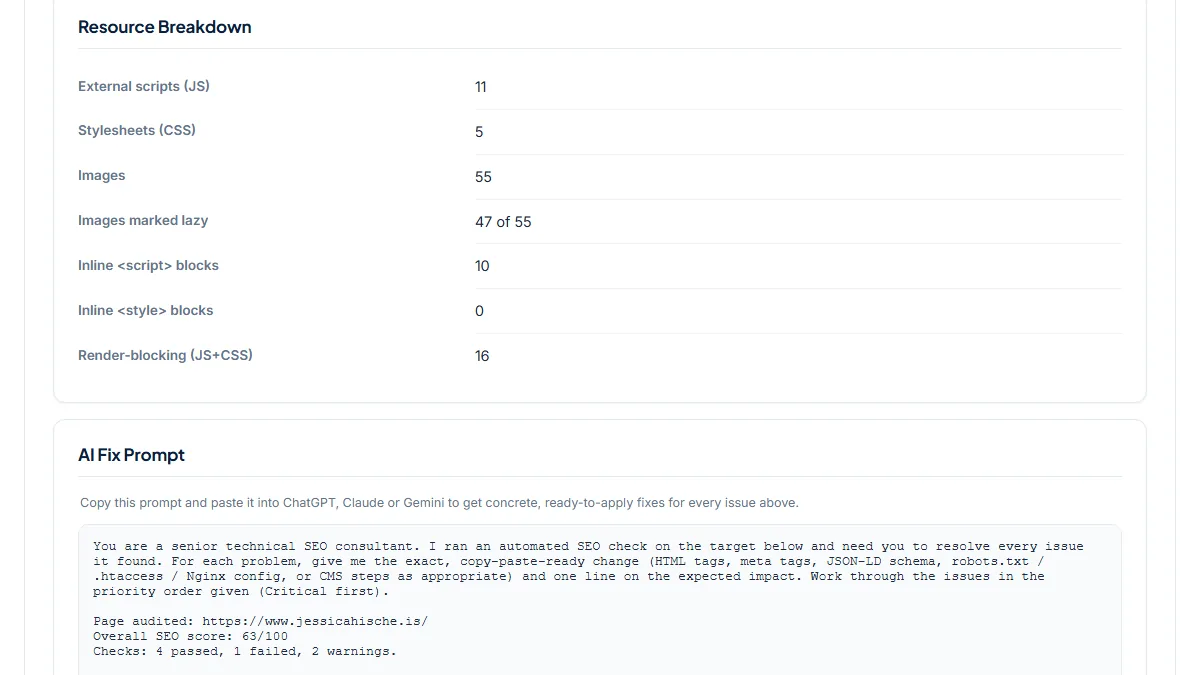
- Score 63/100. Images 55 trips the 40-image warning, but Images marked lazy reads 47 of 55: only eight load up front. We weighed those eight by hand: about 494 KB together, the largest 290 KB, all resized JPEGs between 400 and 1000 pixels wide. The pictures are in good order. The time goes earlier: Time to First Byte 890 ms (832 and 992 ms on two other runs), with Page cache "cf-cache-status: DYNAMIC", which means Cloudflare passed the request to the origin server instead of answering from its own cache, and Browser caching "not set". On this page the image-count warning is the one to set aside, and the server rows are the ones worth acting on.
3. A 100/100 Squarespace slideshow, and what the score leaves open
- Situation
- Photographer Joel Meyerowitz's site is a Squarespace build whose homepage is a 15-picture slideshow. Same day.
- Input
https://www.joelmeyerowitz.com/- Reading the result
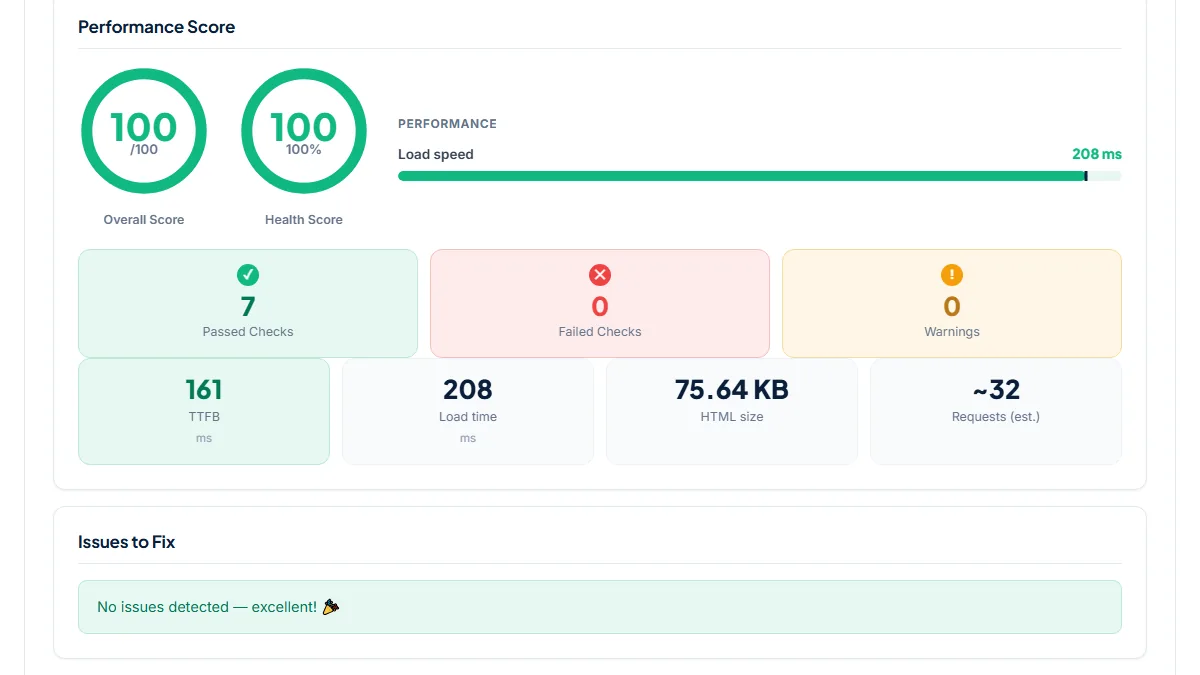
- Score 100/100: Time to First Byte 161 ms, total 208 ms, 75.64 KB of HTML sent with gzip, 16 render-blocking files, Images 15, Images marked lazy 15 of 15. Every image, the first slide included, is handed to the platform's loader script through
data-src, so no photograph is fetched until that script runs. The first slide answered our direct request at about 115 KB as WebP, a sensible weight. The report is as clean as it gets. Note what it did not test, though: how long the script takes to put that first picture on a phone screen. That is a browser measurement, and PageSpeed Insights is where to get it.
Common mistakes
- Reading a high score as proof that the photos are light. No check weighs an image; a 100 can sit on top of a multi-megabyte hero.
- Lazy-loading everything, the hero included. The first picture a visitor sees should load at once; defer what sits below the first screen.
- Uploading the camera or print export and letting the page scale it down. The browser still downloads every pixel. Export at the largest width the layout shows.
- Answering the 40-image warning by removing work from the page. When most of those images are marked lazy the count costs little; look at the ones that load up front.
- Testing the homepage only. Gallery and project pages often hold more pictures and use another template.
Frequently asked questions
Does this test tell me how heavy my hero image is?
No. It downloads the HTML document only and never requests a photo, so it has no file sizes. It tells you how many image tags the page holds and how many are marked for lazy loading, which shows how many pictures load on arrival. To weigh the hero, open the page in your browser, open the developer tools, pick the Network tab, filter to images and reload, then sort by size. In our first example that manual step found a 2.1 MB PNG behind a 54 KB document.
What does "Images marked lazy: 46 of 92" mean?
Of the 92 image tags in the HTML, 46 carry loading="lazy" or a data-src style attribute that hands loading over to a script, and 46 do not. The unmarked ones are requested as soon as the browser reads them, wherever they sit on the page. The row describes the markup, so it cannot confirm when a picture shows up on screen. A healthy pattern is a handful of unmarked images, meaning the logo and the first screen, with everything further down marked lazy.
Should my hero image be lazy-loaded as well?
Generally not. Lazy loading tells the browser to wait, and the hero is the picture your visitor is waiting for. Load it normally, at the width the layout shows and in a compressed format, and defer the images below the first screen. Site builders often decide this for you: in our Squarespace example all 15 images, the first slide included, go through the platform's loader script. On a hosted builder that behaviour is largely the platform's choice, so your main lever is the file you upload.
My portfolio scores 100 here. Why does it still feel slow on my phone?
Because the score covers the document and the server: response time, HTML weight, compression, caching headers and the counts of scripts, stylesheets and image tags. The photographs themselves, slideshow scripts and fonts load afterwards and are not measured, and a phone on mobile data feels exactly that part. Check the image weights in the Network tab, then run the page through PageSpeed Insights, which loads it in a real browser and reports Largest Contentful Paint. Use this test first, to rule the server in or out.
Is a slow Time to First Byte my fault or my platform's?
It depends on where the site lives. On a hosted builder the servers belong to the platform, and you can do little beyond running the test again at another hour. On your own hosting it is yours to fix, with a page cache, a CDN that really caches the HTML, or a better plan. The Page cache row helps you tell: "DYNAMIC" or a MISS means the page was built for your request, as in our second example, where the first byte took 890 ms.
Reference: Format's SEO guide for photographers names large, uncompressed images as the main cause of slow photography websites and advises resizing to the largest display size needed, compressing before upload and avoiding massive hero images.